You will need
- Your invite linkFrom your manager, by text or email, or a QR code to scan. It works once, for 72 hours.
- A phone with a front camera that worksThe app is in testing on Android. The iPhone app is not in the App Store yet.
- An internet connectionYour location’s WiFi, or mobile data at a location that checks where you are.
- A six-digit passcodeYou choose it when you set up. Only you know it.
Using the clock-in tablet instead? See what staff see on the tablet.
Get the app
The Daxova Staff app is in testing on Android, and not in the App Store yet for iPhone. Until it is there, you can clock in on the clock-in tablet at work: your manager gives you a link to choose your passcode. There is nothing for you to pay: your employer pays for Daxova Staff.
Link your phone
Your manager sends you an invite link by text or email, or shows you a QR code to scan. It works once, for 72 hours. Get the app first, then:
- Tap the invite link on your phone, or open your phone’s camera and point it at the QR code. The app opens with everything filled in. Tap Continue.
- Is this you? Check your staff code and your location, then tap Yes, that is me.
- Read How your information is used to the end, then tap I have read this.
- Choose a passcode: six digits, typed twice. Then tap Finish setting up.
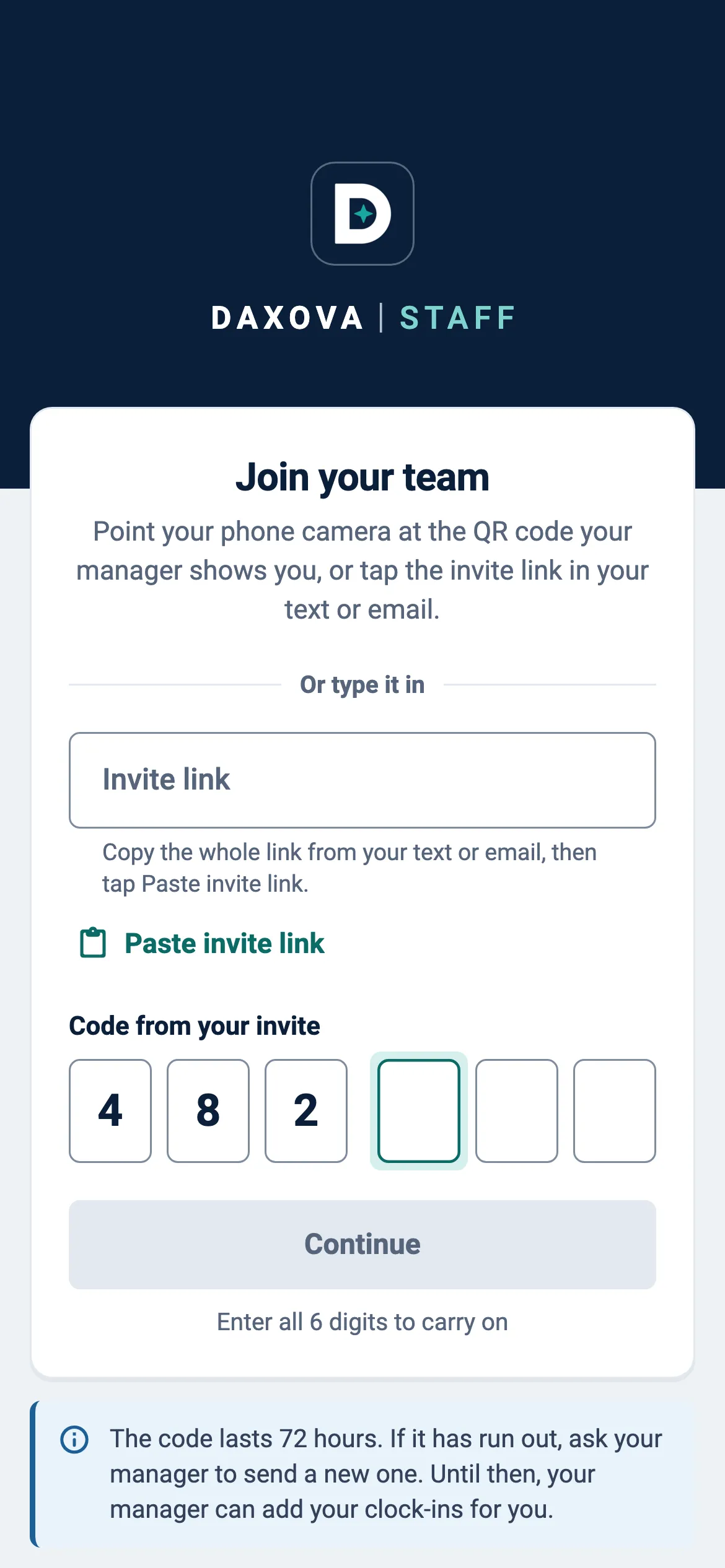
Did the app not open?
Open it yourself. Under Or type it in, copy the whole link from your text or email and tap Paste invite link: it fills in the link and the code. Then tap Continue. If the link opens a web page instead, it tells you how to get the app.
Your clock-ins now work only from this phone. Nobody can look up your passcode, not your manager and not us, so choose one you will remember.
Clock in and Clock out
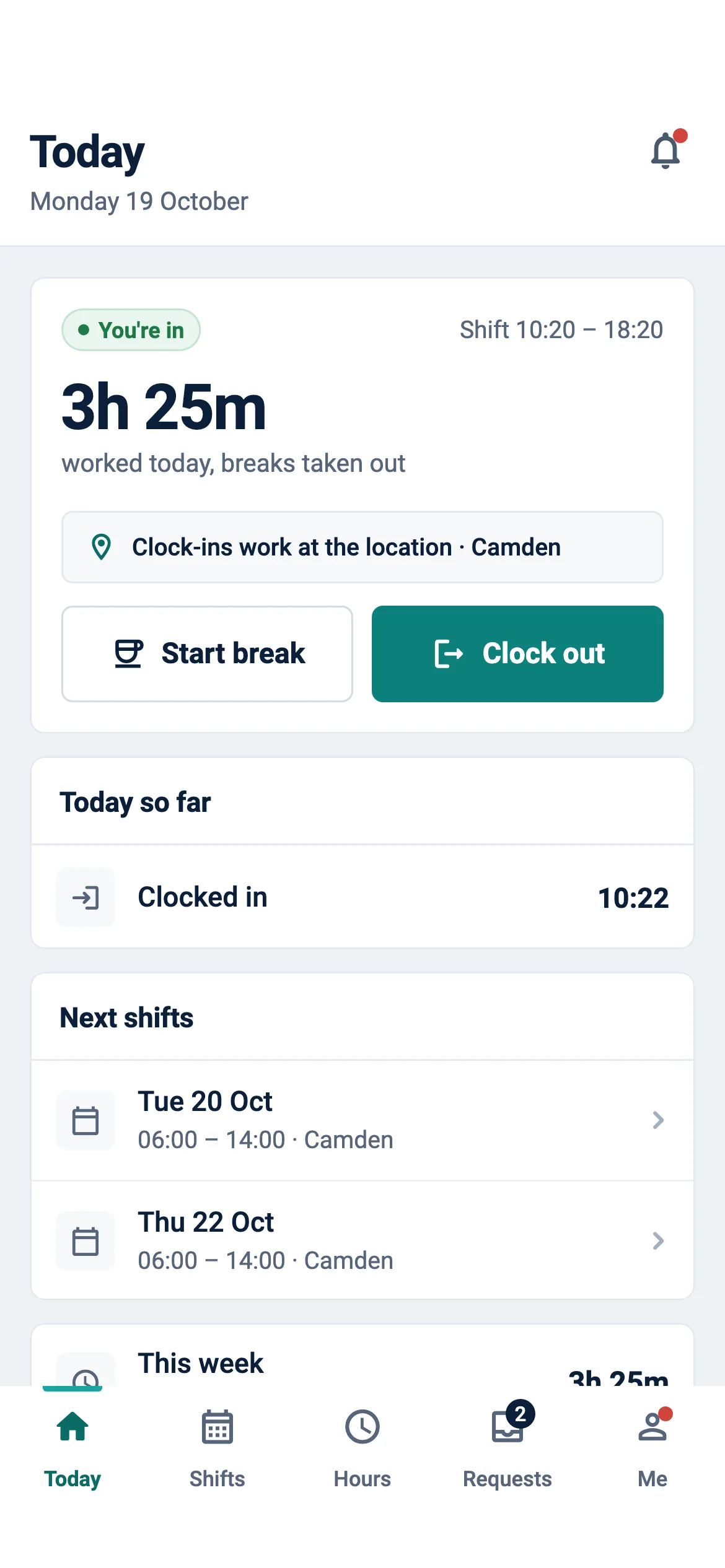
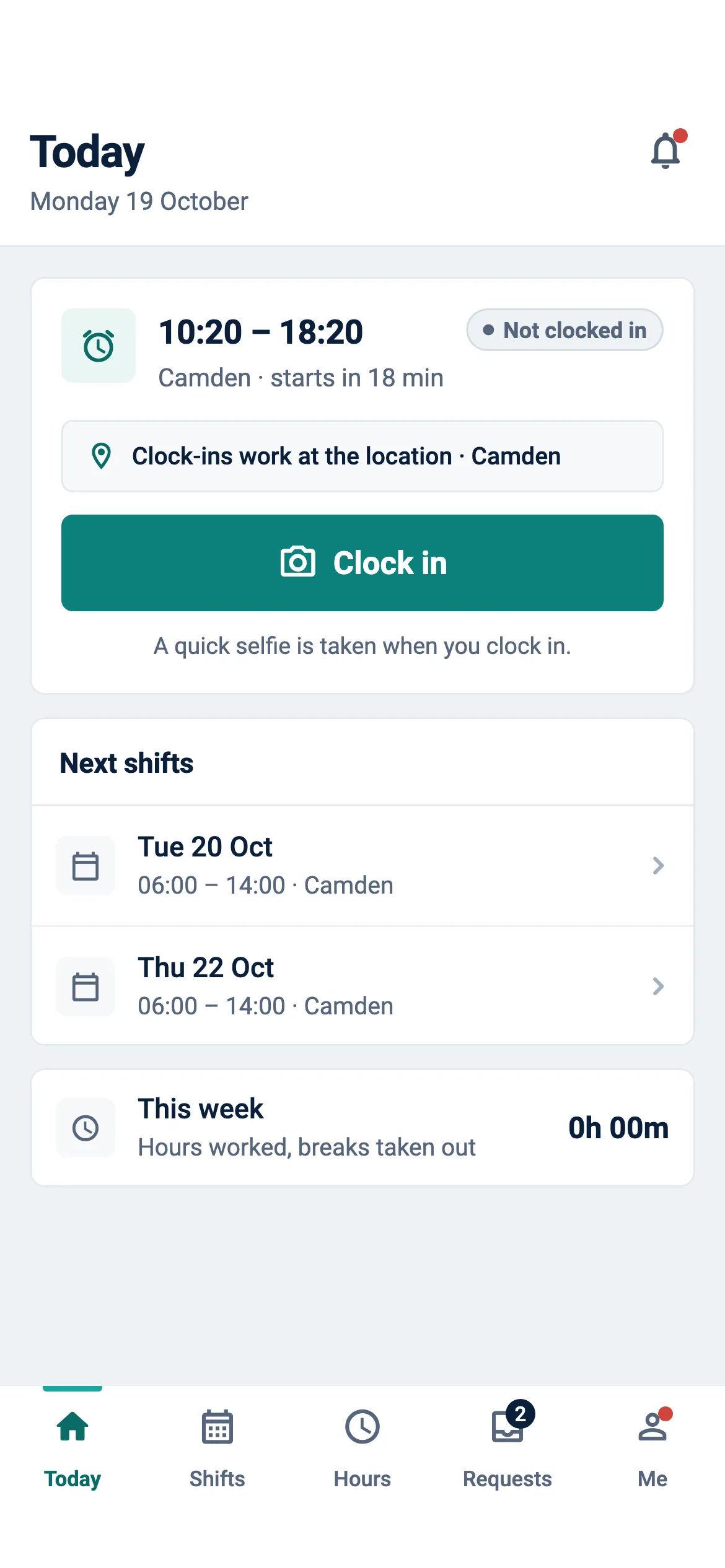
The app opens on Today. It shows today’s shift and your location, and a line that says how your location checks clock-ins, for example “Clock-ins work on the location WiFi”.
- Tap Clock in. The front camera opens: look at it and tap the wide Clock in button.
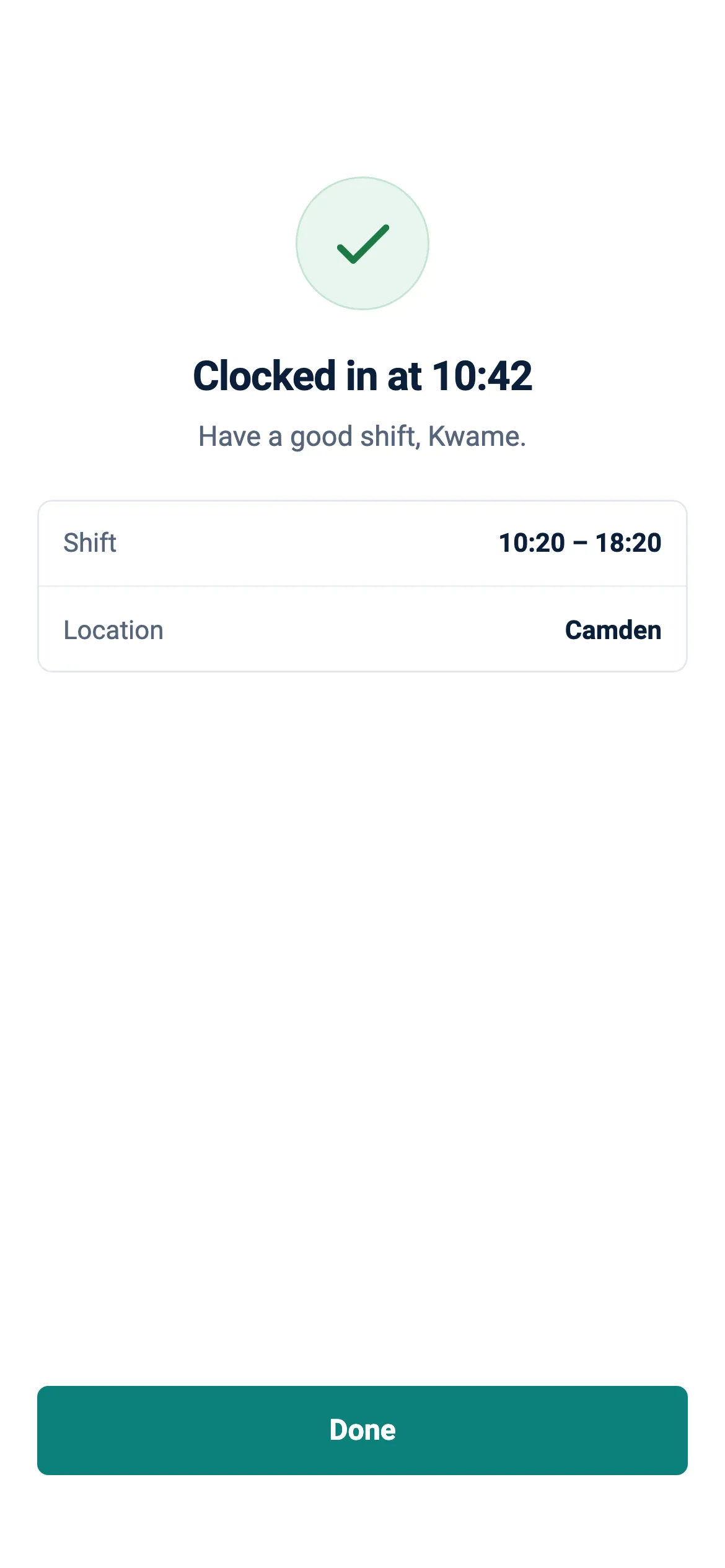
- Wait a moment while it saves. You see a tick and the time, for example “Clocked in at 08:57 · Camden High St”. Tap Done.
- On your break, tap Start break, and End break when you are back. Breaks need no photo.
- At the end of your shift, tap Clock out and take the photo again.
The live photo
Clock in and Clock out take a photo with your front camera, there and then. It cannot come from your photo gallery. The camera screen tells you who can see it:
What happens to the photo
- It is stored encrypted, and deleted after the period your employer has set.
- Every time somebody opens it, that is logged.
- There is no face recognition. If anyone needs to check who clocked in, a person looks at the photo.
- If the camera is turned off for the app, turn it on in your phone’s Settings. A photo is needed to clock in and out.
The location check: WiFi or where you are
Each location checks clock-ins either by its own WiFi or by where your phone is, so clock-ins only work there. The line under the button on Today tells you which one your location uses.
At a location that checks WiFi
Join the location’s WiFi before you clock in, and turn off any VPN. Mobile data will not work there. The app does not use your phone’s location at all.
At a location that checks where you are
Allow location for Daxova Staff “while using the app”, and turn on precise location: Precise Location on an iPhone, Use precise location on Android. The app reads your phone’s location only at the moment you clock in, never in the background. Apps that change your phone’s location are refused.
If a clock-in does not go through
The app always says why, and what to do next. Trying again is safe: the same clock-in is never counted twice.
At a location that checks WiFi“Clock-in not saved”
You are not on the location’s WiFi. The screen lists what to do: open WiFi settings on your phone, join the location WiFi, turn off any VPN, then tap Try again.
At a location that checks where you are“Clock-in not saved”
The screen says what to change: turn on Location Services, allow location while using the app, or turn on precise location. Open Settings takes you to the right page. If your phone could not find you precisely enough, step near a window or the door and try again.
If it says you are a number of metres from the location, you are outside the location’s area. Clock-ins only work within the distance your location has set.
The app says“Clock-in not confirmed”
No answer came back, so the app cannot tell whether your clock-in was saved. Check you are on the location WiFi and tap Try again. If the clock-in was saved already, it is not counted twice.
The app says“This location is not on your record”
Clock-ins only work at your own locations. Ask your manager to add the location to your record, or to add the clock-in for you.
The app says“This phone cannot clock in”
This is not the phone linked to you, or it could not be confirmed as yours. Update the app, or ask your manager to link the phone.
The app says“The photo did not work”
Tap Take the photo again. If the camera is turned off for the app, turn it on in your phone’s Settings.
Use the clock-in tablet instead
If your location has a clock-in tablet, you can clock in and out there too, for example when your phone is flat or left at home.
- Tap Staff code and type your code, or tap Find your name and type the first letters of your first name, then tap your name.
- Say why you are using the tablet, for example Phone left at home. Skip this if the tablet is how you always clock in.
- Enter your six-digit passcode. It is the passcode you chose in the app, or from your passcode link.
- Tap Clock in, Clock out, Start break or End break.
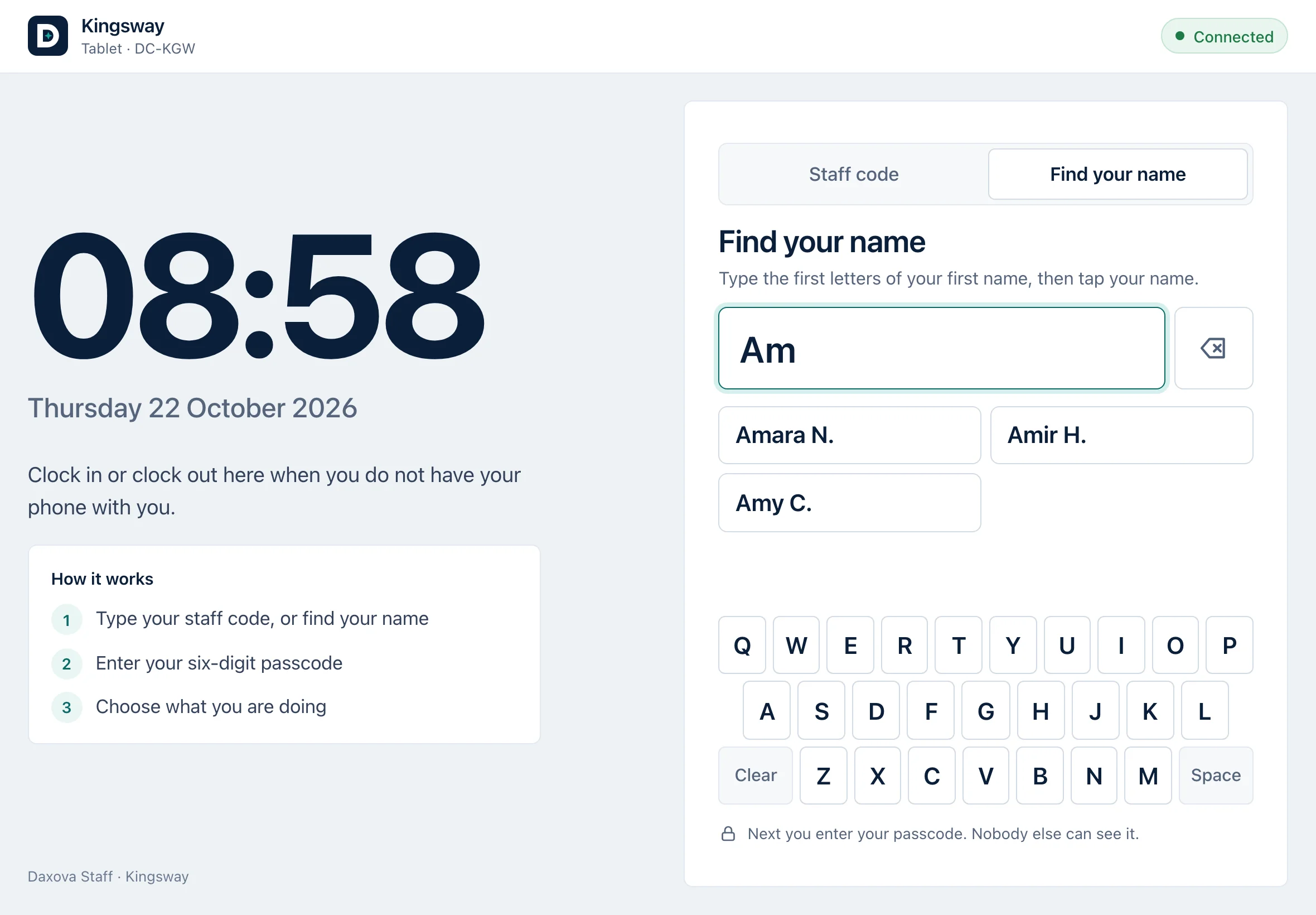
You can start and end your breaks on the tablet too. See Clock in, clock out and take breaks.
Your shifts and hours
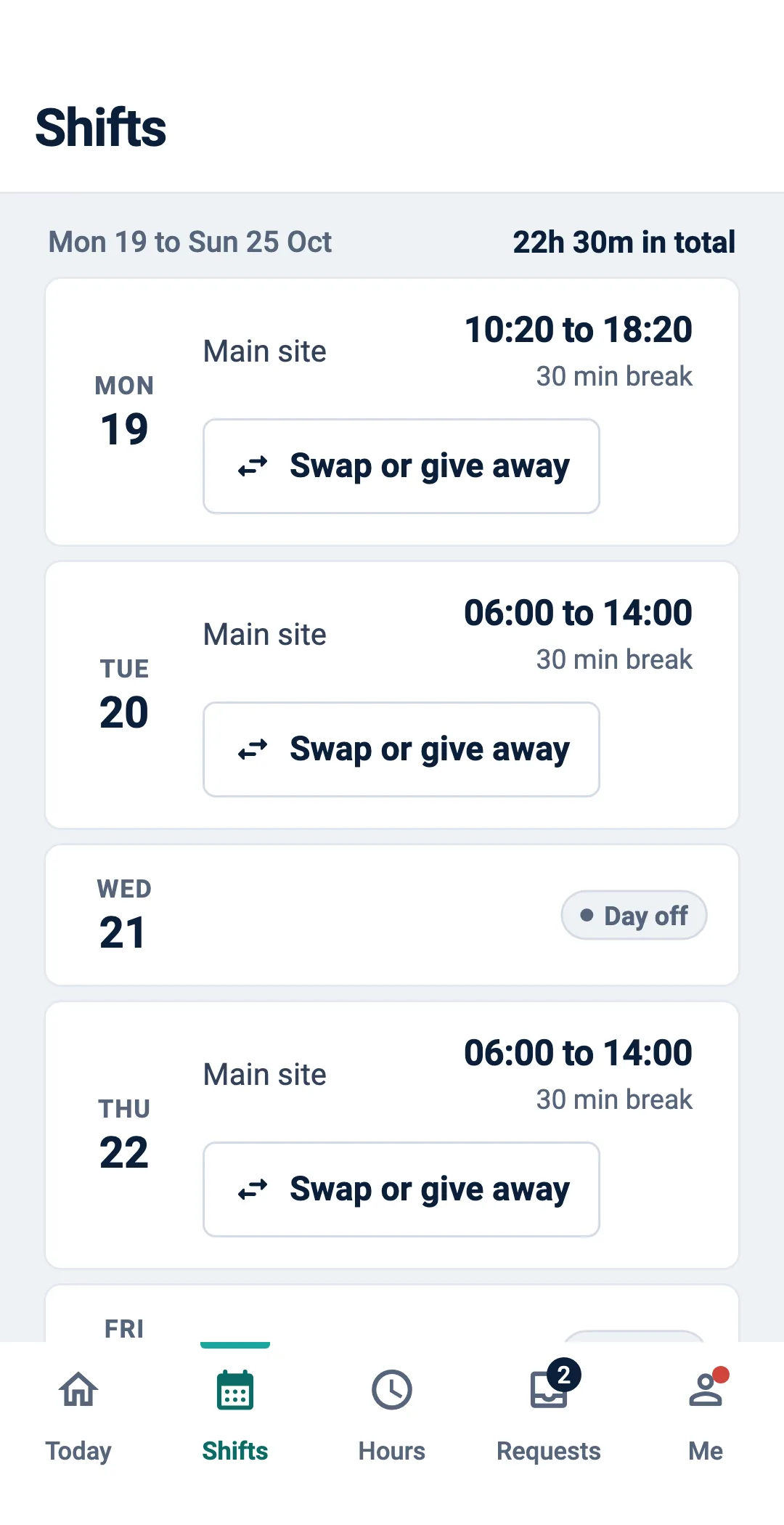
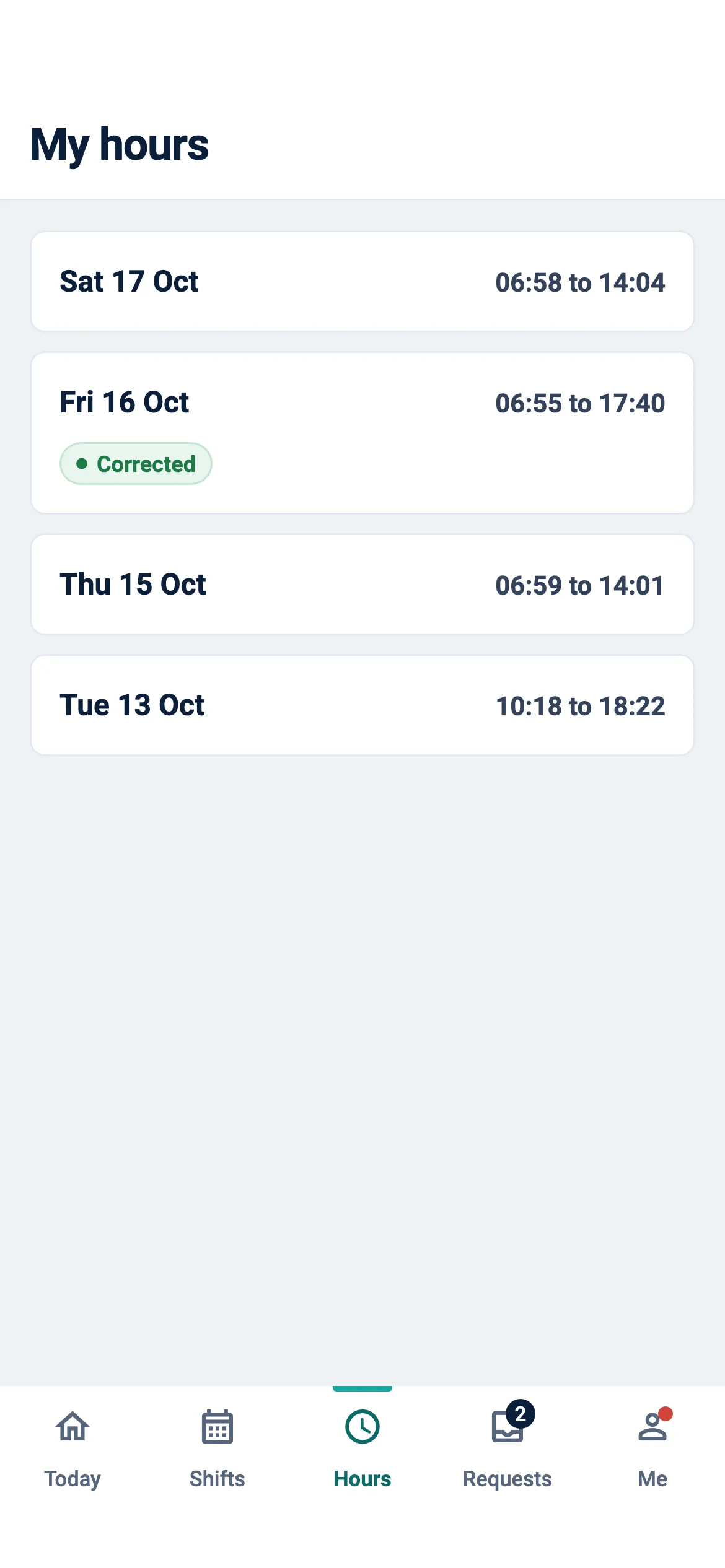
The Shifts tab shows this week and next week: each day’s shift times and break, or Day off. You see a week once your manager publishes it. Hours shows every shift you have worked, with your clock-in times and breaks. A shift a manager has corrected is marked Corrected, and one with no clock-out says No sign-out recorded.
Ask for a clock-in fix
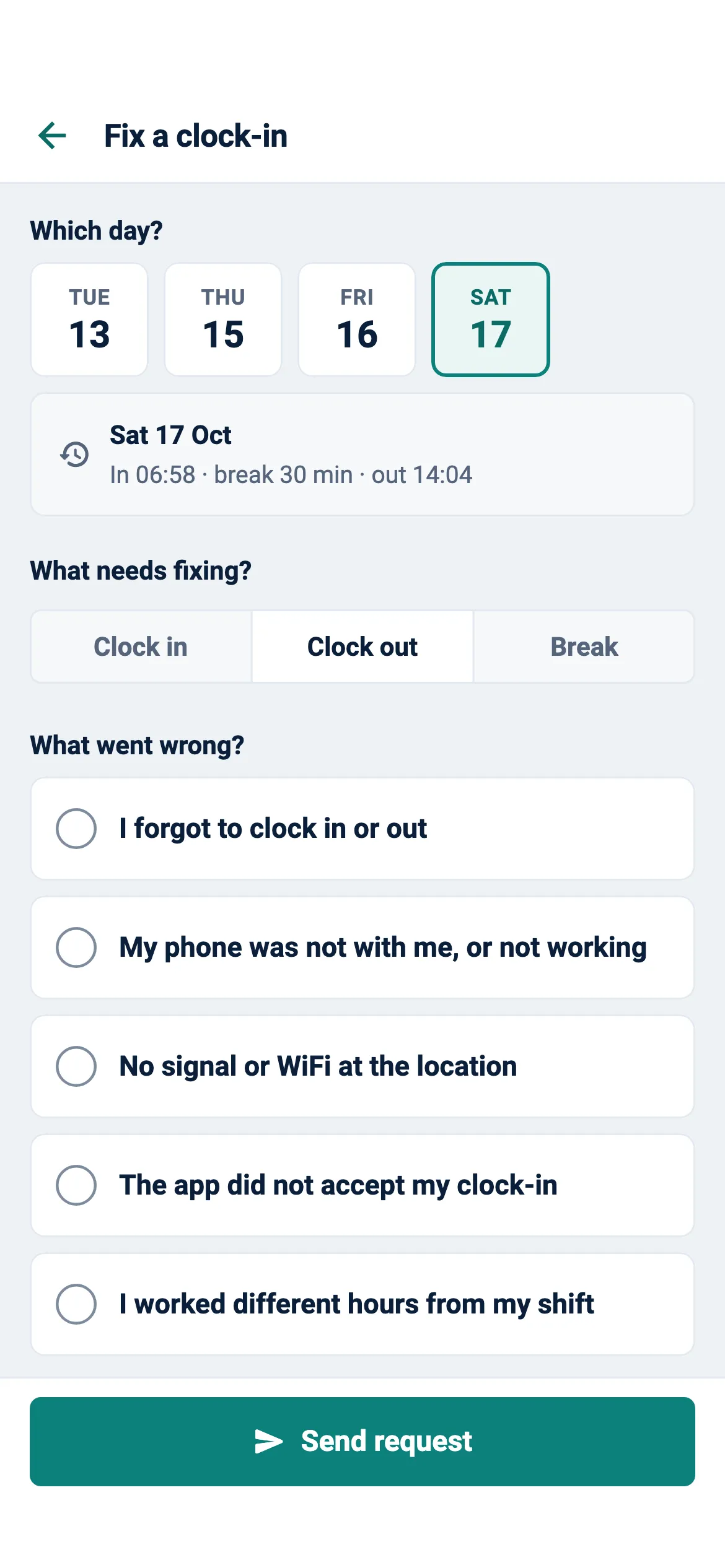
Forgot to clock out, or is a time wrong? Ask your manager. They fix it with a clock-in fix and a reason. Your original clock-in is kept beside the change, every change records who made it and why, and the original is never lost. The fixed shift shows Corrected in Hours.
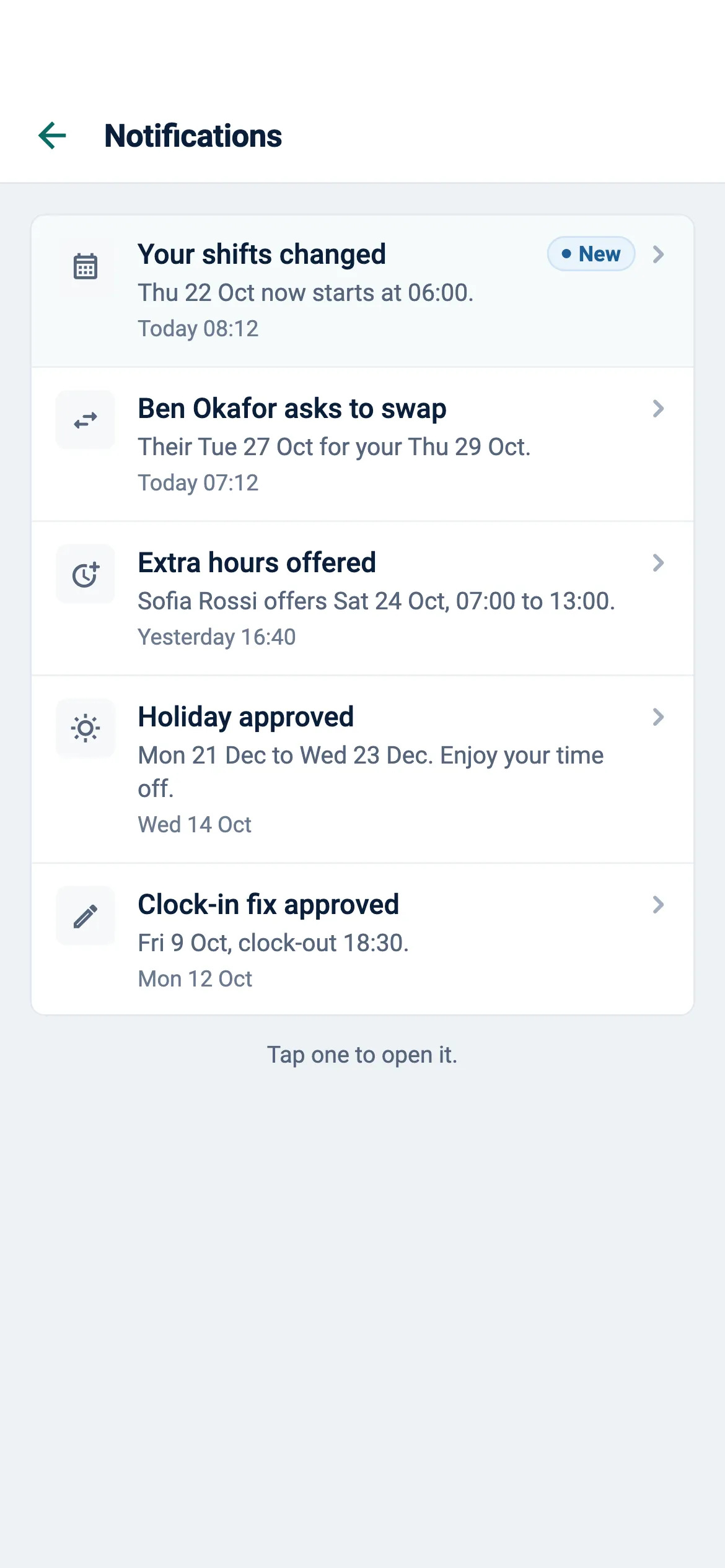
Where your employer has Requests switched on, you can also ask in the app: open Requests, tap New request and choose Fix a clock-in. Your employer’s Director, or someone they have chosen, decides, and you get a message either way.
Holiday, swaps and documents
Your employer chooses which of these are switched on, so your app may not show them all.
-
Holiday
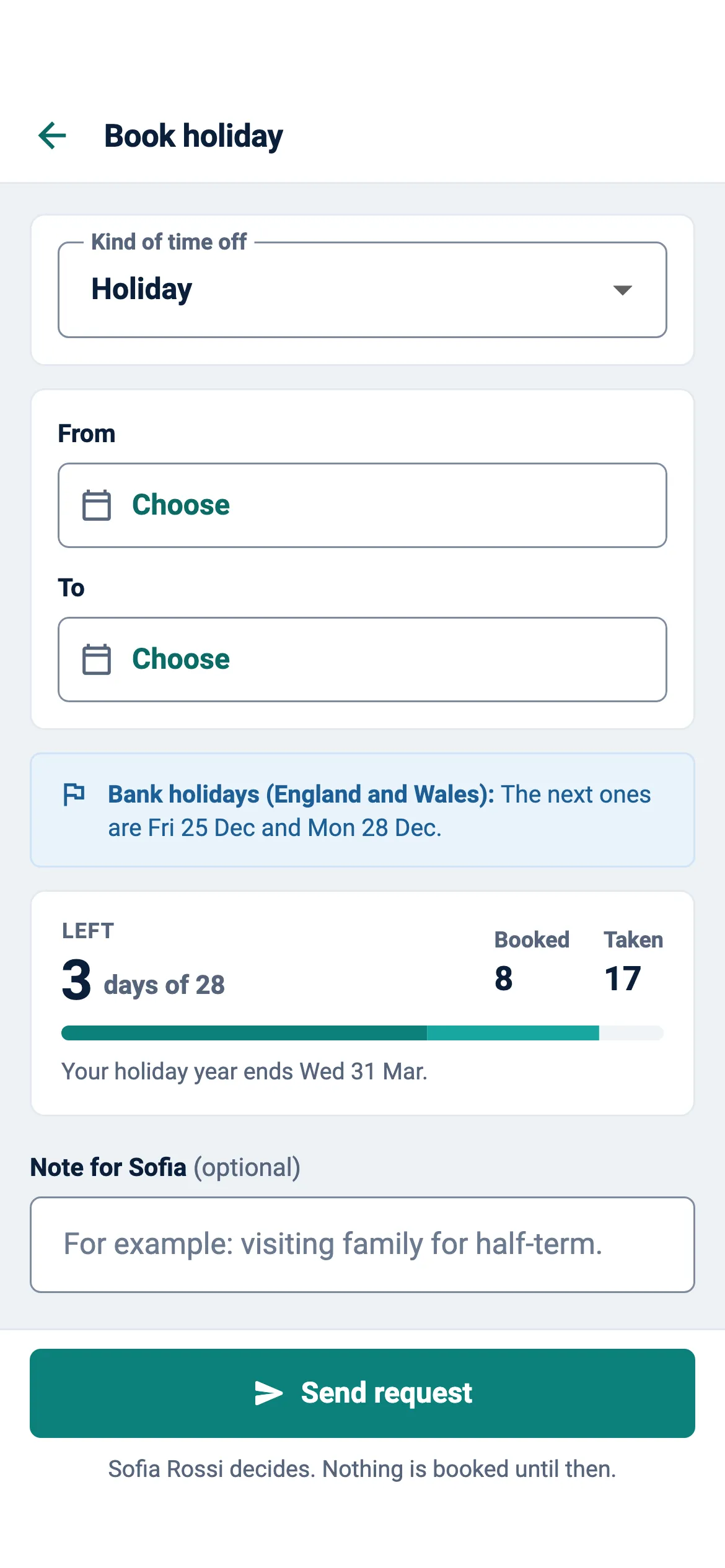
Open Requests, tap New request and choose Book holiday. Ask for whole or half days, and see the days you have left. Your manager decides in the portal. If you work irregular hours, your holiday builds up at 12.07% of the hours you work and is shown in hours: a request uses the hours of the shifts it covers.
-
Not well?
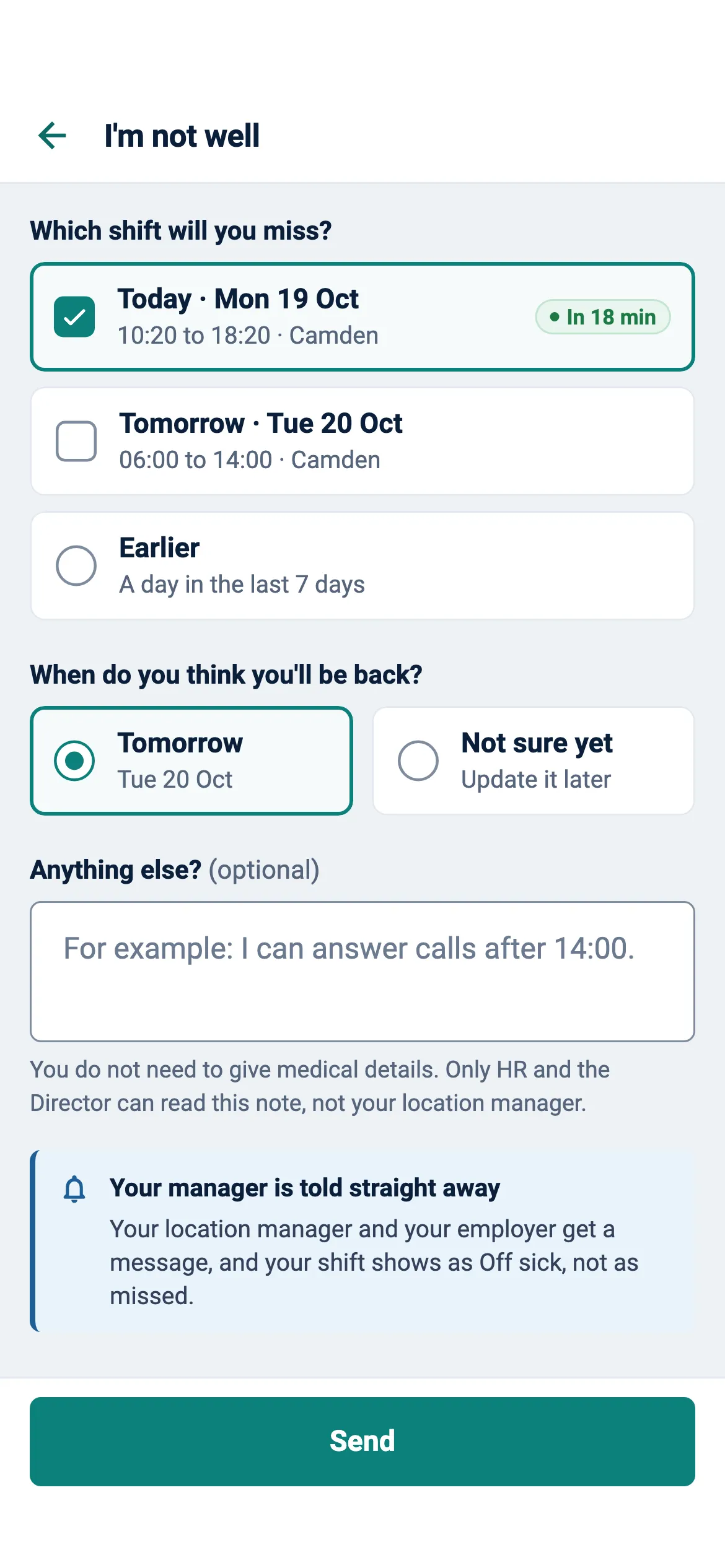
In the same place, I’m not well tells your manager you cannot come in. You tell them from the app when you are back. A sickness note is seen only by HR, the Director and you.
-
Swap or give away a shift
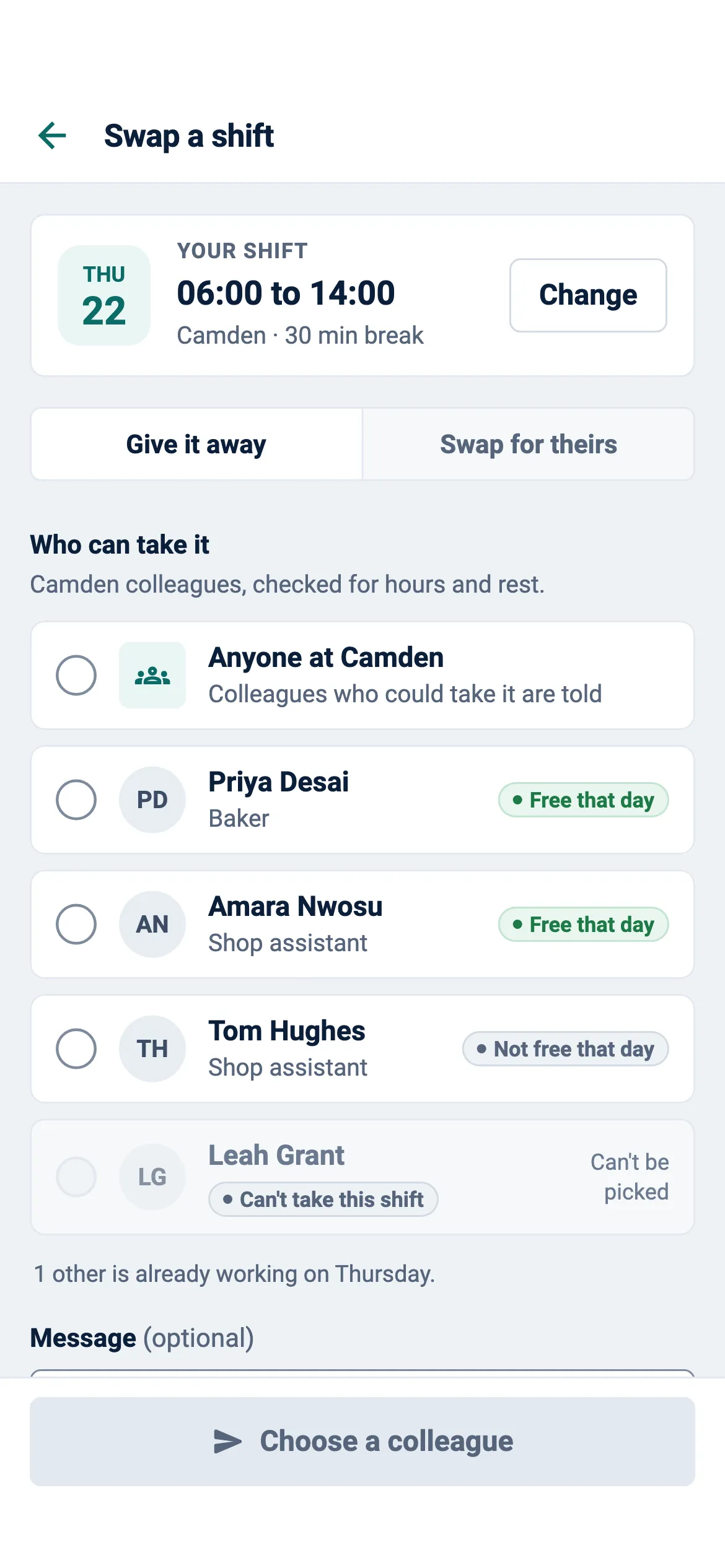
On a shift in Shifts, tap Swap or give away. Your colleague accepts, a manager approves, and the rota changes straight away.
-
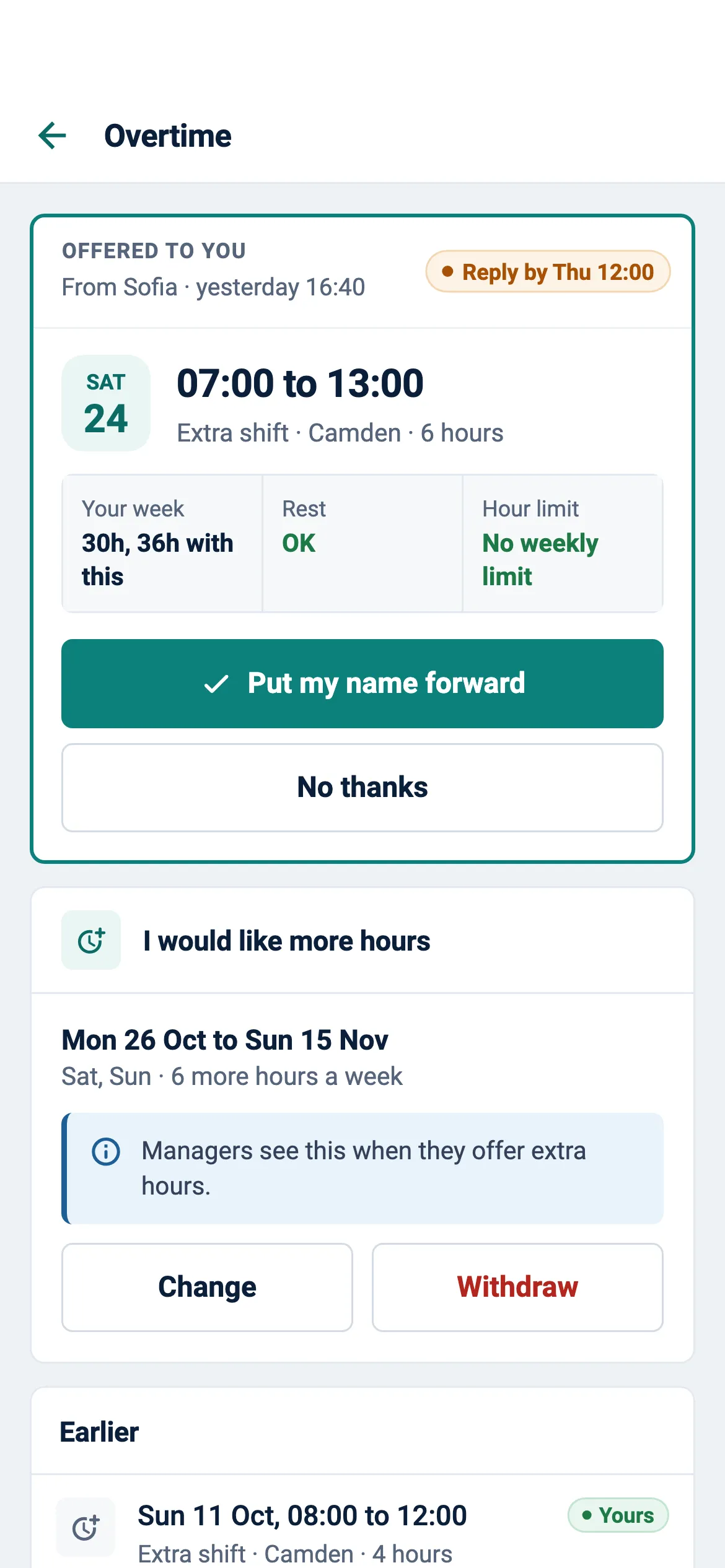
Extra hours
When your manager offers extra hours, you see them in Requests and can put your name forward. The manager picks, and nobody is offered hours that would take them over their weekly limit.
-
When you can work
In Shifts, Availability is where you set when you can work each week and the dates you cannot.
-
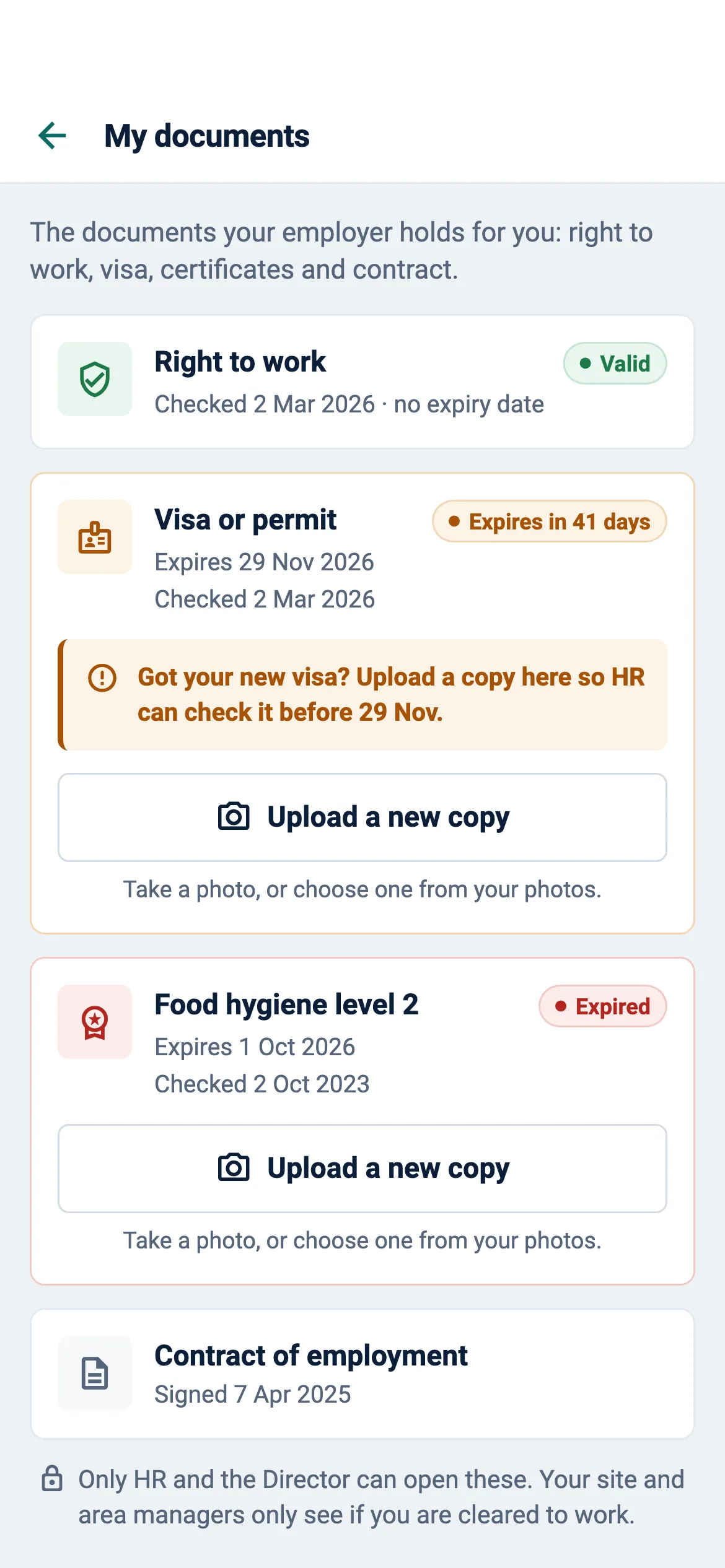
Your documents
In Me, My documents lists yours, such as a right to work check or a training certificate. You can send a photo of a new copy for your employer to check. It counts once they have checked it with you.
Sample screens with made-up data.
Your passcode and a new phone
When the app asks, enter your six-digit passcode to carry on.
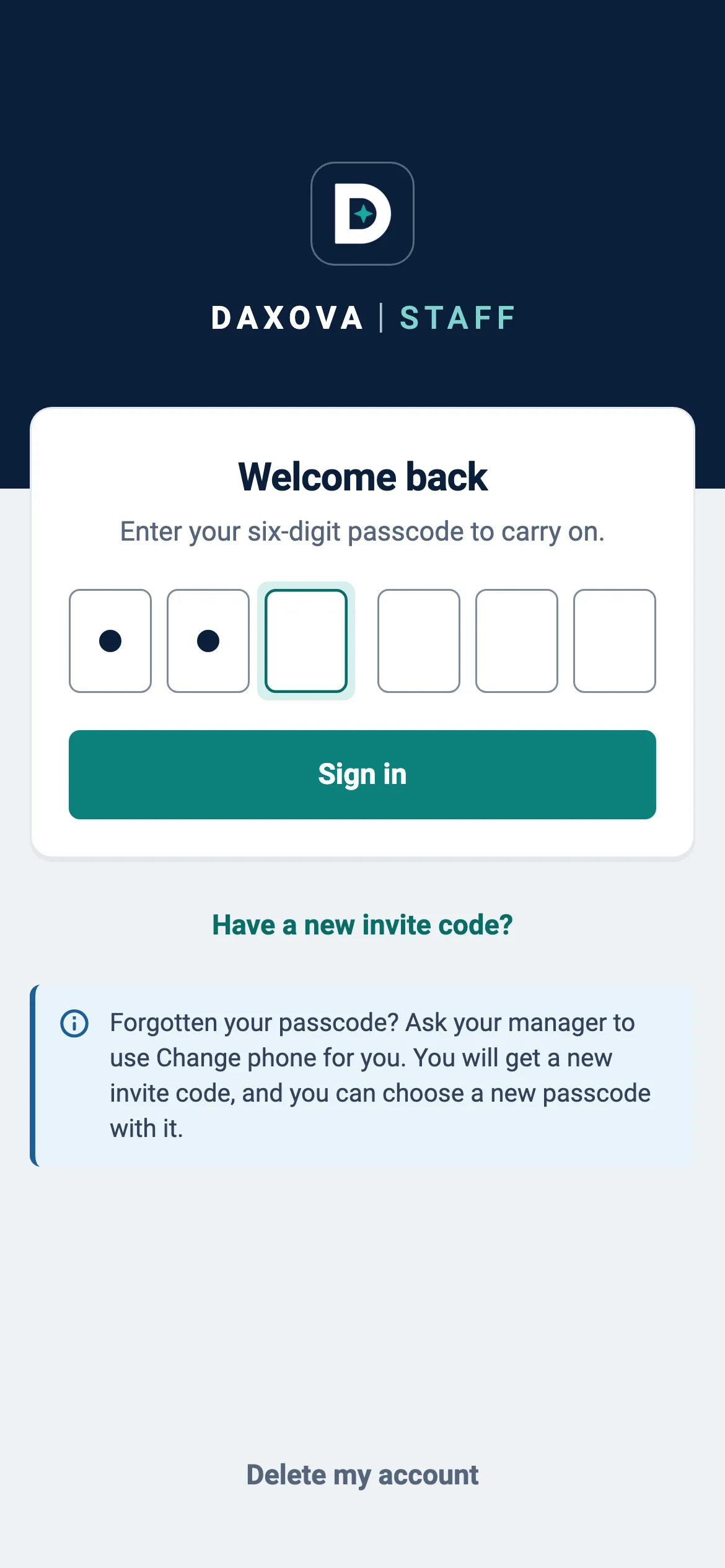
Forgotten your passcode?
Nobody can look it up. Ask your manager to use Change phone for you. You get a new invite link, and choose a new passcode when you set up with it.
New phone, or lost your phone?
Ask your manager to use Change phone. Your old phone stops working straight away, and you set up the new one with the new invite link or QR code. On the passcode screen, Set up with a new invite code takes you there. If your phone was lost or stolen, tell your manager straight away.
Keep your details up to date
Moved house, or got a new number? Change it yourself in the app, so your employer can reach you and your payslips go to the right place.
- In Me, tap My details.
- Change your mobile, email, home address or emergency contact. A phone number must be a UK number, like 07700 900123.
- Tap Save. Your employer has the new details straight away.
Your name, your pay, your hours and anything else on your record are changed by HR. Your history says what you changed, never the old or new details. You cannot use an email address or mobile number that someone else at your work already has.
Questions
Does the app track where I am?
No. At a location that checks where you are, the app reads your phone’s location only at the moment you clock in, clock out, or start or end a break. At any other location, it does not use your phone’s location at all. Nothing is tracked in the background.
Who can see my clock-in photo?
Only your location’s managers, area managers, HR and the Director. The photo is stored encrypted, every viewing is logged, and it is deleted after the period your employer has set.
Does the app use face recognition?
No. Nothing reads or matches your face. The photo is there so that a person can check who clocked in, if they ever need to.
Can I clock in without an internet connection?
No. Clock-ins need a live connection, and the app does not save clock-ins to send later. If it says Clock-in not confirmed, tap Try again once you are connected. A clock-in is never counted twice.
Can my hours be changed without me knowing?
Every change is a clock-in fix with a reason and the name of the person who made it. Your original clock-in is kept, and the shift shows Corrected in your Hours.
How do I change my phone number or email?
In Me, tap My details, change it and tap Save. Your employer has it straight away. If you change your email, your old address is told, and so is HR.