Clock-in tablet
Any tablet becomes your clocking-in point.
Open a link once on a tablet or screen you already own. Staff clock in with their staff code and passcode, or find their name, and the screen keeps nothing about anybody. It works in any modern web browser, today.
£2 per staff member a month, clock-in tablet included. No hardware to buy. No VAT charged, £12 minimum.
- 30-day free trial
- No card
- Start online in minutes
- Cancel any time
How it works
Three steps, about ten seconds.
Say who you are, type your passcode, tap one button. Then the screen goes back to the start for whoever is next.
Step 1 · Who’s clocking in
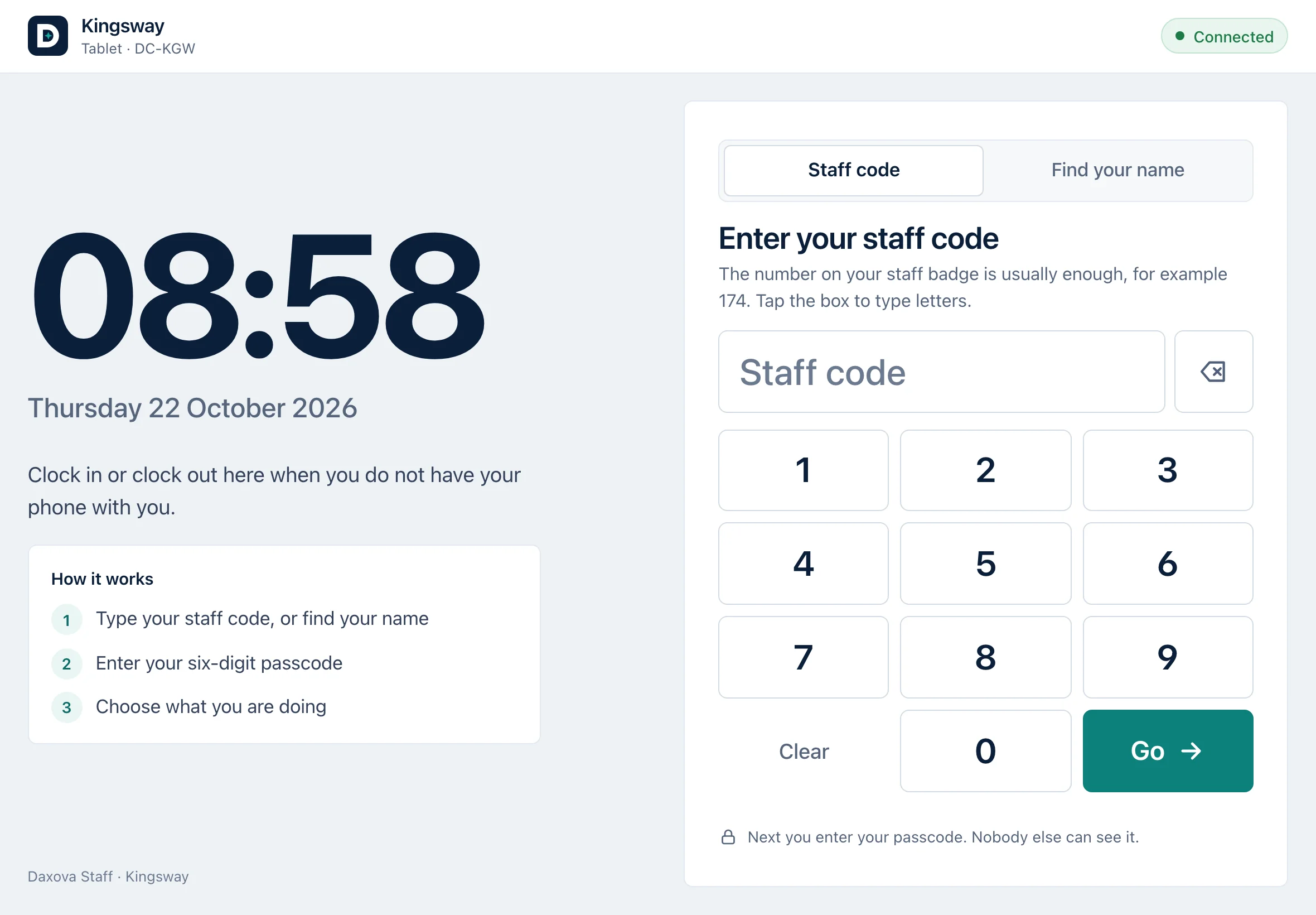
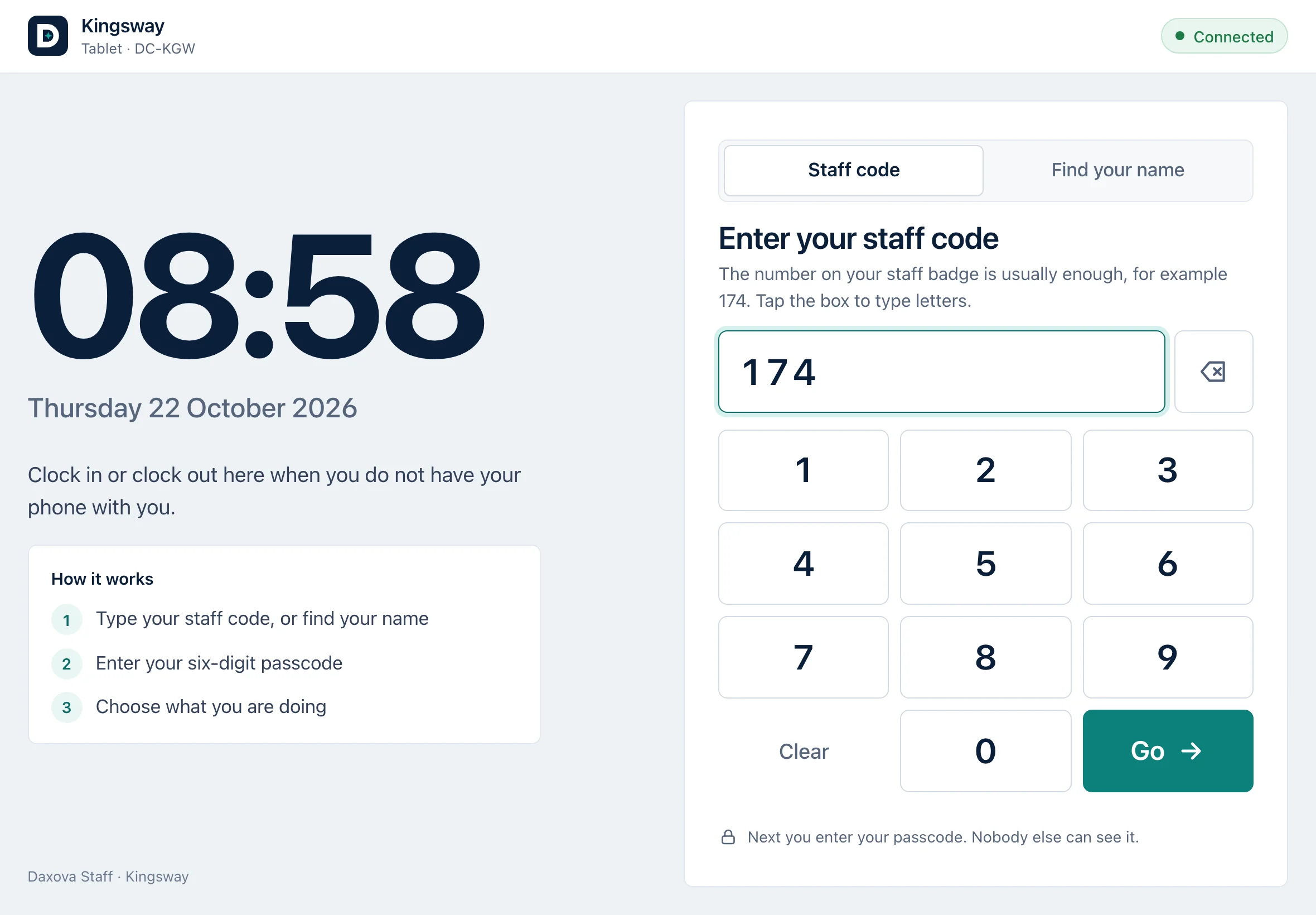
Two ways to say who you are.
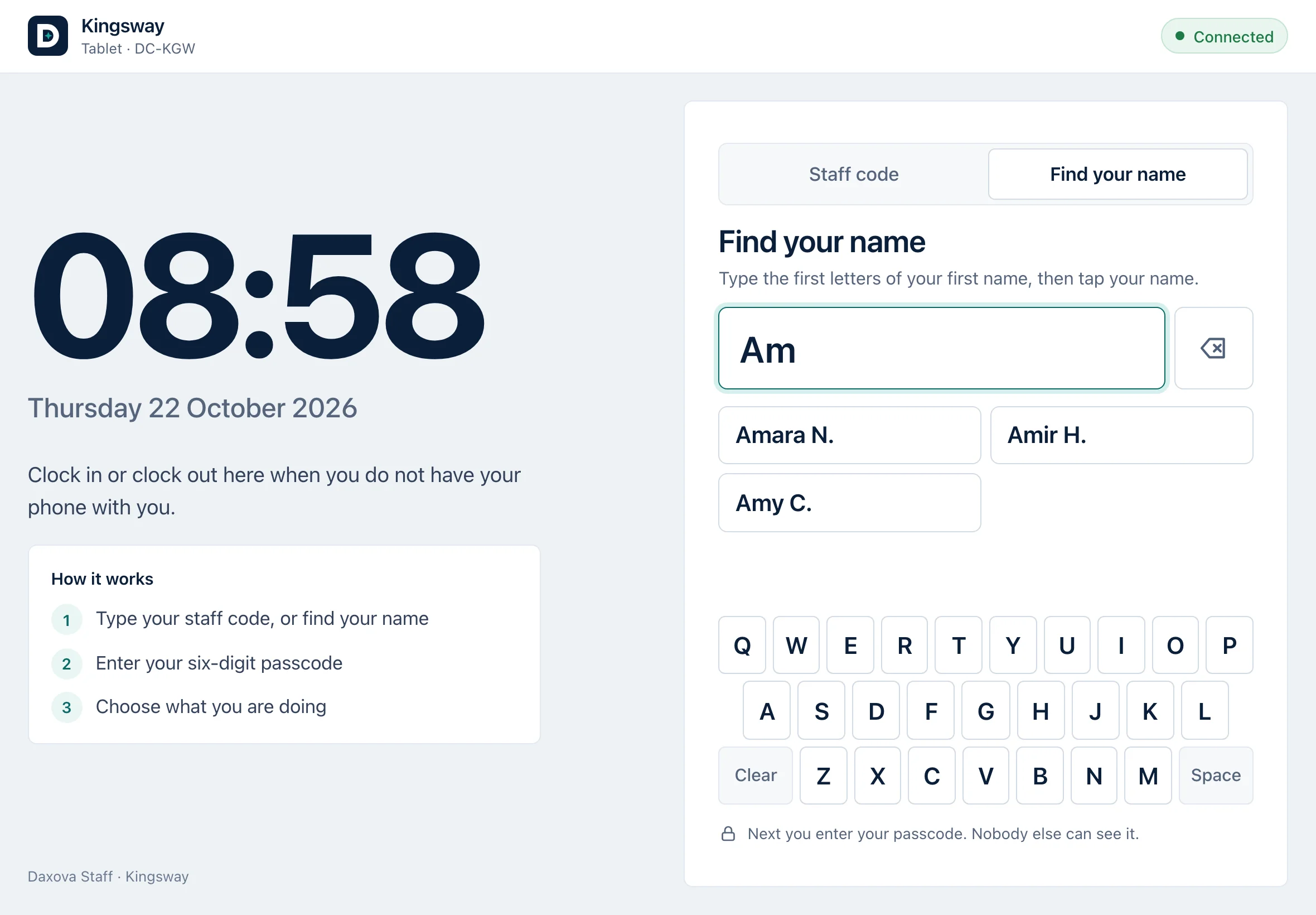
Everyone on your staff list has a staff code. Type it on the keypad, or tap Find your name and pick yourself from a short list. Either way, the passcode comes next.
- Staff code and passcode. The code is on the person’s staff record, and usually the number on their badge. The six-digit passcode is chosen by them and known only to them.
- Find your name. Type the first letters of your first name. The tablet lists up to five of this location’s staff, each as a first name and the first letter of the surname.
- Two people, one name? The tablet asks them to use their staff code instead.
- No smartphone needed. Staff without a smartphone choose their passcode from a link their manager gives them. Staff with the app can use the tablet too, when their phone is flat or at home.
Step 2 · Passcode, then one tap
Clocking in takes a few taps.
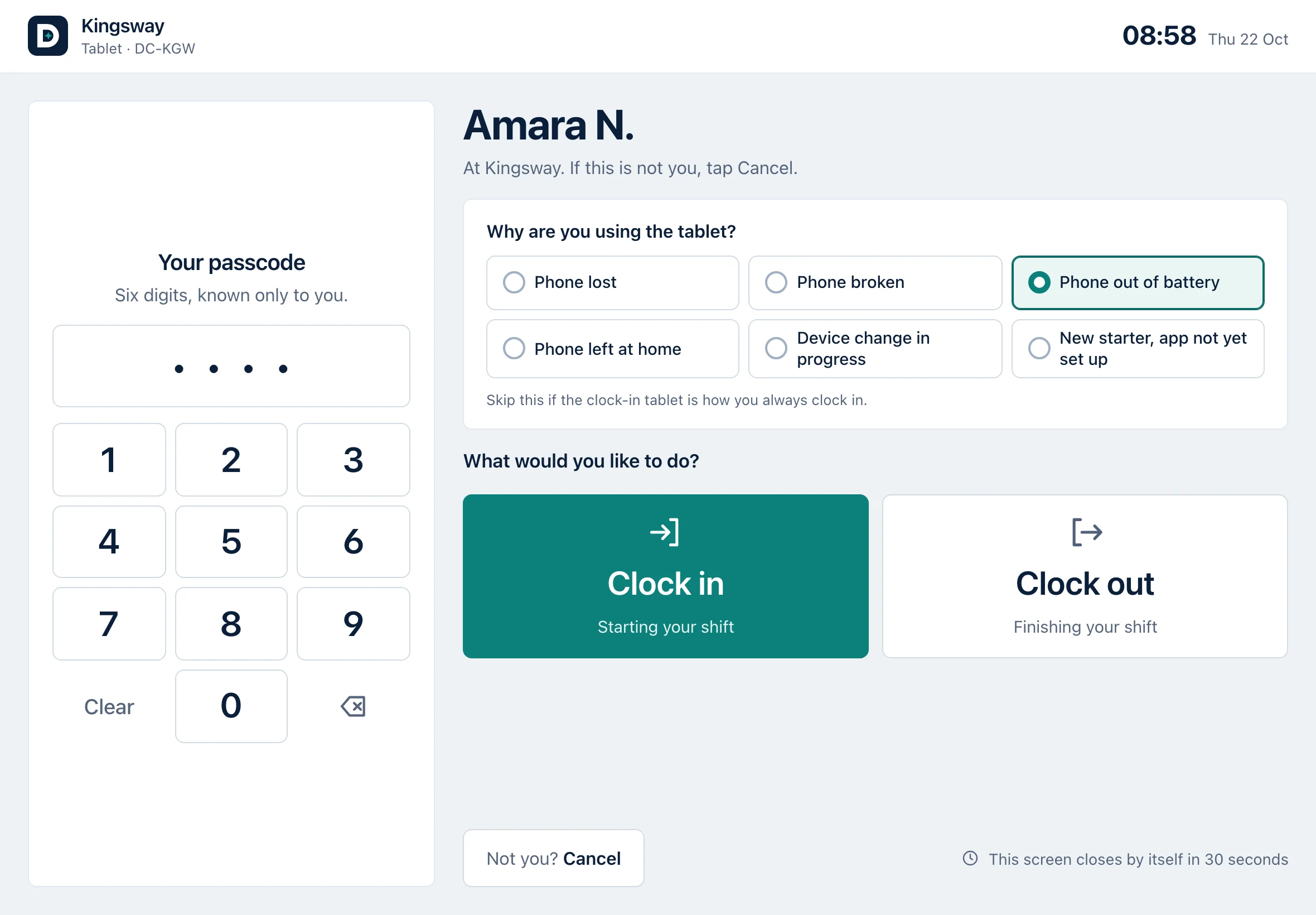
The passcode screen takes over the whole tablet, so nothing about the person is left on the main screen. Then it’s one big button: Clock in or Clock out.
- 1
Masked as it’s typed
Six digits, known only to them. The passcode shows as dots, so someone standing nearby learns nothing.
- 2
A short list of reasons
Staff who normally use the app pick why from a short list, and the clock-in is always recorded. If the tablet is someone’s normal way to clock in, HR or the Director marks it on their staff record and it never asks.
- 3
One big button
Clock in or Clock out. The tablet records clocking in and out; breaks are started and ended in the staff app.
- 4
It closes by itself
Walk away halfway and the screen closes by itself after 30 seconds. If it isn’t you, tap Cancel.
Five tries, then a pause. Five wrong passcodes in 15 minutes lock that staff code for 15 minutes.
Step 3 · Nothing left behind
The screen keeps nothing about anybody.
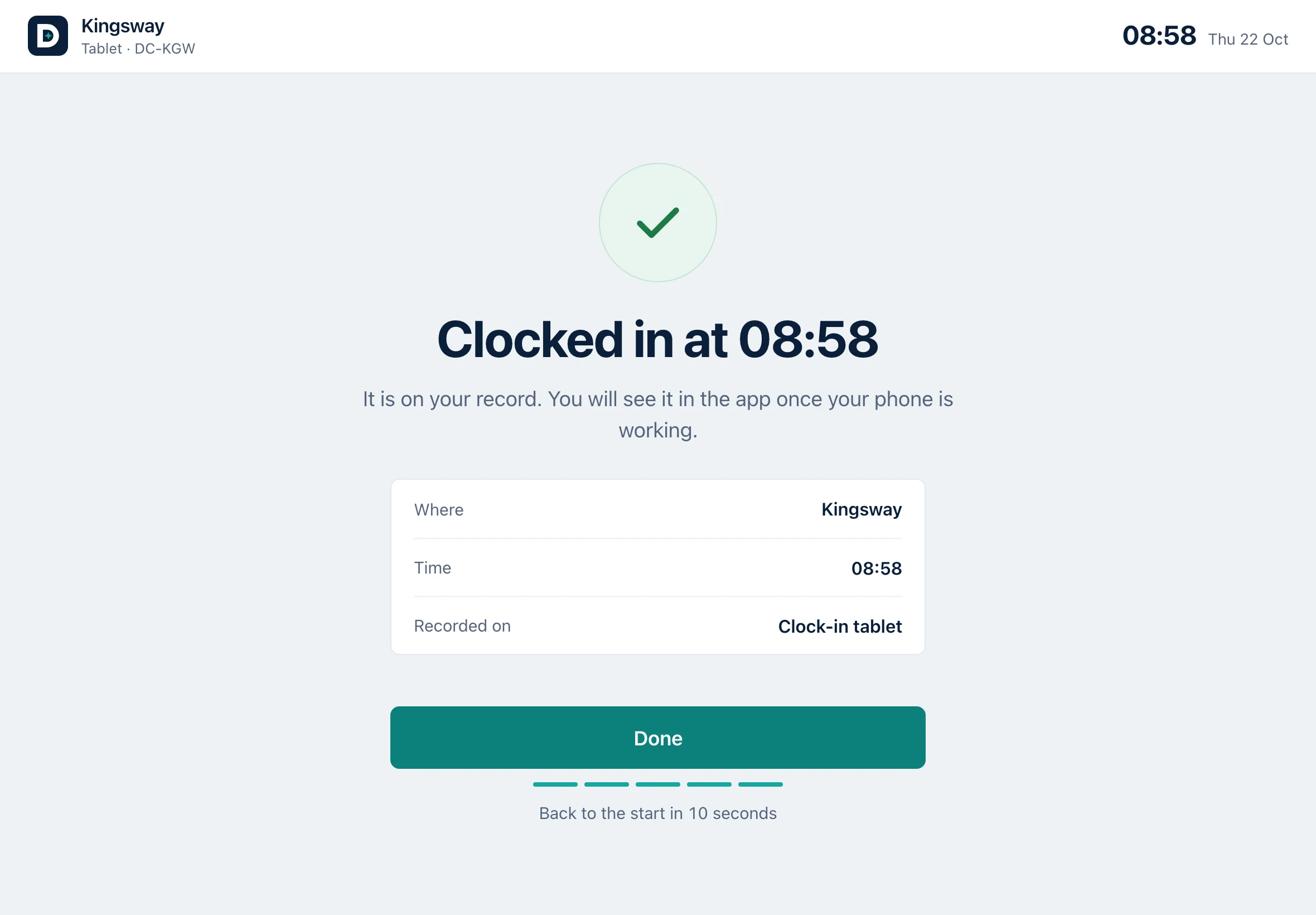
A tablet by the staff door is seen by everyone who walks past, so it’s built to hold nothing worth looking at.
- No staff list. Find your name answers only the letters typed: up to five names, each a first name and a surname initial.
- No hours, pay or history. The tablet can’t show anyone’s clock-ins, hours or pay. It has no way to ask for them.
- No photos. Photos come only with phone clock-ins in the staff app.
- No passcodes kept. They are typed as dots and stored only in a scrambled form that nobody can read back, including us.
- No clues for a bystander. A wrong staff code and a wrong passcode get the same message.
- Back to the start within 10 seconds of a clock-in. The one thing it keeps is a pairing key in its web browser, proving it is one of your tablets.
Before you start
What you need.
Most businesses already have all of it. There’s nothing to install, and no hardware to buy from us.
A tablet or screen
Any tablet, or a computer with a touch screen or keyboard, that runs a modern web browser. One you already own is ideal.
A connection
Each clock-in is recorded the moment it’s made, so the tablet stays online, usually on the location WiFi.
A spot by the staff door
Somewhere staff pass on the way in and out, near a socket, so it stays plugged in and switched on.
A passcode for each person
Everyone chooses their own six-digit passcode. Nobody issues it and nobody can look it up, including us.
Keep the page open in a normal browser window, not a private one. The tablet remembers which location it belongs to in its browser.
Set-up
Set it up from a link.
A Director or HR does it in the web portal. During your trial, we do it with you.
- 1
Open Locations, then Tablets
In the web portal, choose Add a tablet.
- 2
Make a pairing link
Pick the location, and give the tablet a name if you like. The link works once, for that tablet only, and runs out after 60 minutes.
- 3
Open it on the tablet
Open the link once, in the tablet’s web browser. There’s nothing to type in at the location.
- 4
Leave it open, full screen
By the staff door, plugged in and on the location WiFi.
- 5
Check it’s online
Back in Tablets, it shows as Online. It checks in every minute.
Up to ten tablets per location, each with its own name. If a tablet goes quiet for 15 minutes during opening hours or while somebody is on shift (choose anything from 5 minutes to 4 hours), the location’s managers get an alert.

Questions
About the clock-in tablet.
Which tablets work?
Any tablet, or a computer with a touch screen or keyboard, that runs a modern web browser. There’s nothing to install, and nothing to buy from us.
Does it need the internet?
Yes. Each clock-in is recorded the moment it’s made, so the tablet needs to stay online, usually on the location WiFi. If it stops checking in during the location’s opening hours, or while somebody is on shift, the location’s managers get an alert.
What if someone forgets their staff code?
They tap Find your name, type the first letters of their first name and pick themselves from up to five names. Then they enter their passcode as usual.
Can one person clock in for another?
Every clock-in needs that person’s own six-digit passcode, which they choose themselves and nobody can look up. After five wrong passcodes in 15 minutes, that staff code is locked for 15 minutes.
Does the tablet take photos?
No. The clock-in tablet takes no photos and keeps nothing about anybody. Photos come with phone clock-ins in the staff app, which is in Android testing and not in the App Store yet.
Does it record breaks?
No. The clock-in tablet records clocking in and out. Breaks are started and ended in the staff app.
Can staff with the app use the tablet too?
Yes, when their phone is flat, broken or at home. The tablet asks them to pick a reason from a short list, and the clock-in is always recorded. If the tablet is someone’s normal way to clock in, HR or the Director marks it on their staff record and it never asks.
Can a location have more than one tablet?
Yes. A location can have up to ten clock-in tablets, each with its own name. Pairing a new one leaves the others working.
Is it the same as a clocking-in kiosk?
It does the same job as a time clock kiosk on the wall, on a screen you already own. There’s no extra charge: it’s part of the £2 per staff member, with no VAT charged.
Something else? Email sales@daxova.co.uk and we’ll reply within one working day. See the clock-in tablet in the tour.