Help with Daxova Staff: the phone app, the web portal and the clock-in tablet. Who to ask, quick answers to common problems, and how to delete your account or data.
Your employer sets up your account, links your phone, plans your shifts and looks after your record, so your manager can sort out most problems on the spot. We cannot change your record without your employer.
staff.daxova.co.uk
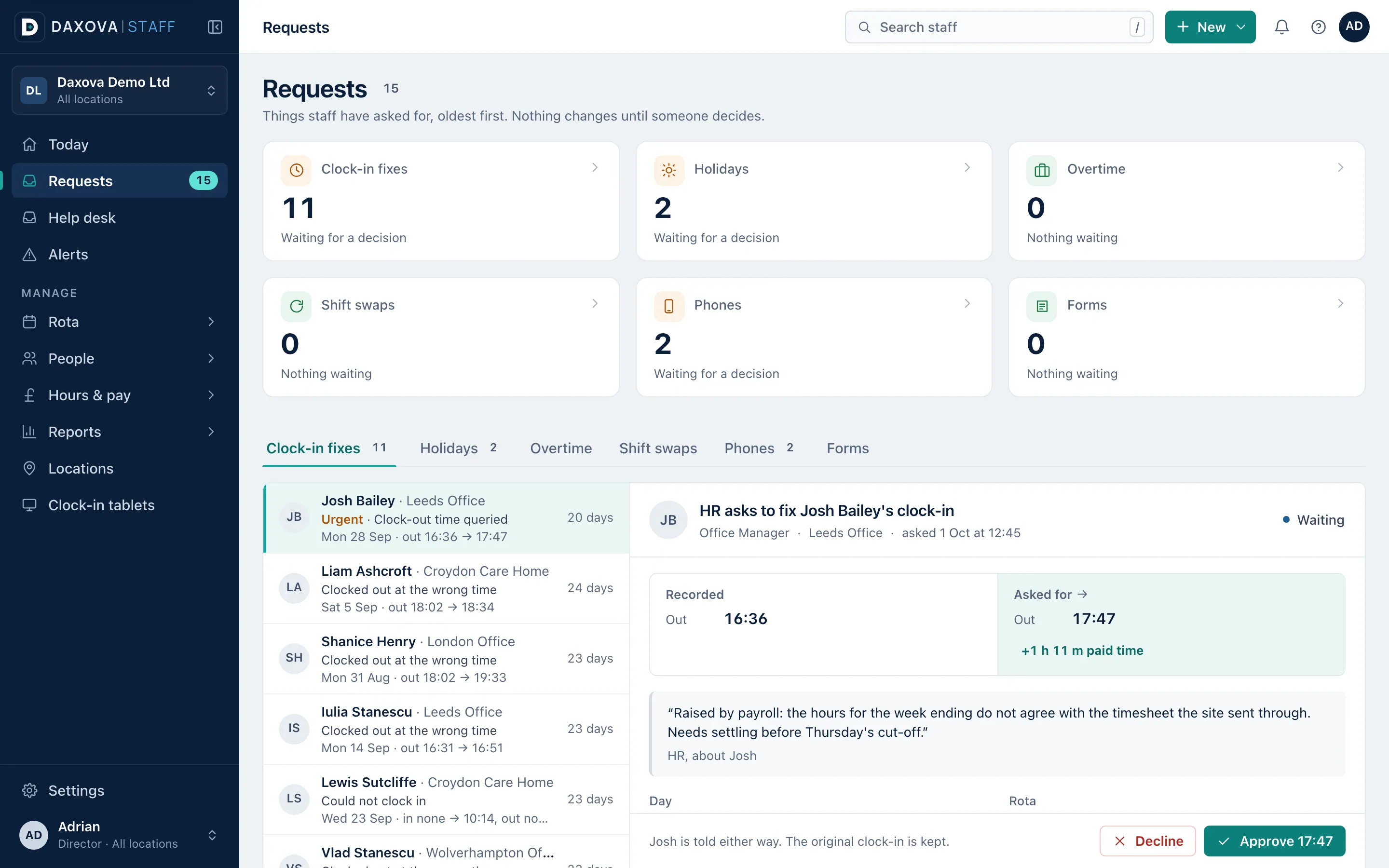
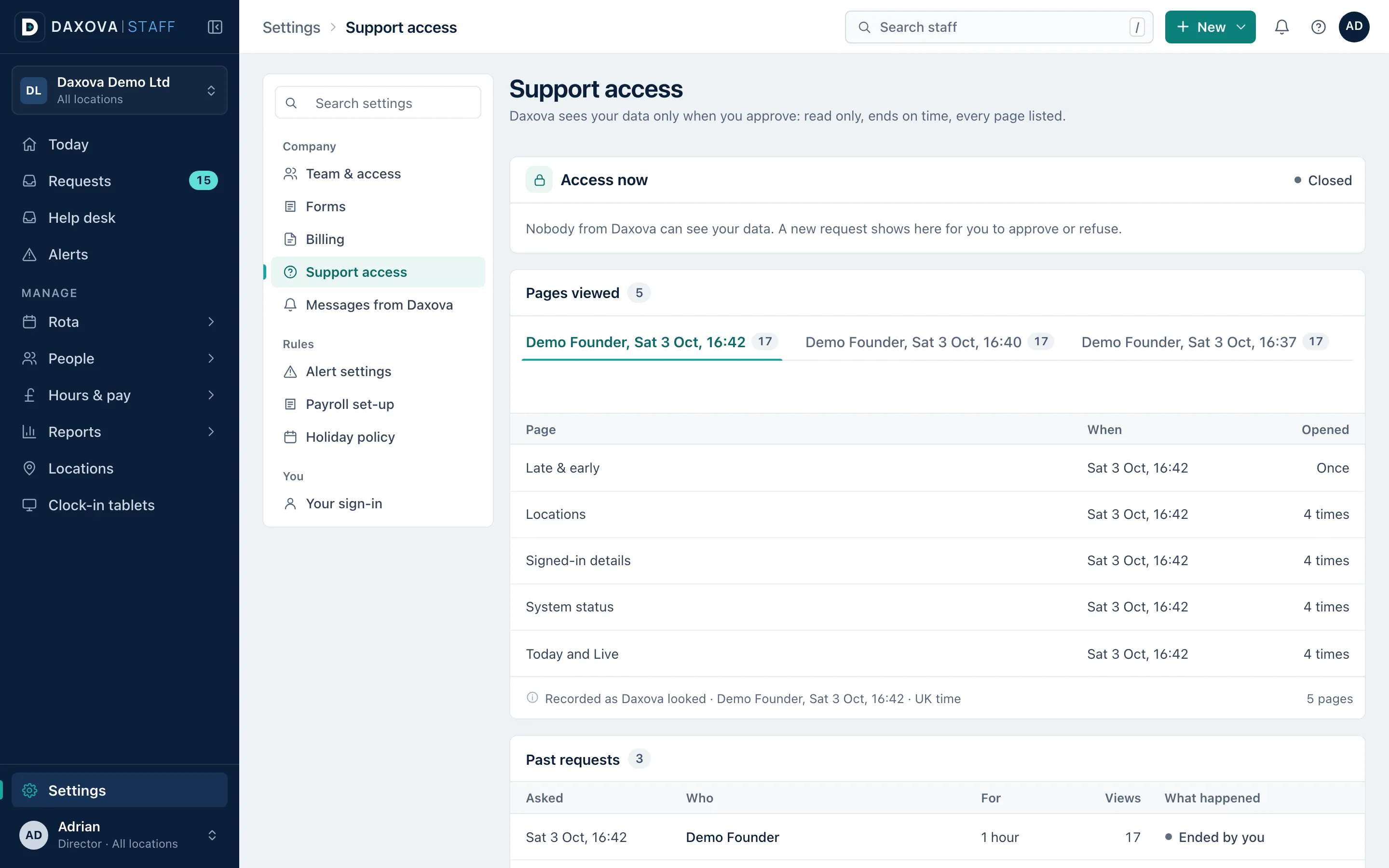
What your manager sees in the web portal: a clock-in fix waiting for a decision. Made-up data.
We aim to reply within one working day. Working days are Monday to Friday, 9am to 5pm UK time, except bank holidays.
Mon
Tue
Wed
Thu
Fri
Sat
Sun
Tohelpdesk@daxova.co.uk
To help us help you quickly, tell us:
the name of the business you work for and your location;
your name, and what you were trying to do;
the exact words of any message you saw;
for the app, your phone’s make and model.
Please never send us your password, passcode, a two-factor or recovery code, bank details, your National Insurance number or photos of your documents by e-mail. We will never ask for them.
Ask your manager to use Change phone for you: you get a new invite code, and choose a new passcode when you set up with it.
Without the app
Ask your manager for a new passcode link, and choose a new passcode with it.
In the web portal (managers and Directors)
On the sign-in page, choose Forgot password? and enter the e-mail address you sign in with. If it has an account, we e-mail you a link to choose a new password. The link works once, for 1 hour. Saving your new password signs you out everywhere; then sign in with your new password and the code from your authenticator app.
If nothing arrives in a few minutes, check your junk folder. No link is sent while your sign-in is disabled, or while your two-factor has been reset and not set up again. We e-mail you instead to say so: ask a Director at your business, or HR. If you are a Director, write to helpdesk@daxova.co.uk. Daxova will never ask for your password or set one for you.
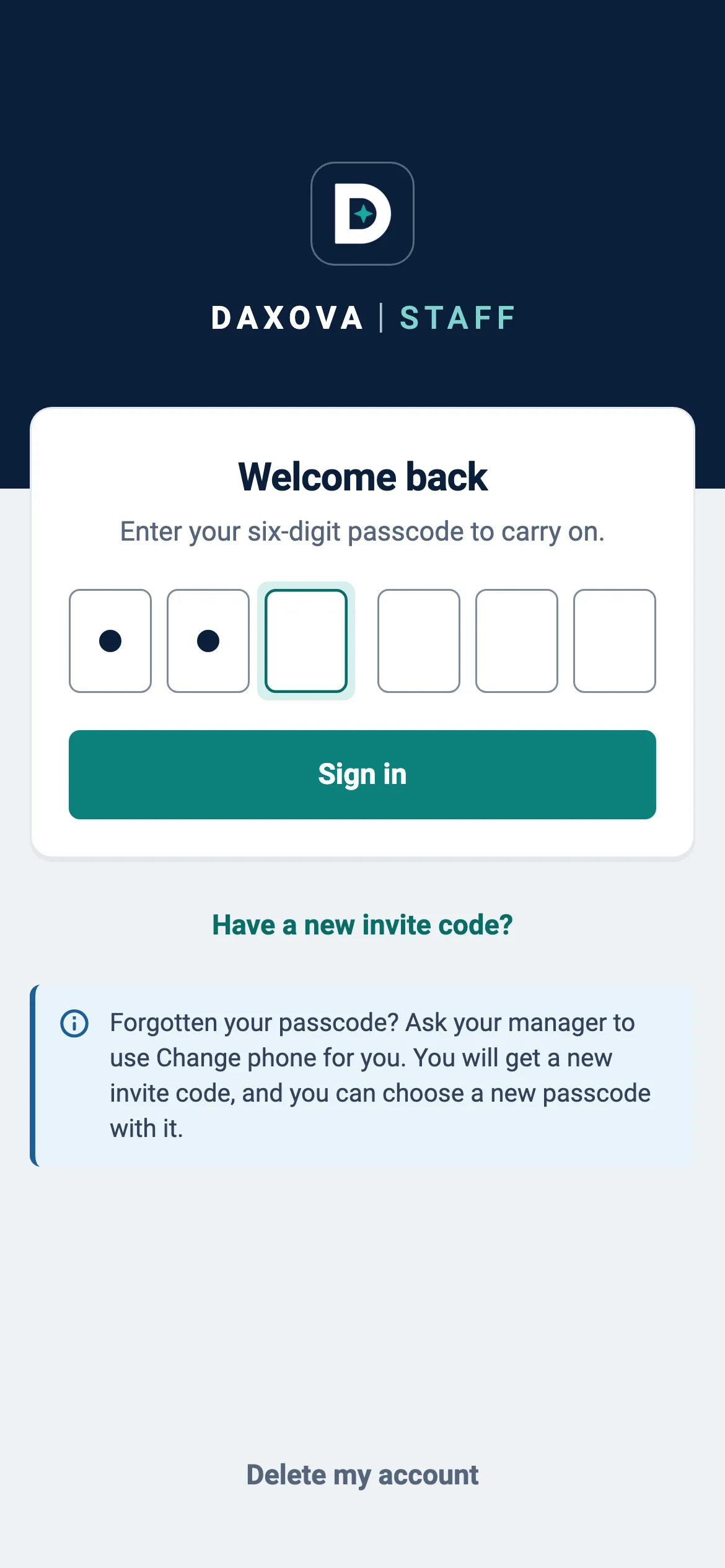
The app’s sign-in screen says the same: ask your manager to use Change phone.
Lost the phone with your two-factor app?
Use a recovery codeSign in with one of the recovery codes you saved when you set it up.
Ask for a resetIf you have none left, another Director, or HR for anyone who is not a Director, can reset your two-factor in Team & access. You then set it up again the next time you sign in.
A Director with nobody to reset itWrite to helpdesk@daxova.co.uk. We check who you are first: we call you back on the number we hold for your business, see you on a video call with photo ID, or check the Companies House record.
A link that opens after 24 hoursWe then e-mail a link to your own address. It opens after 24 hours, so that your business’s other Directors and HR, whom we tell straight away, can stop it if it was not you. With the link you choose a new password, and you set up two-factor again the next time you sign in.
We never see or set your password.
I have a new phone, or lost my phone
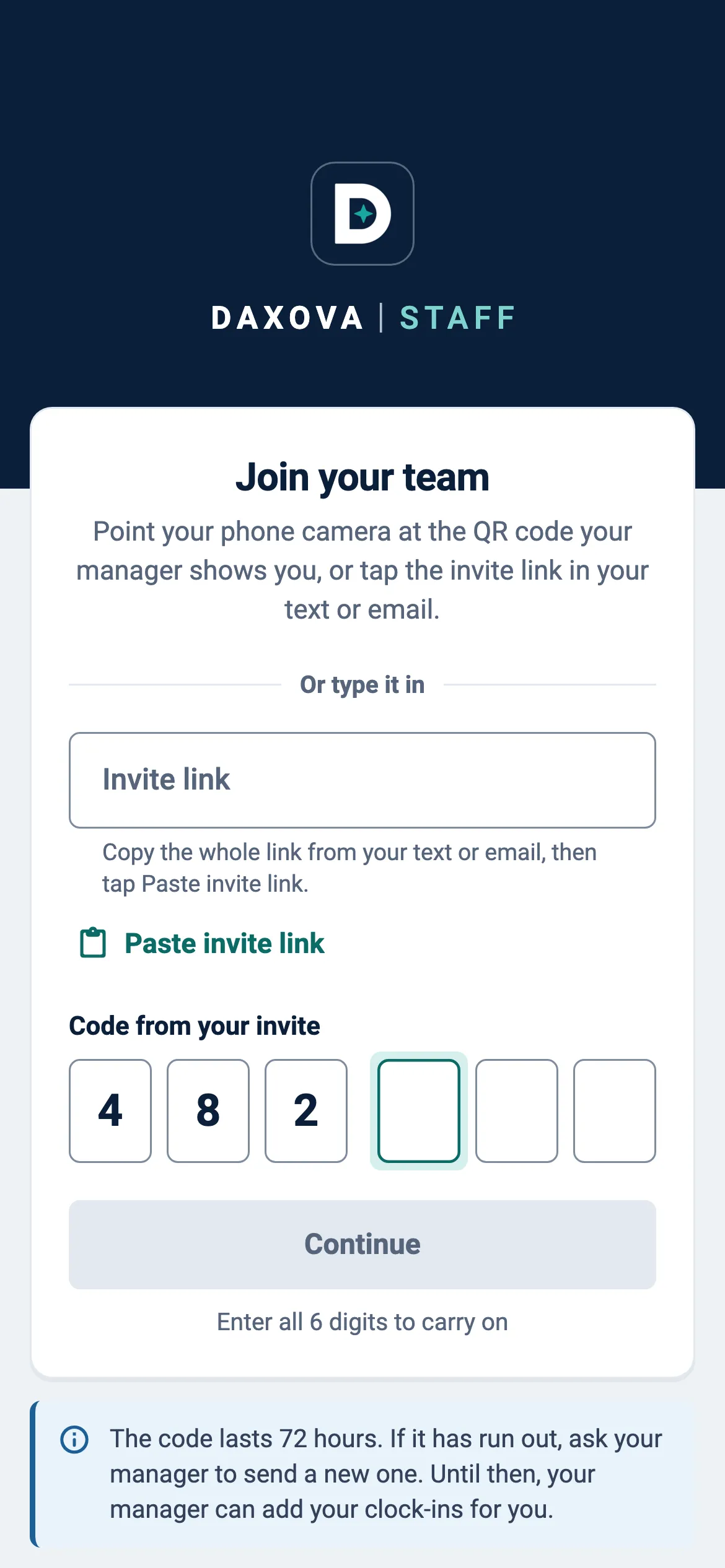
Clock-ins only work from the one phone linked to your account. Ask your manager to use Change phone: you get a new invite code to set up the app on your new phone, and your old phone can no longer clock in for you.
If your phone was lost or stolen, tell your manager straight away.
Setting up the new phone with your new invite.
I cannot clock in
The app tells you why on the screen. The most common reasons:
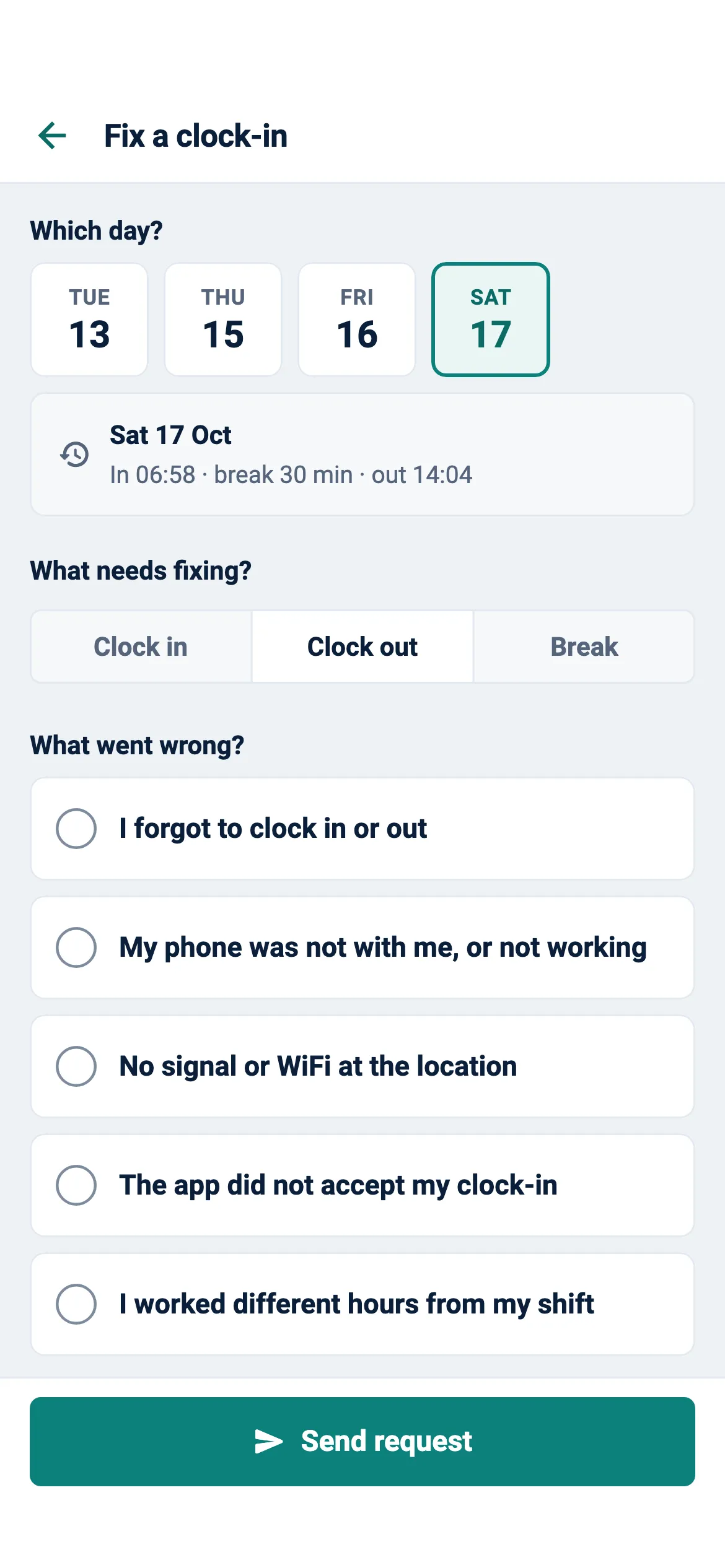
Where your employer has Requests switched on, you can also ask for a fix in the app.
Location WiFi
At a location that checks WiFi, clock-ins only work on the location’s own WiFi. Join the location WiFi, turn off any VPN, and try again. Mobile data will not work there.
Location
At a location that checks where you are, allow location for Daxova Staff “while using the app” and turn on precise location. If the app cannot find you precisely enough, step near a window or the door. Turn off any app that changes your phone’s location.
Outside the location
Clock-ins only work within the location’s area, and only at your own locations. If you are working somewhere else, ask your manager to add that location to your record, or to add your clock-in for you.
No signal
Clock-ins need a live internet connection. The app does not save clock-ins to send later. If it says Clock-in not confirmed, the app could not tell whether your clock-in arrived. Tap Try again on that screen when you have a connection: if the clock-in was already saved, it is not counted twice. If the location’s internet is down, tell your manager. They can check whether your clock-in arrived and add it for you if it did not.
This phone cannot clock in
The phone is not the one linked to your account, or it could not be confirmed as yours. Update the app, or ask your manager to link the phone.
Still cannot clock in?
Your manager can add the clock-in for you.
My clock-in time is wrong
Ask your manager to correct it.
Nobody can change a clock-in quietly: the original clock-in is kept, and every change is recorded with who made it, when and why.
The original clock-in, kept
Who made the change
When
And why
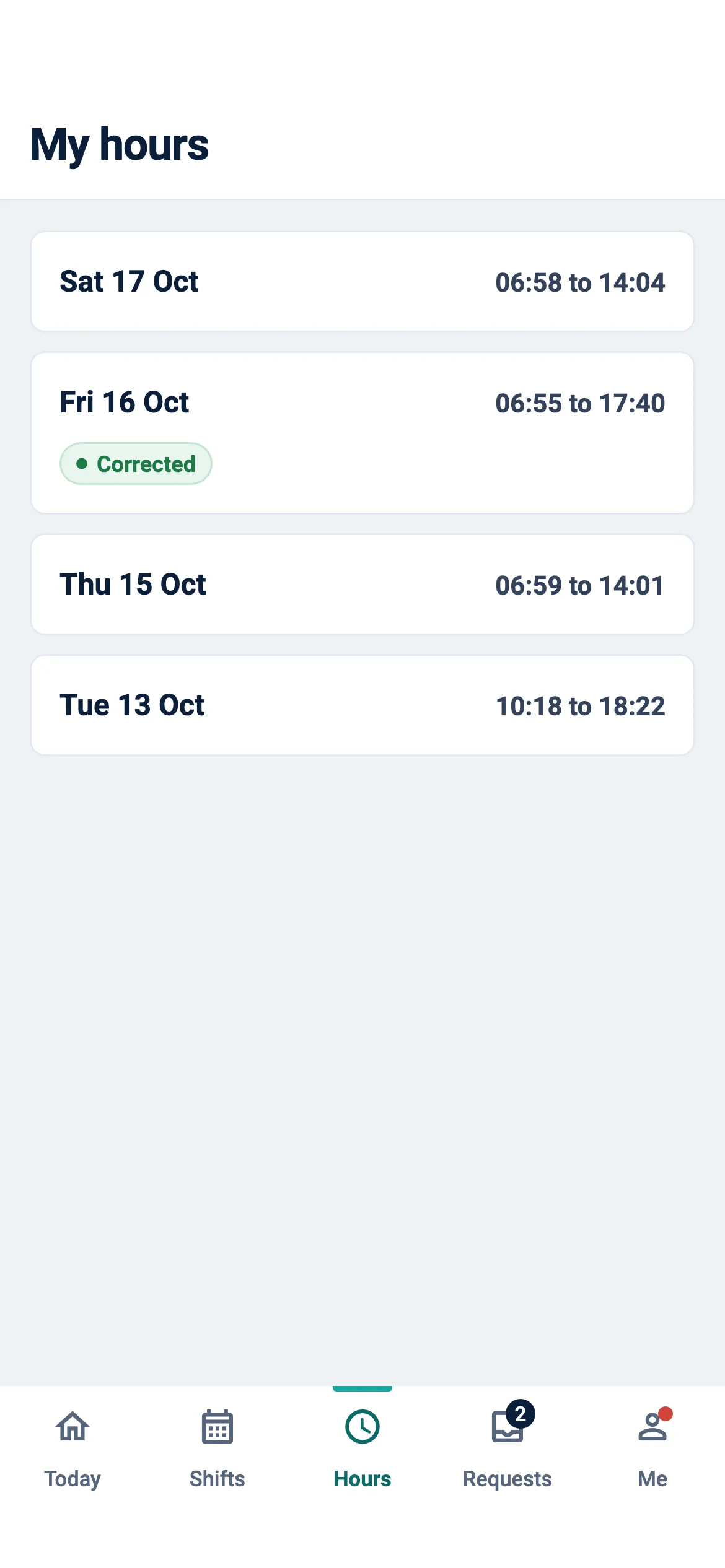
A fixed shift shows Corrected in Hours.
I am not getting notifications
Allow notifications for Daxova Staff in your phone’s settings, and check that Focus or Do Not Disturb is not hiding them.
Make sure you are signed in to the app. Signing out stops notifications to that phone.
Some messages sent late at night wait until the morning.
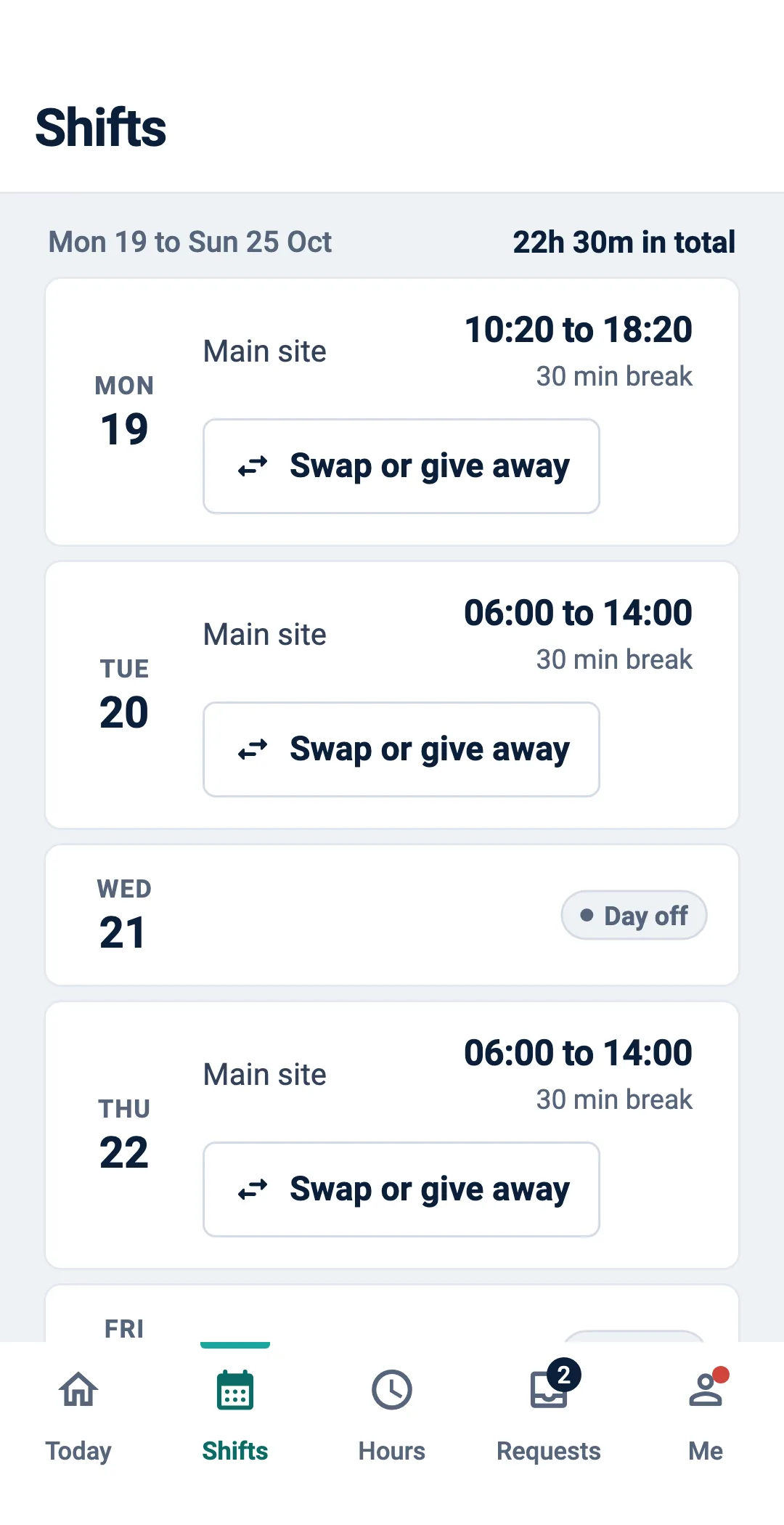
Your published shifts are in the app’s Shifts tab, whether or not a notification arrives.
The Shifts tab: your published week, with any change marked.
Your account and your data
Delete your account or your data
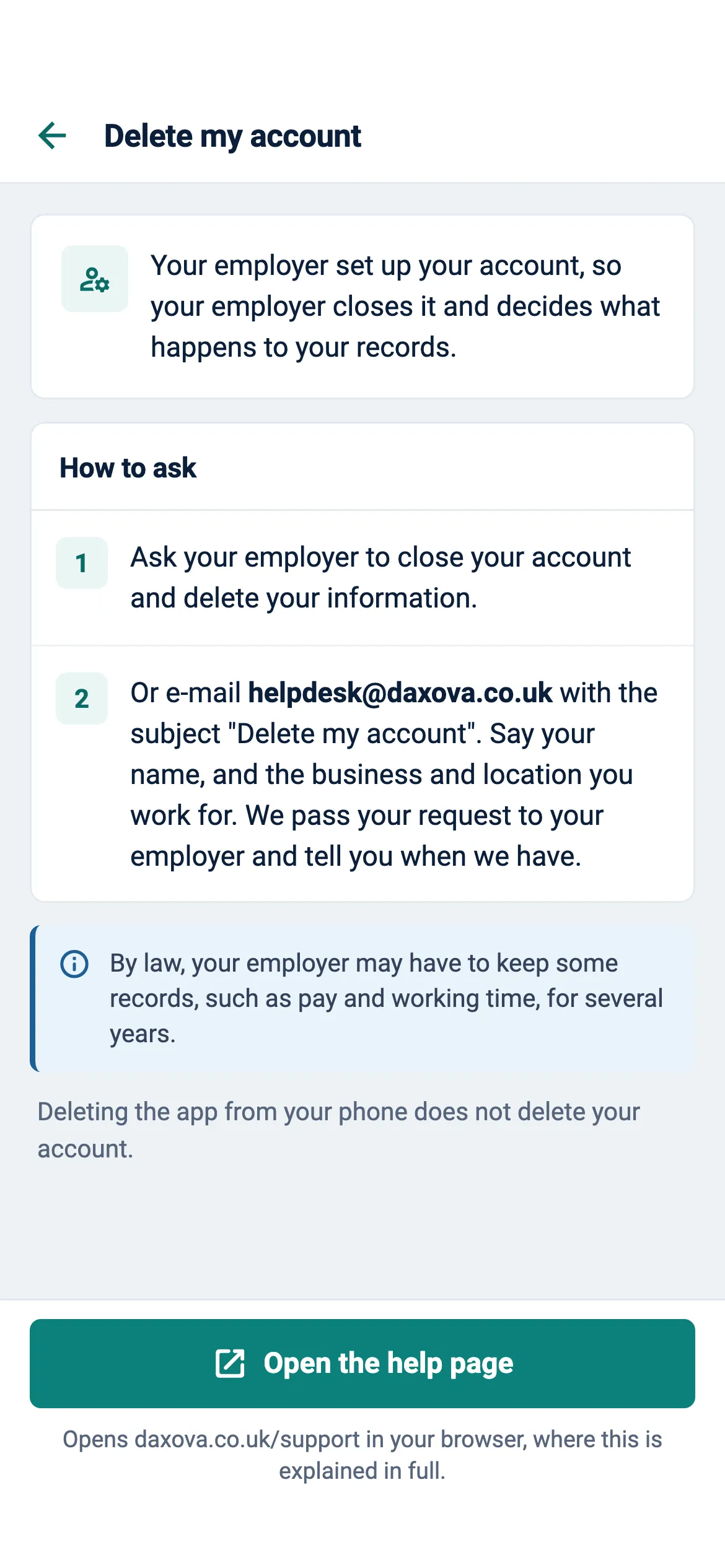
In the Daxova Staff app, Delete my account (on the sign-in screen, and in the app once you are signed in) brings you to this section.
Your account and your records are controlled by your employer under UK data protection law. We look after them for your employer and act on its instructions. So:
Ask your employer to close your account or delete your information. Your employer decides what happens to your records, and can close your account so the app no longer works for you.
Or e-mail us at helpdesk@daxova.co.uk with the subject “Delete my account”. Include your name and the business and location you work for. We will pass your request to your employer and tell you when we have done so.
Delete my account, in the app.
What may be kept
Employers have to keep some records for several years by law, such as pay and working time records, so some information may be kept after your account is closed. Ask your employer what it keeps and why.
On your phone
Signing out of the app stops notifications to that phone, and you can then delete the app. Deleting the app does not delete the records your employer holds.
When a business stops using Daxova Staff
Everything in its account, including staff records, is due to be deleted from our live systems 30 days after its last day of service. Copies stay in our encrypted backups until those are replaced, which can take up to about a year. Read more in our privacy notice.