You will need
- A tablet or screenAny device with an up-to-date web browser. A touchscreen is easiest.
- Power and the location WiFiIt stays plugged in, by the staff door.
- A Director or HR sign-inTo make the pairing link in the portal.
- A few minutes at the locationThe pairing link works once, within 60 minutes.
The clock-in tablet is included in Daxova Staff. There is no extra hardware to buy.
Choose the screen
Any tablet or touchscreen with an up-to-date web browser works: an iPad, an Android tablet or a touchscreen computer. Pick one you can leave at the location.
- Up to ten tablets per location. Pairing a new one leaves the others working.
- Put it by the staff door, on a stand or a wall mount, and keep it plugged in.
- Connect it to the location’s WiFi.
- Use an ordinary browser window, not a private or incognito one. The tablet keeps its pairing in the browser.
Make a pairing link
In the portal, a Director or HR opens Add a tablet:
WhereLocationsThe locationTabletsPair a new tablet
Or open Clock-in tablets in the menu, under Locations, and press Add a tablet.
- Choose the Location and give the tablet a name, so everyone knows which one it is, for example Front door. The name is needed, up to 40 characters.
- Tap Make a pairing link. The link appears, with the time it expires.
- Tap Copy link.
The link works once, for that tablet only, within 60 minutes. Pairing a new tablet leaves the others at the location working. Making another link for the same tablet stops the one made before.

Open it on the tablet
Get the link to the tablet, for example by emailing it to an account on the tablet, and open it in the tablet’s web browser. You only do this once.
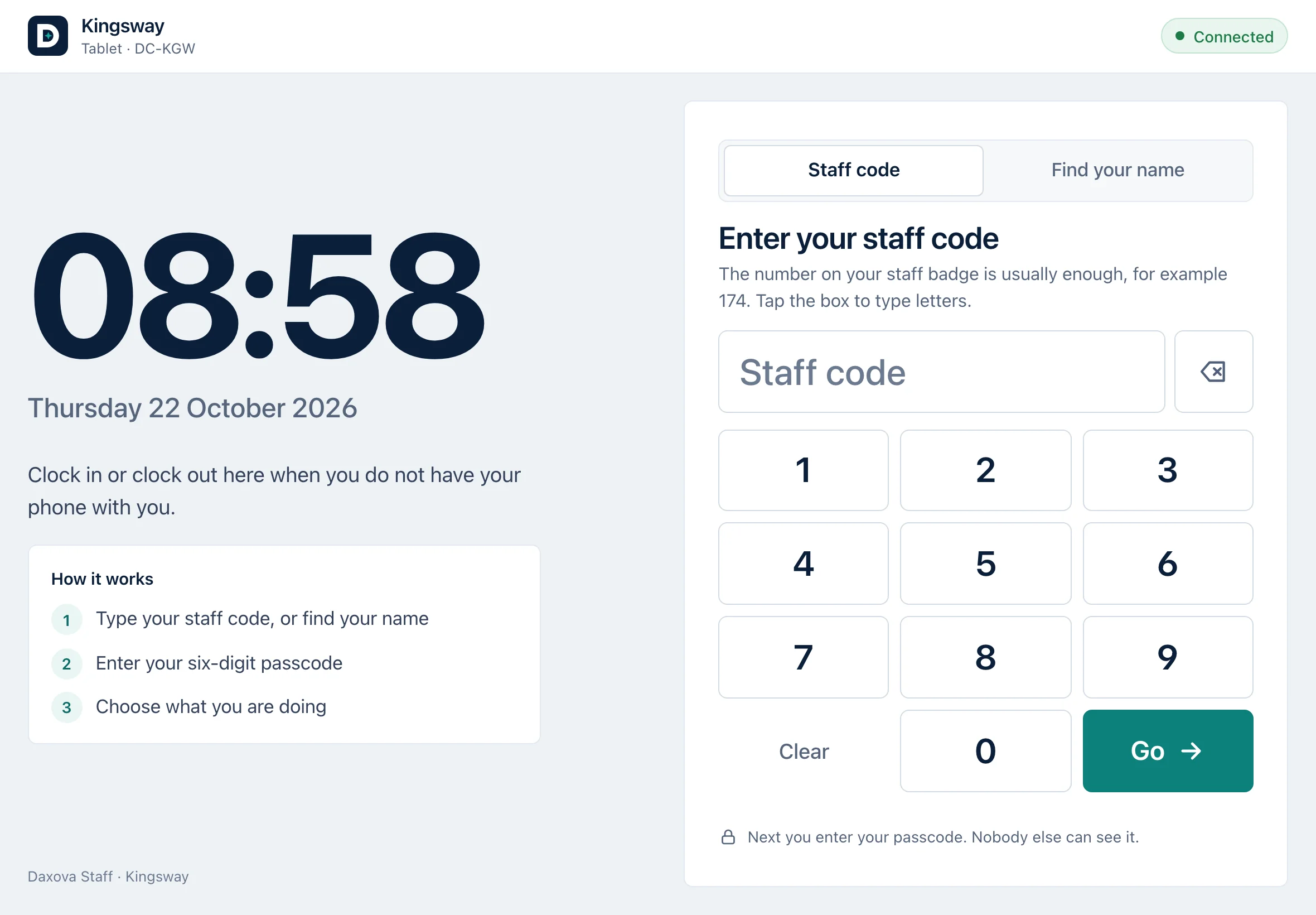
Once it has connected, the screen shows your location’s name with “Tablet” and the location code, the time and date, and Connected, as on the tablet at the top of this page. From then on the tablet remembers its pairing in this browser, and reconnects by itself after a WiFi drop or a restart.
Keep it on screen and awake
There is no app to install, so use the device’s own settings to keep the tablet page on screen. The names of these settings can differ between makes and software versions.
iPad
- In Settings, open Display & Brightness, then Auto-Lock, and choose Never.
- To keep the iPad on the tablet page, turn on Guided Access in Settings, under Accessibility. Open the page in Safari, then triple-click the side or Home button to start it. In the Guided Access settings, set Display Auto-Lock to Never.
Android tablet
- In Settings, open Display, then Screen timeout, and choose the longest time.
- To keep the tablet on the page, turn on app pinning (often under Security in Settings), open the page in your browser, then pin it from the recent apps screen.
- Some tablets also offer Stay awake while charging, in the Developer options.
Computer or touchscreen PC
- Set the power options so the screen never sleeps while it is plugged in.
- Show the browser full screen (F11 in most Windows browsers).
What staff see
The left of the screen shows the location’s name, the time and the date. Staff clock in on the right, in three steps.
-
1Say who they are
With Staff code, they type the number on their staff badge on the keypad, for example 174 for DS-00174. The whole code works too (tap the box to type letters). With Find your name, they type the first letters of their first name and tap their name. Names show as a first name and the first letter of the surname, never more than five at a time, and only for staff of this location.
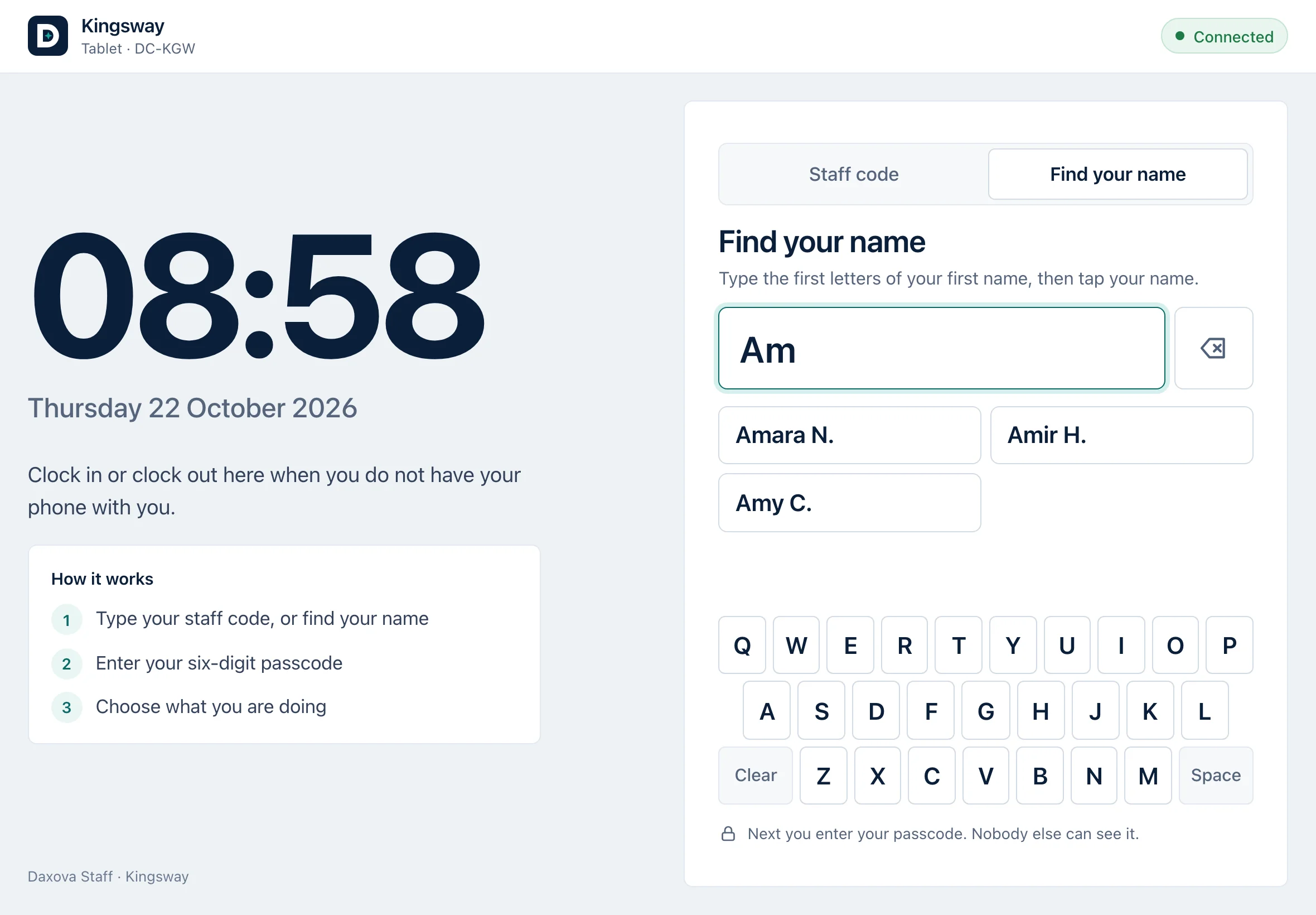
Find your name, with “Am” typed. Sample data. -
2Enter their passcode
Six digits, the passcode they chose in the Daxova Staff app or from their passcode link. The digits are hidden as they type.
3Say why they are using it
Why are you using the tablet? offers Phone lost, Phone broken, Phone out of battery, Phone left at home, Device change in progress, and New starter, app not yet set up. Everyone chooses one, unless HR or the Director has marked them as a clock-in tablet user in Phones.
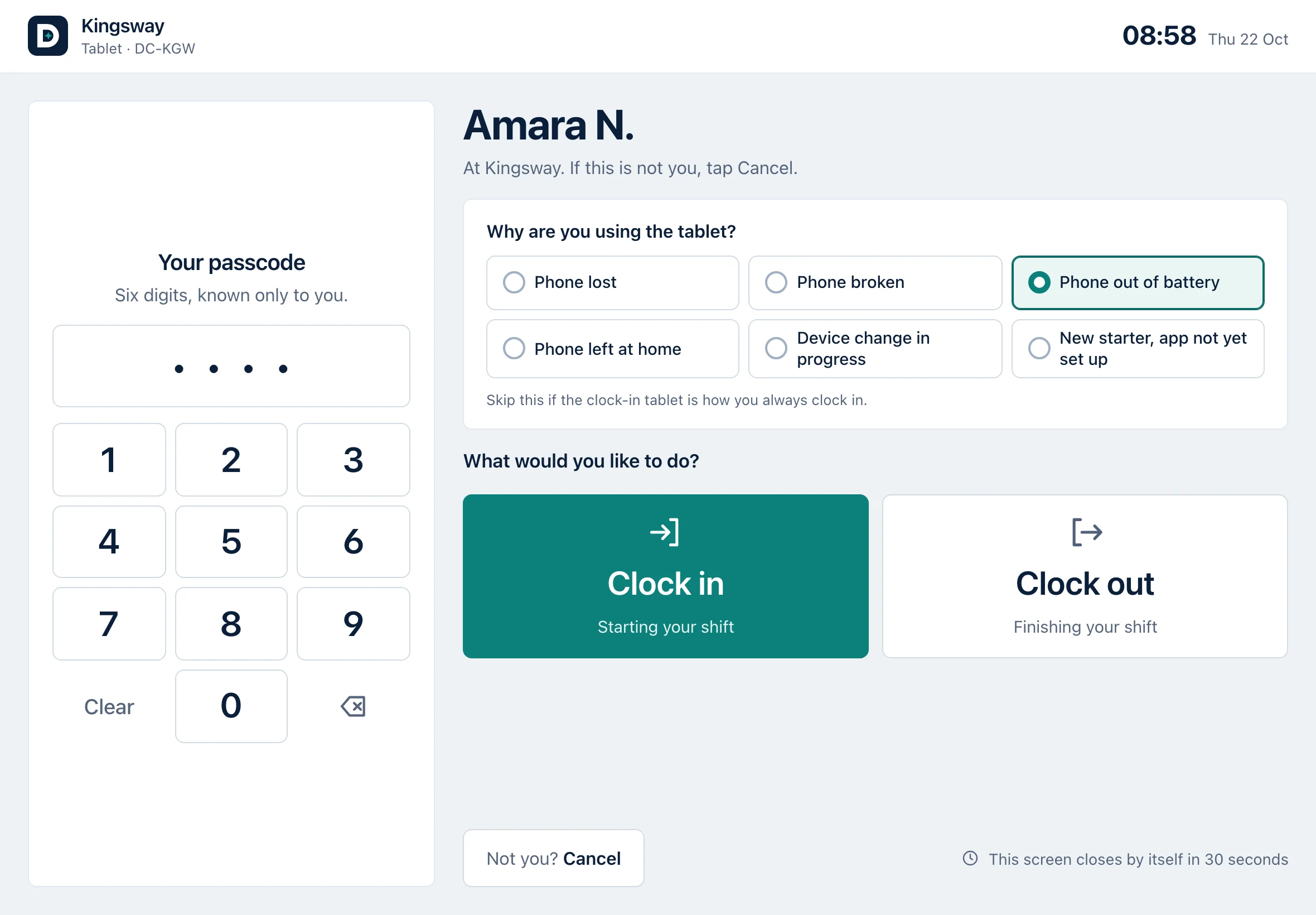
The passcode, the reason and the choice, on one screen. Sample data. -
4Choose what they are doing
They tap Clock in, Clock out, Start break or End break. A tick confirms it, for example “Clocked in at 08:57” or “Break started at 12:02”, and the screen returns to the start after 10 seconds.
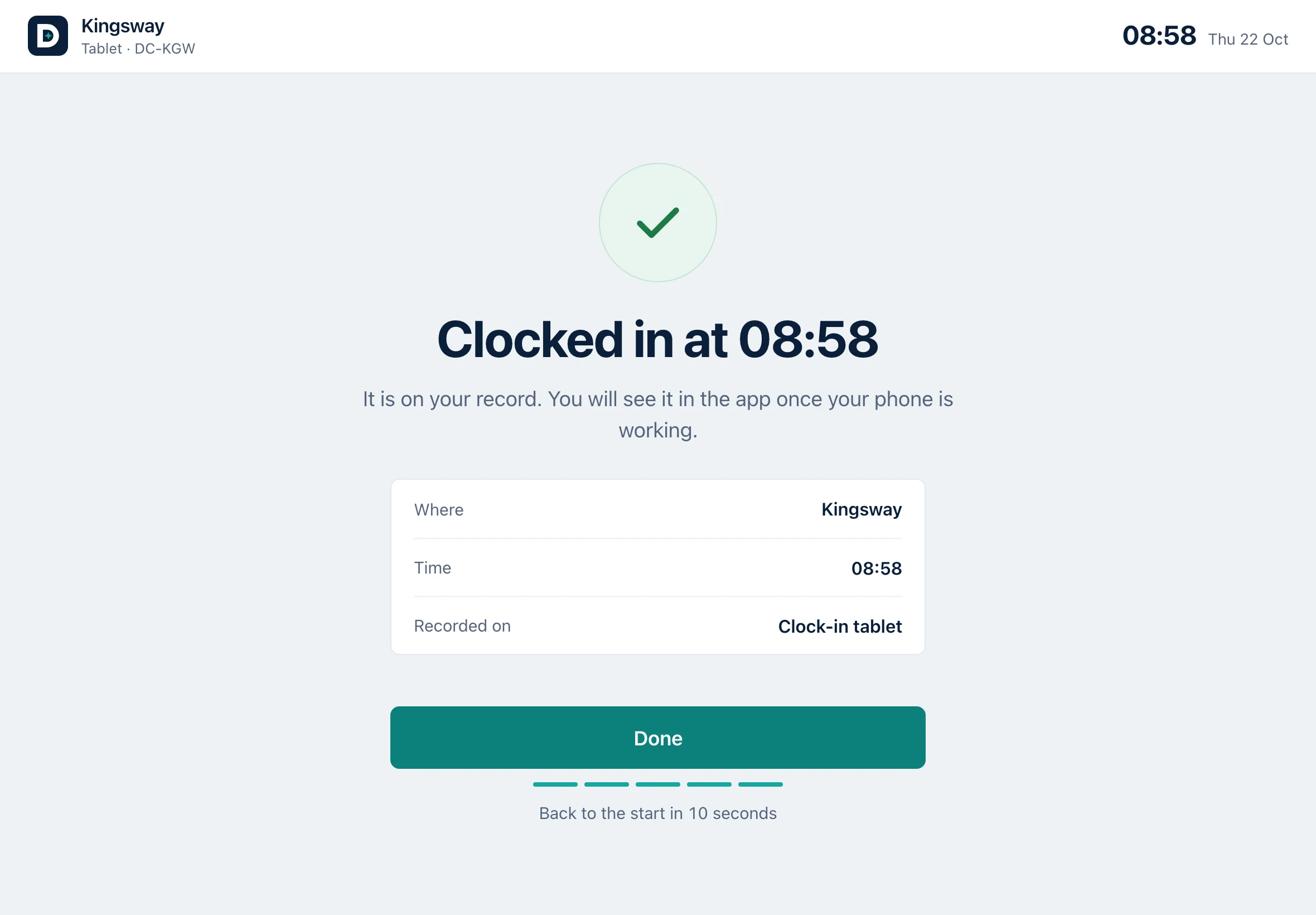
Clocked in, then back to the start. Sample data.
If nobody touches the screen for 30 seconds part way through, it goes back to the start by itself. Staff can start and end their breaks on the tablet too, and a break there counts the same as one in the app.
Staff passcodes
Everyone chooses their own six-digit passcode, and nobody else can see it or look it up. With the Daxova Staff app, they choose it when they set up the app, and the same passcode works on the tablet. Without the app, a manager opens Phones, opens the … menu beside the person and chooses Make a passcode link. The person scans the QR code with their phone camera, or opens the link you send them, and chooses their passcode. The link works once, for 72 hours. If the tablet is their normal way to clock in, HR or the Director ticks that box when making the link, so the tablet does not ask them for a reason each time.
Check it is working
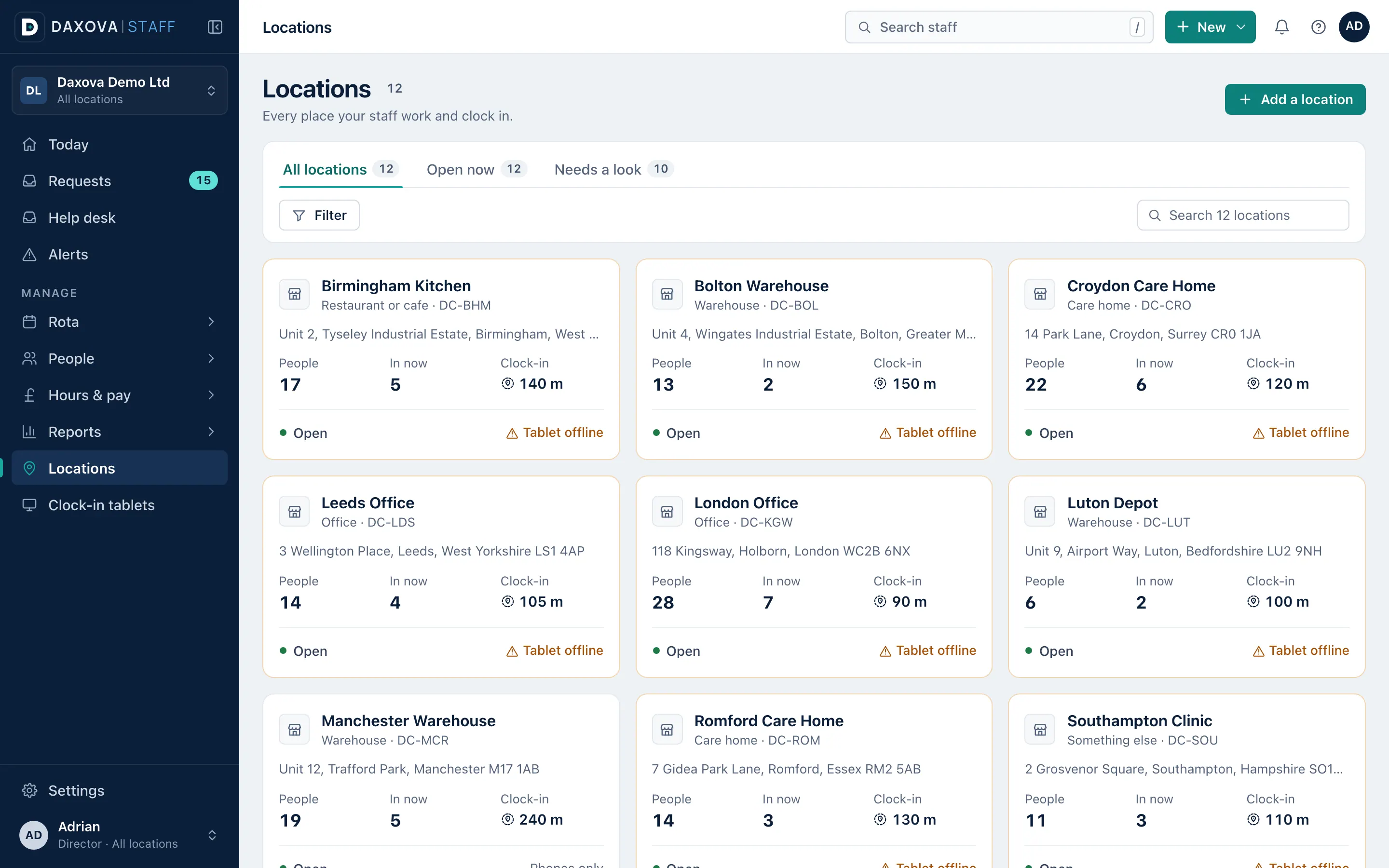
Clock-in tablets, in the menu under Locations, lists the tablets at every location you can see, and each location's own Tablets tab lists its own: each one’s status, when it was paired, and when it was last heard from. A tablet checks in every minute.
WhereClock-in tablets
If a paired tablet at an open location goes quiet during the location’s opening hours or while somebody is on shift, you get a Tablet offline alert, after 15 minutes as standard. The alert closes by itself when the tablet is back. A new location is not open until you open it on its page in Locations, where its opening hours are set too. On a bank holiday a location keeps its normal opening hours, unless a Director or HR ticks Closed on bank holidays for it there. You can change the time, or switch the alert off for a location, in Alert settings on the Alerts page.
Troubleshooting
What the tablet says, and what to do about it.
The screen says“Not set up yet”
The tablet has no pairing in this browser: the link was not opened here, or the browser’s data was cleared. Make a new pairing link and open it on the tablet.
When pairingThe pairing link does not work
Each link works once and within 60 minutes, and a newer link stops an older one. Make a new link and open it straight away.
The screen says“No connection”
Check the location’s WiFi. The screen also says: “No connection. This tablet reconnects by itself. Until then, use the Daxova Staff app on your phone, or ask a manager to add your clock-in.” While it is down, staff cannot clock in on it, and a manager can complete any missed clock-ins with a clock-in fix.
The screen says“That employee code and passcode did not match.”
Check the staff code, including any letters. The passcode is the one the person chose in the app or from their passcode link. With Find your name, the message reads “That name and passcode did not match.”
The screen says“This code is locked for a few minutes”
After five wrong passcodes in 15 minutes, that staff code is locked on the tablet for 15 minutes. Wait, then try again. If the passcode is forgotten, a manager makes a new passcode link in Phones, and the person chooses a new passcode with it. For somebody with the Daxova Staff app on their phone, the manager uses Change phone instead, and they choose a new passcode with their new invite code.
Find your name says“Nobody here matches”
Check the spelling, or use the staff code. Only staff of this location who have set a passcode are listed. If two people share the same name, the tablet says so, and they use their staff code instead.
The screen says“This tablet is no longer paired”
Somebody unpaired it in the portal. Make a new pairing link for it on the Tablets tab, and open it on the tablet. Pairing a new tablet leaves the others at the location working.
Questions
Do I need to buy a special tablet?
No. Any tablet or touchscreen with an up-to-date web browser works, including one you already own. There is nothing to install.
Does the clock-in tablet take photos?
No. The tablet takes no photos and keeps nothing about anybody. Names only appear as a first name and a surname initial, after someone starts typing.
Can two locations share one tablet?
No. Each tablet is paired with one location. A location can have up to ten tablets.
Can staff start and end breaks on the tablet?
Yes. After their passcode, staff choose Start break or End break, the same as Clock in or Clock out. A break on the tablet counts the same as one in the app.
What happens if the location WiFi goes down?
The tablet needs a connection to record a clock-in. It shows No connection and reconnects by itself, and a manager can complete any missed clock-ins with a clock-in fix.