The app and the tablet, side by side
Most staff use the app every day. The tablet is there for a lost, broken or flat phone, for a new starter whose app is not set up yet, and for anyone who always clocks in on it.
| What | On the staff app | On the clock-in tablet |
|---|---|---|
| Clock in and out | Clock in, then a quick selfie | Staff code or name, then the six-digit passcode |
| Breaks | Start break, then End break. No photo | Start break, then End break, after the passcode |
| Photo | At clock in and clock out only | Never |
| Where it works | As the location's clock-in rule says: its WiFi, near it, or anywhere | On the tablet at that location |
| With no internet | Not saved. Try again when connected, or ask a manager to add it | |
On the staff app
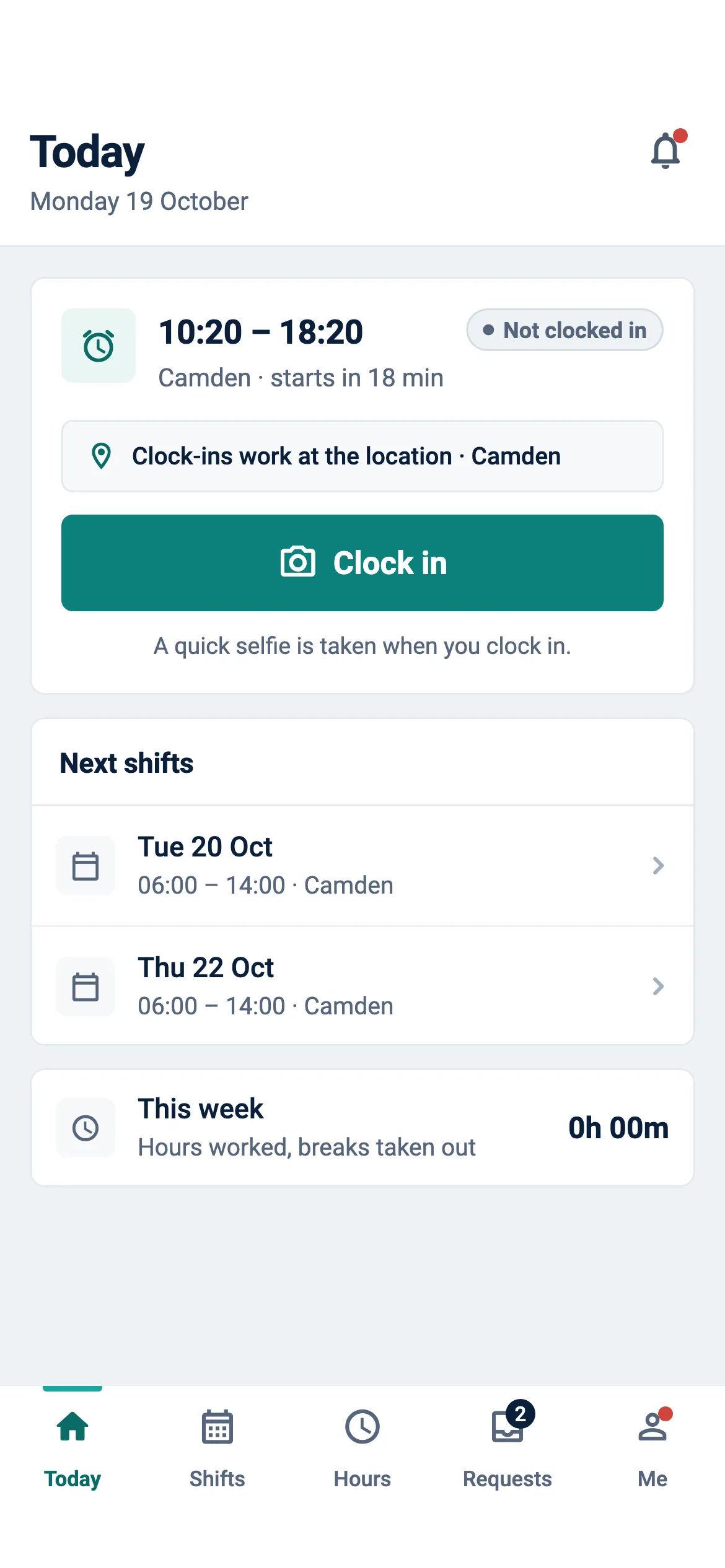
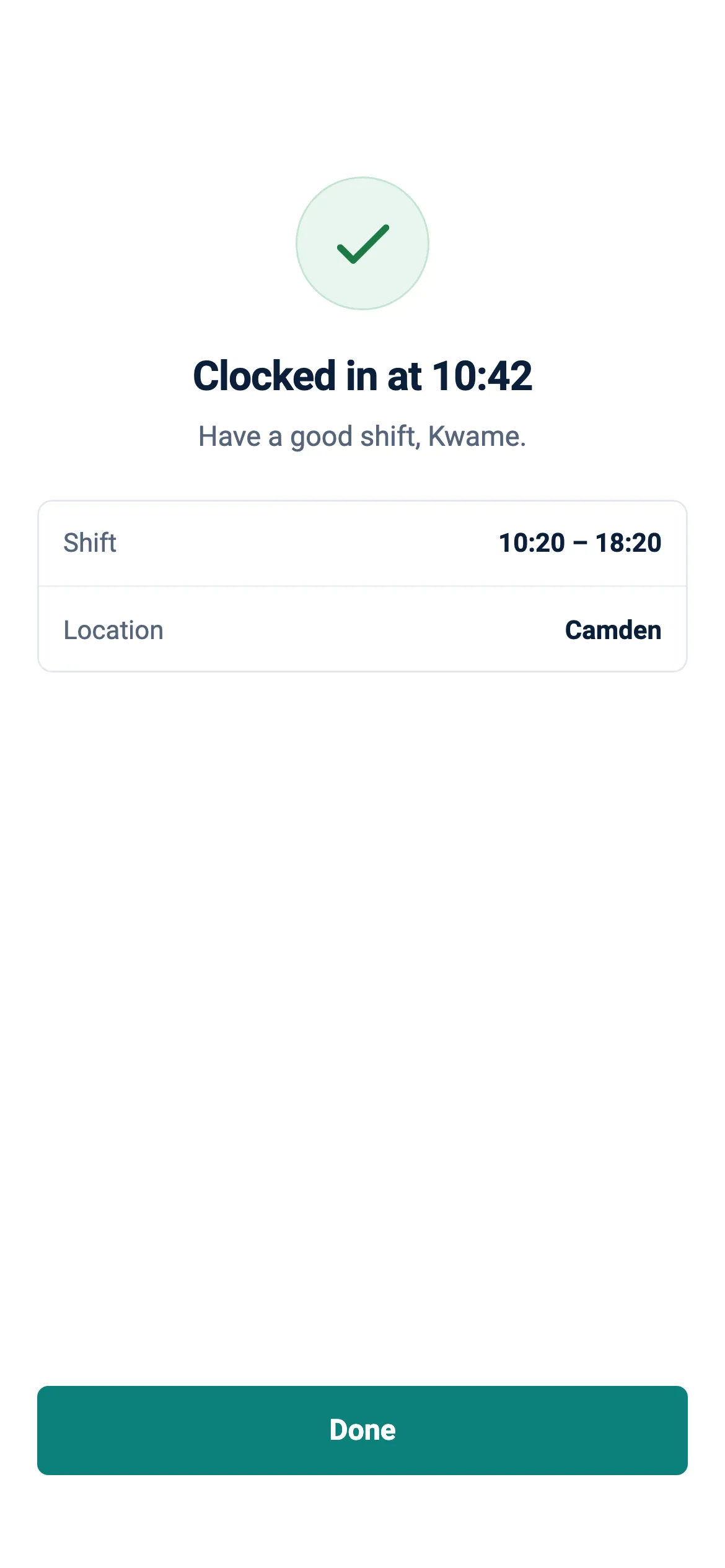
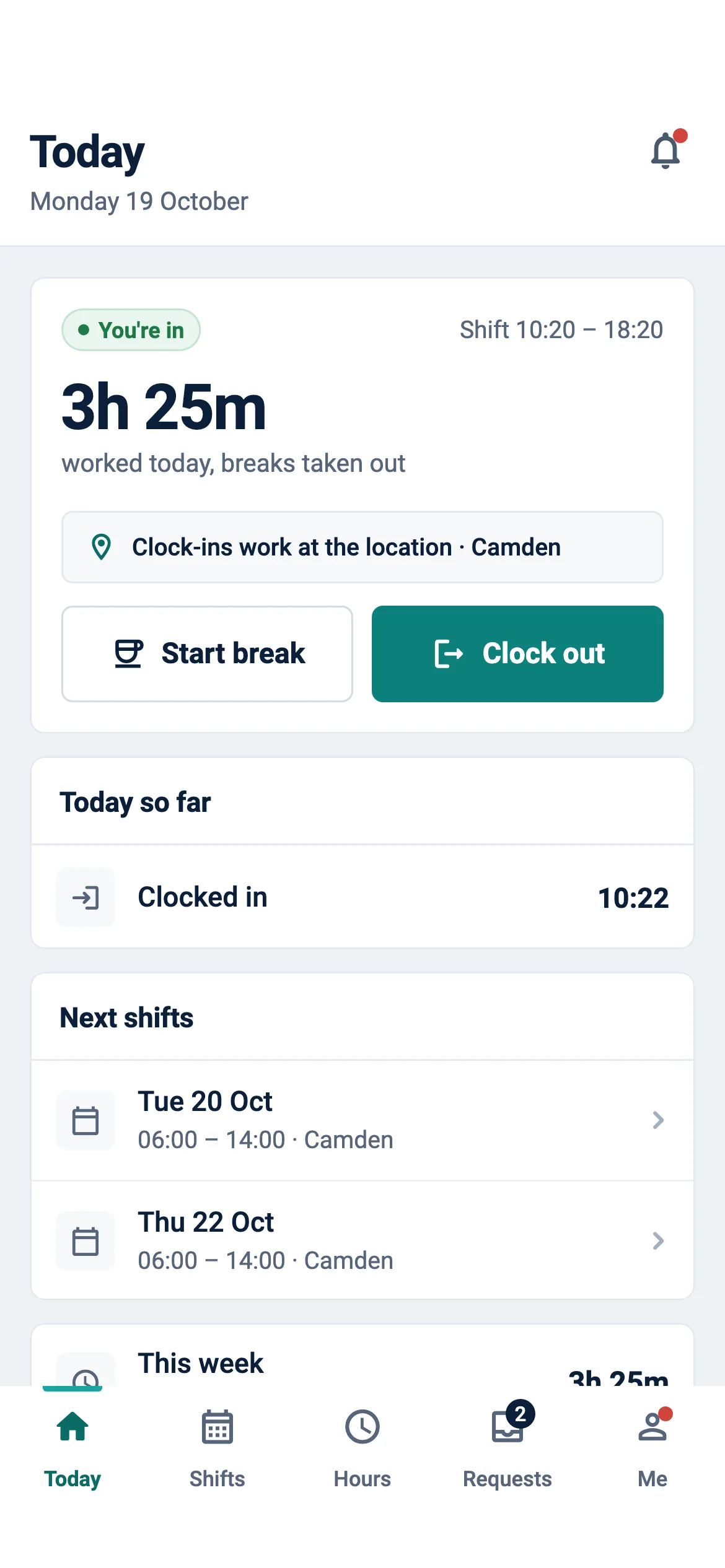
Today, from Clock in to Clock out. Made-up data.
- Clock in
On the Today tab, press Clock in. The front camera opens. Look at it and press the Clock in button. The app says Clocked in at the time, with your shift and location.
- Take a break
Press Start break when you stop, and End break when you are back. No photo is needed. While you are on a break, Clock out waits until you end it.
- Clock out
Press Clock out, take the selfie, and you are done for the day. Your hours appear on the Hours tab.
The photo can only be seen by the location's managers, area managers, HR and the Director, and every look at it is recorded. It is deleted after the time your employer has set, 90 days unless they choose otherwise. There is no face recognition.
On the clock-in tablet
- Say who you are
Type the number on your staff badge and press Go, or tap Find your name and type the first letters of your first name.
- Say why you are using the tablet
Phone lost, broken, out of battery, left at home, a new phone on its way, or a new starter. Skip this if the tablet is how you always clock in.
- Type your passcode
The same six digits as your app. Nobody else can see it.
- Choose what you are doing
Clock in, Clock out, Start break or End break. The tablet shows the time it recorded, then goes back to the start by itself.
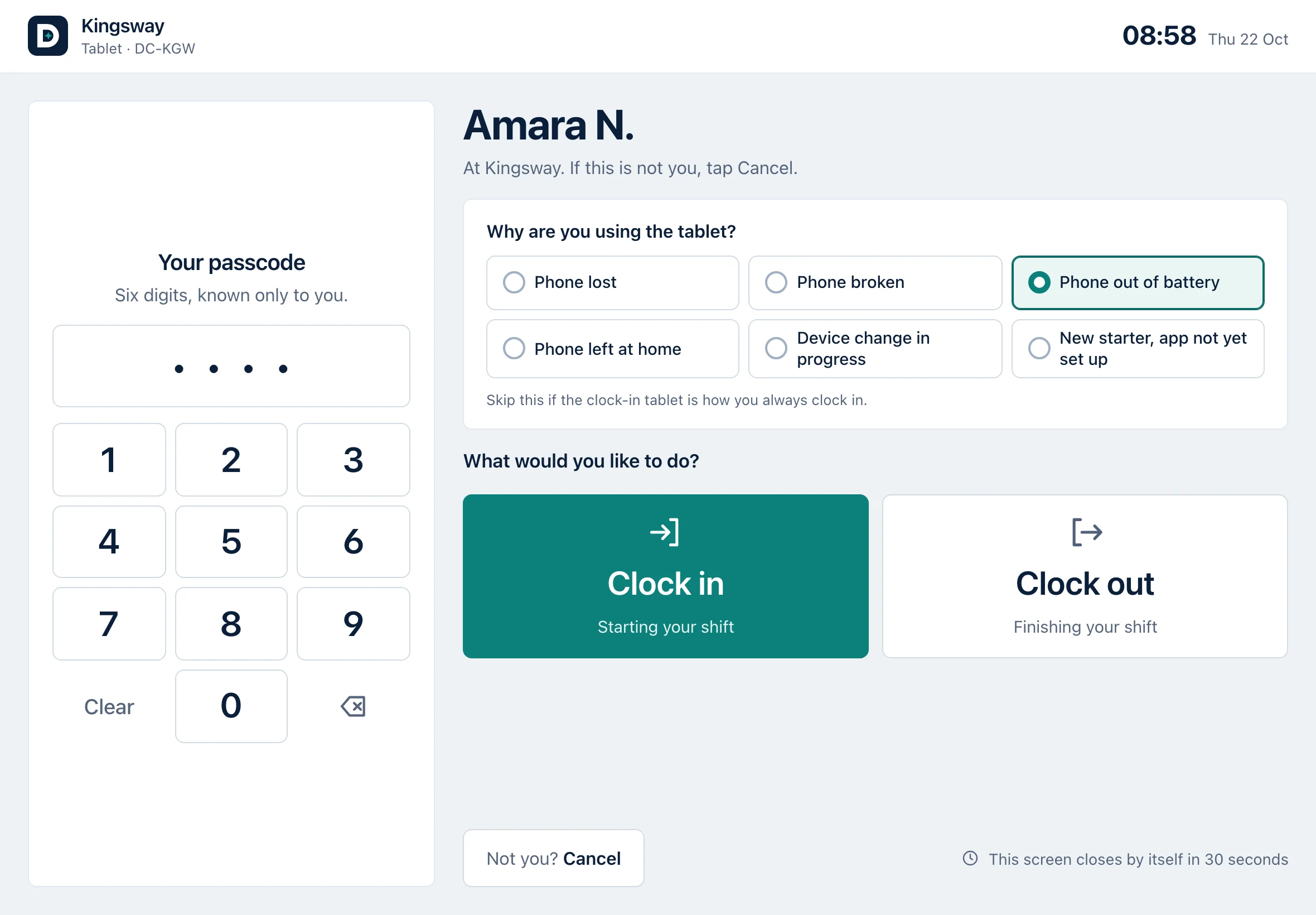
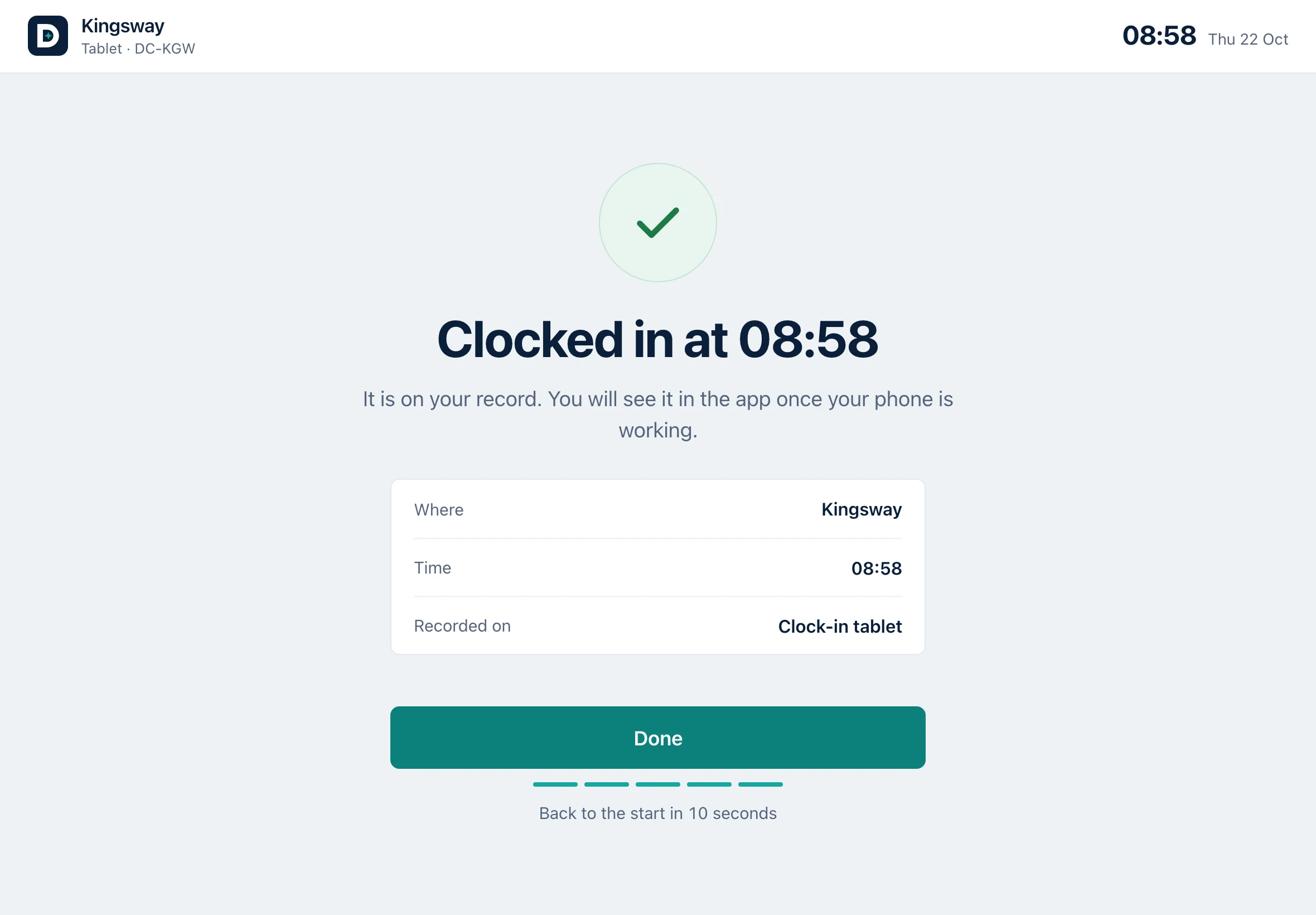
The tablet takes no photo at any step. Made-up data.
When a clock-in does not go through
The app always says what happened and what to do. The messages you are most likely to see:
- Clock-in not saved: this location only takes clock-ins on its WiFi. Join the location WiFi, turn off any VPN, and try again. Mobile data does not count.
- Clock-in not confirmed: the app could not reach Daxova. Trying again is safe: if it was saved, it is not counted twice.
- The photo did not work: press Take the photo again. A photo is good for two minutes.
- This location is not on your record: ask your manager to add the location if you are working there.
- This phone cannot clock in: it is not the phone linked to you. Use the tablet, or ask your manager to link your new phone.
What managers see
Today shows who is in now, who is late, who is on a break and who has a missing clock-out. Live, under Rota, lists everyone at a location as it happens, with a break's length and the clock-in photo.
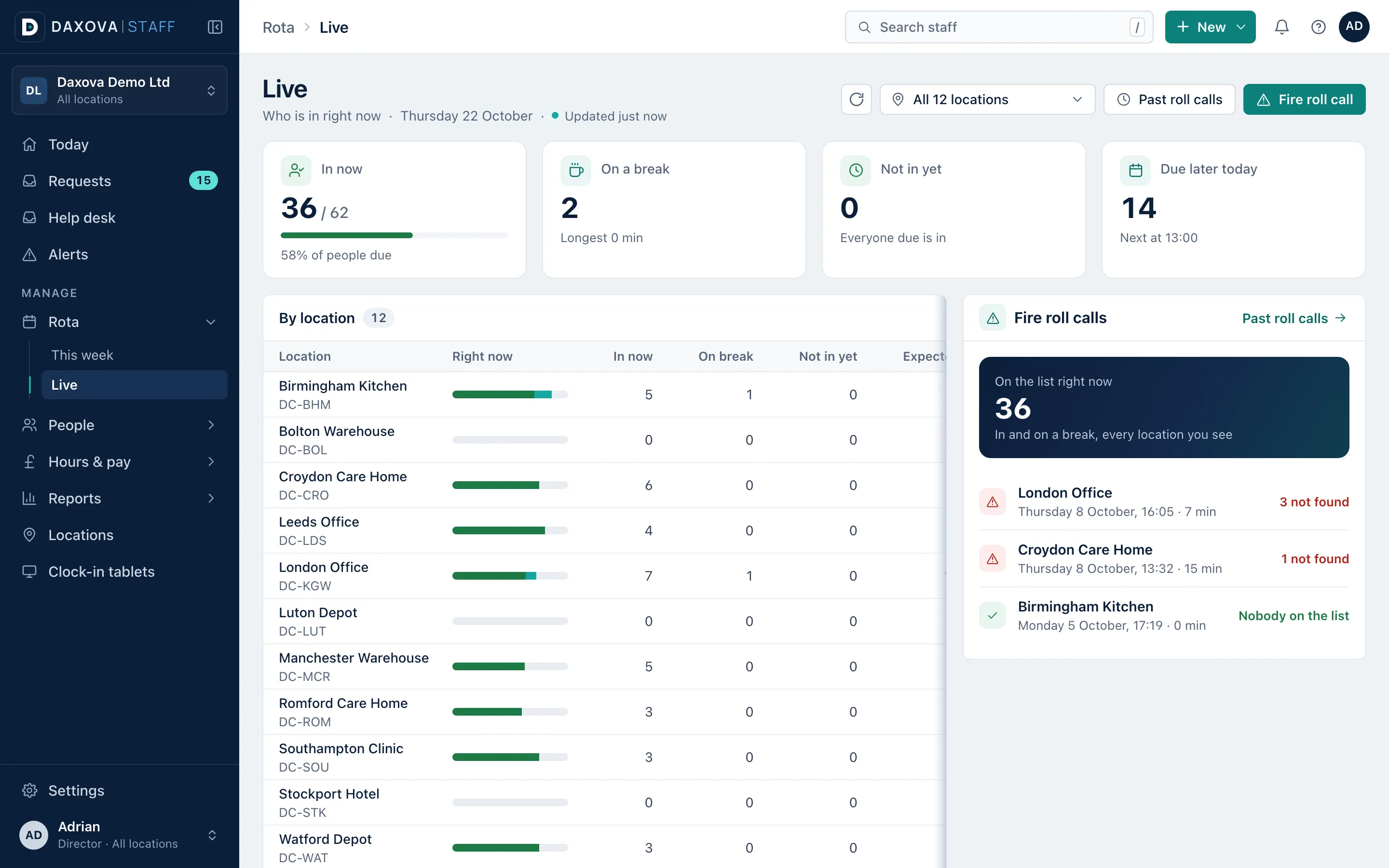
- Late means more than 5 minutes after the shift starts, or no clock-in yet.
- No clock-out shows 30 minutes after a shift ends. It is never closed by itself: a manager completes it. See Fix a clock-in.
- A break of over 60 minutes raises a Long break alert.
Questions
Can staff take breaks on the clock-in tablet?
Yes. After the passcode, the tablet offers Clock in, Clock out, Start break and End break. A break on the tablet counts the same as one in the app.
Does a clock-in save if there is no internet?
No. A clock-in is never saved to send later. Try again when connected, or ask a manager to add it.
Does the tablet take a photo?
No. The tablet takes no photo at any step. The app takes a selfie at clock in and clock out only.
Can staff clock in without a shift on the rota?
Yes. It is recorded, and the manager sees it as a shift that was not on the rota.
What happens if someone forgets to clock out?
Thirty minutes after their shift ends, it shows as No clock-out. It is never closed by itself and no time is made up: a manager completes it.