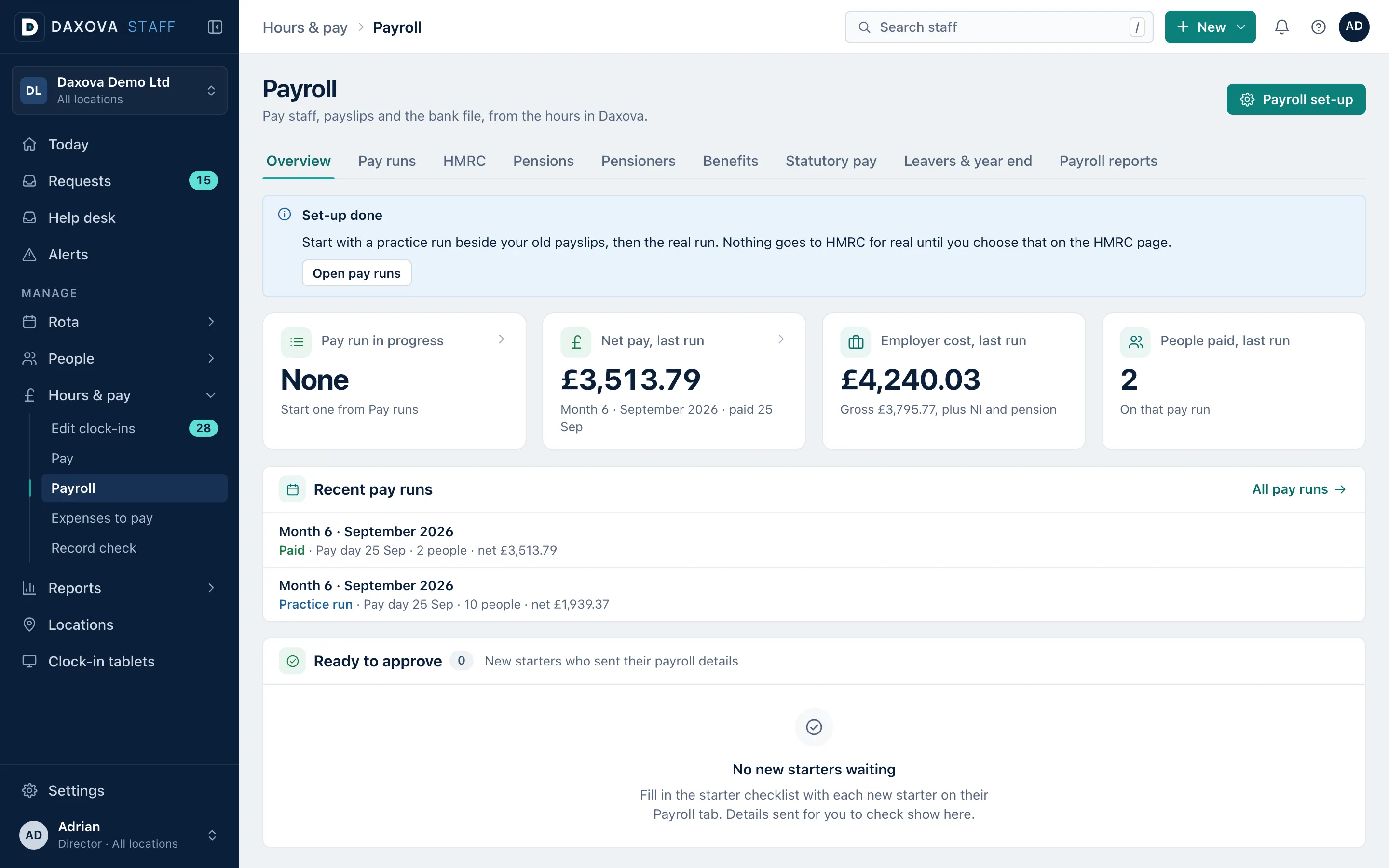
The pay run, step by step
Until you go live at the end of Payroll set-up, every run is a practice run: it pays nobody and sends nothing, so you can compare it with your old payslips.
-
After the period endsLock the pay period
In Hours & pay, open Pay and the finished period. Sort what it lists first, such as a missing clock-out or a fix still waiting, then lock it.
-
ThenStart the pay run
In Hours & pay, open Payroll, then Pay runs. Under Start a pay run, choose the locked period.
-
CheckFix whoever needs you
The run lists each person who needs a choice, with the fix beside the problem. Fix one person and only they are worked out again. Nobody else is held up.
-
ApproveThe Director approves
Approve by the time the run shows, 18:00 on the cut-off day unless you changed it, so the money lands on pay day.
-
Before pay dayPay your staff
Upload the bank file to your online banking, pay anyone on cash or cheque, and, if you have not chosen to send to HMRC from Daxova, send the HMRC pay report details yourself or give them to your accountant.

Fix whoever needs you
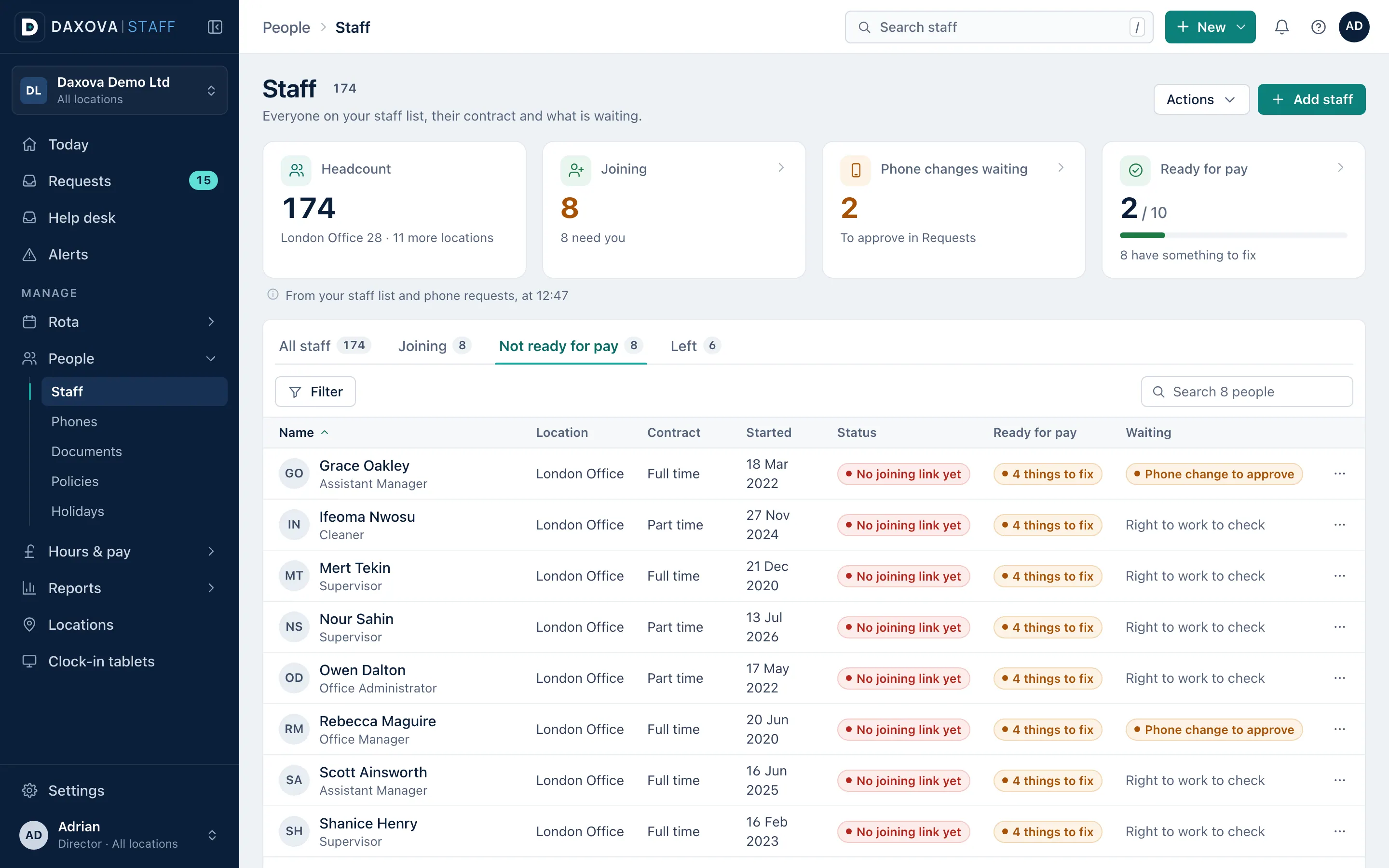
- Missing details, such as a date of birth or a legal name: type them on the row and save.
- No bank details: add the sort code and account number, or press Cash or cheque this time. The next run goes back to how they are usually paid.
- No P45 or starter checklist: press Fill in the starter checklist with them. It opens their Payroll tab with HMRC’s starter questions, so you can type their answers from the paper form or fill it in together. Their answers set their tax code. If nothing arrives by pay day, you can pay them on tax code 0T this time, as HMRC says to.
- Details from your old payroll: someone who carries on from your old payroll needs the tax code HMRC gave them, the payroll ID the old payroll used and their NI letter. Add them in Old payroll on their Payroll tab. See Start payroll.
- A grey Check is worth reading but does not stop you approving.
Hours added after the period was locked
A missed clock-in added after you locked the period is not in the pay run yet. Normally it goes into the next period. To pay it in this run instead, the run shows New hours for … are not in this run, with one button:
- Press Bring the new hours into this run. Daxova unlocks the period, locks it again with the new hours, and builds the run again.
- The reason is filled in for you, for example Added a missed clock-in for Tom Baker. You can change it.
- The unlock, the lock and the new build are each kept in the history, with the reason.
- Only the Director sees the button, and only before the run is approved.
Approve, and what happens next
When nobody needs a choice, the button says who you are paying, for example Approve 10 people. The sheet then lists what Daxova does when you press it:
- Works out and locks the payslips: tax, NI, student loans and pension at the 2026/27 rates.
- Makes the bank file for everyone paid by bank transfer, and a payment list of who to pay, how and how much.
- Makes the HMRC pay report (the FPS). If your company has chosen to send to HMRC from Daxova, it goes when a Director approves. If not, the same details are in the FPS details download, to send yourself or give to your accountant, on or before pay day.
- Releases the payslips on pay day, in the staff app and by email. Payslips for cash or cheque are ready to print as soon as you approve.
An approved run cannot be changed. A mistake is put right in the next run, as a correction.
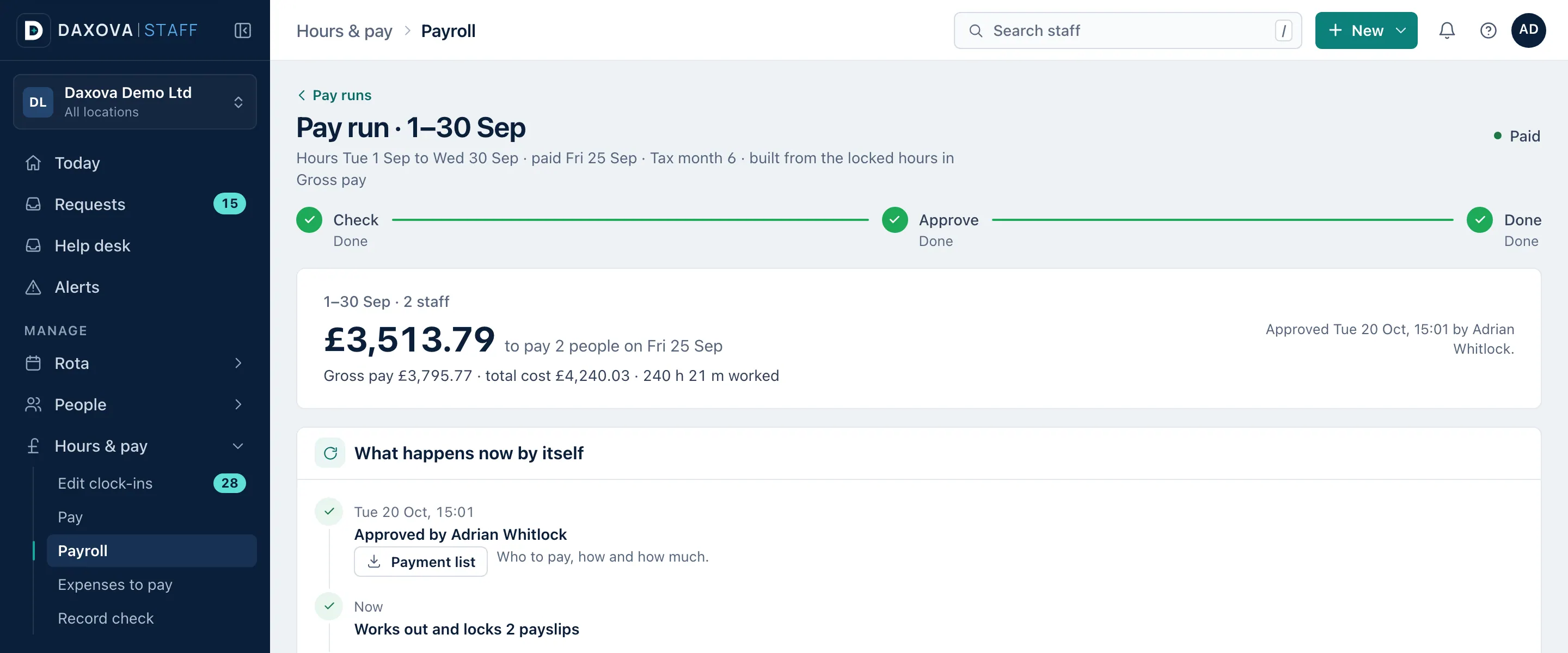
HMRC each tax month
HMRC needs to hear about every tax month by the 19th after it ends: an FPS for each pay run that pays someone, or an EPS when nobody was paid.
- A month with no pay: open HMRC filing and press Send EPS. It offers a no-payment EPS for that month. If you have not chosen to send to HMRC from Daxova, send it yourself from the details, or give them to your accountant.
- A reminder: while a tax month has neither an approved pay run nor a no-payment EPS, the Directors and the approver get a reminder around the 12th and again from the 17th. Nothing goes before you go live.
- A late run: approved after pay day, the run asks why the report is late and gives that reason with it. It says the report is late, not “on or before pay day”.
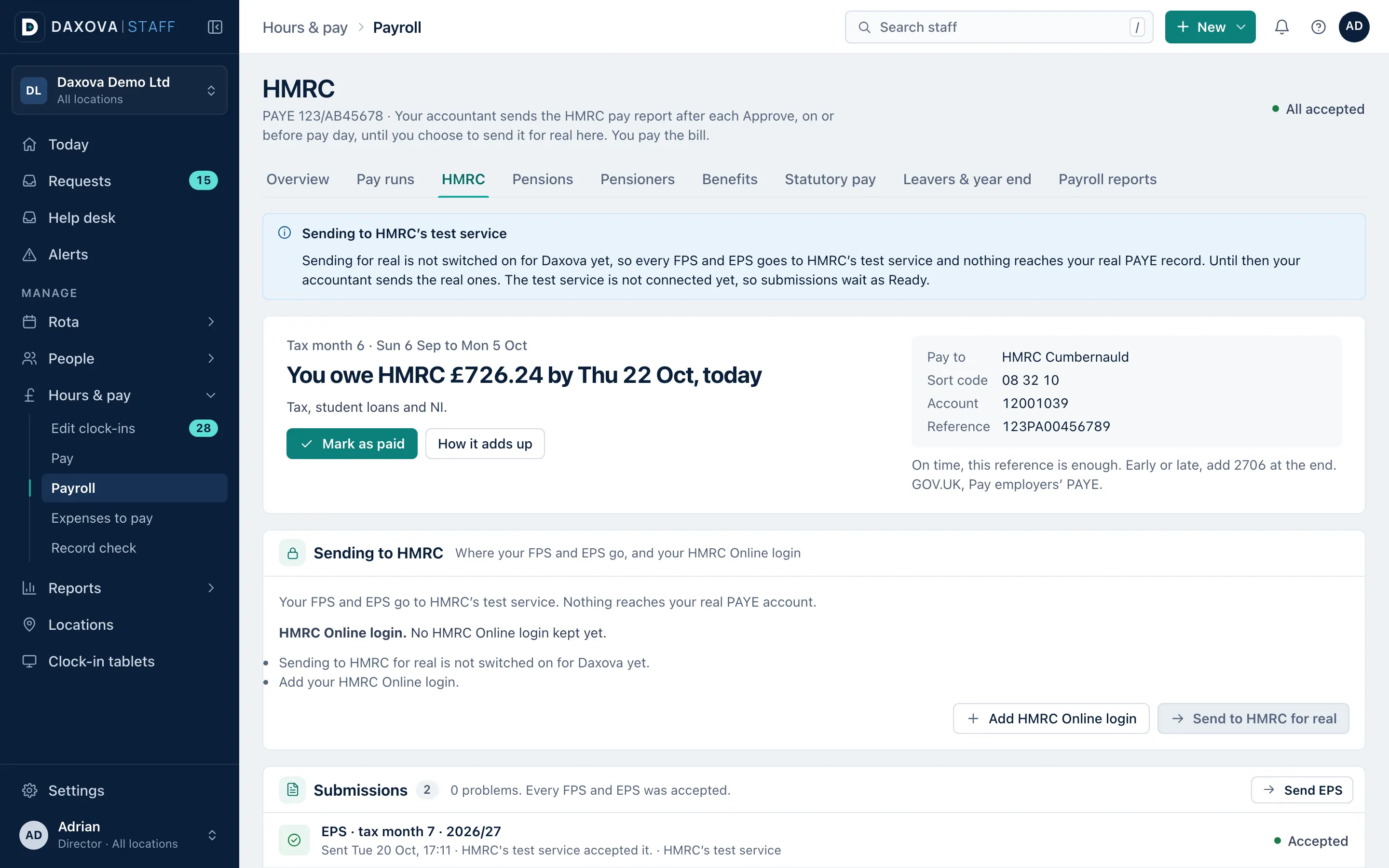
Holiday pay for irregular-hours staff
Staff on irregular-hours or part-year contracted hours are paid their holiday when they take it, at their average pay over the last 52 weeks they were paid.
You can choose rolled-up holiday pay for them instead: on their staff record, open the Payroll tab, then Change holiday pay in the How they are paid card. From the next pay run:
- Each payslip has its own line, Holiday pay (rolled up, 12.07%): 12.07% of their pay for work done in the period, clock-in fixes, commission and bonus lines included.
- When they take holiday, it is unpaid, because they were paid for it with each pay. Hours they built up before, hours carried over, and hours from sickness or family leave were never rolled up: holiday is paid from those first.
- It is only for irregular-hours and part-year staff. If their contracted hours become fixed, the pay run asks you to switch it off.
What your staff get
On pay day, everyone with the app gets a notification, Your payslip is ready, and the payslip in the app as a PDF.
Everyone with their own email address on their staff record also gets an email with a link to their payslip, app or not. The link works for 72 hours, and they can print the payslip or save it as a PDF. A leaver's email has their final payslip and their P45. No email or notification shows a figure.
After you approve, the pay run lists anyone neither of them reaches, for example Give Devon Grant a printed payslip, with a Print button (and Print P45 for a leaver). That is someone with no app and no email address, an address another person also has, an email that did not go, or a link that was never opened before it ran out.
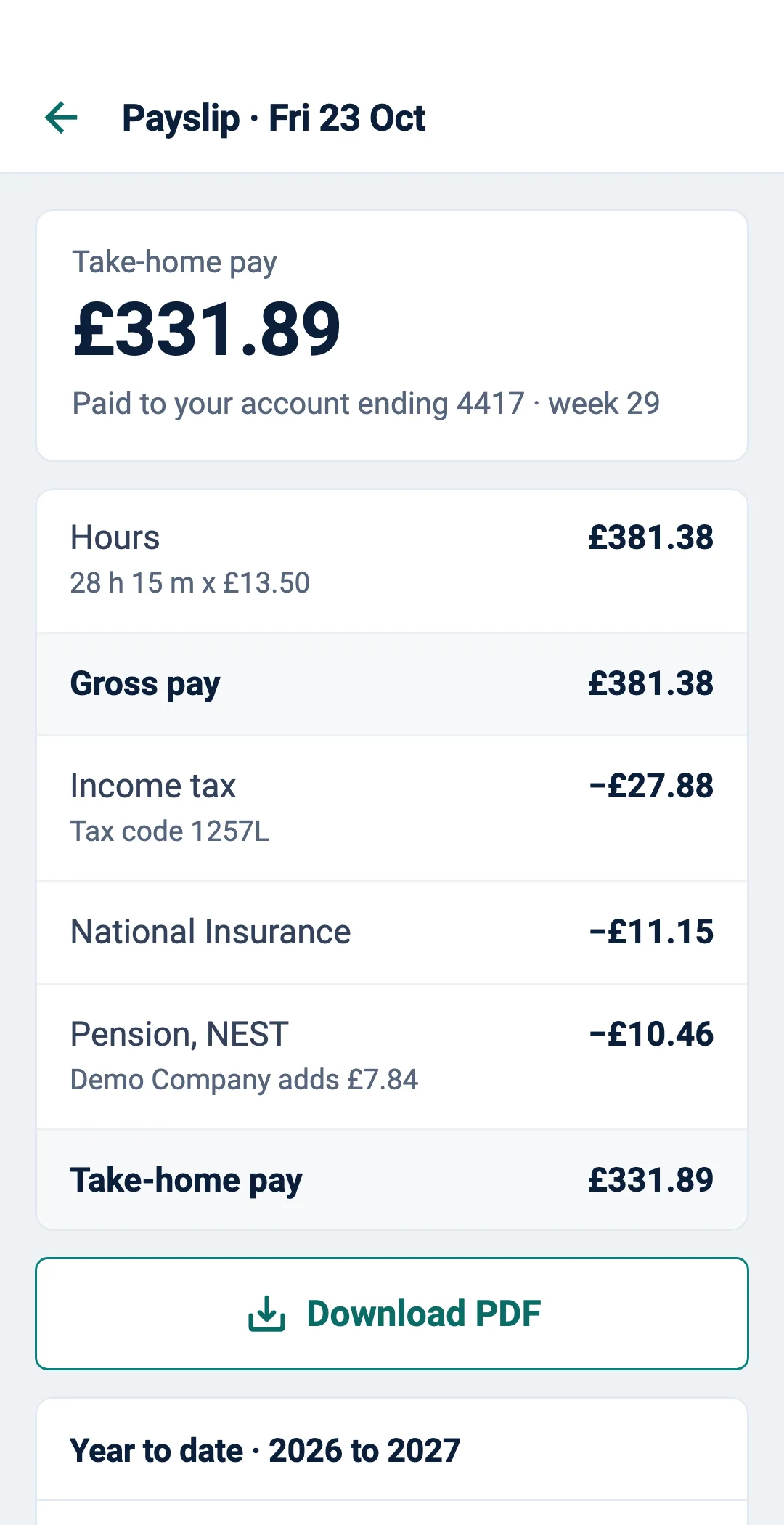
On pay day, in the staff app. Made-up data.
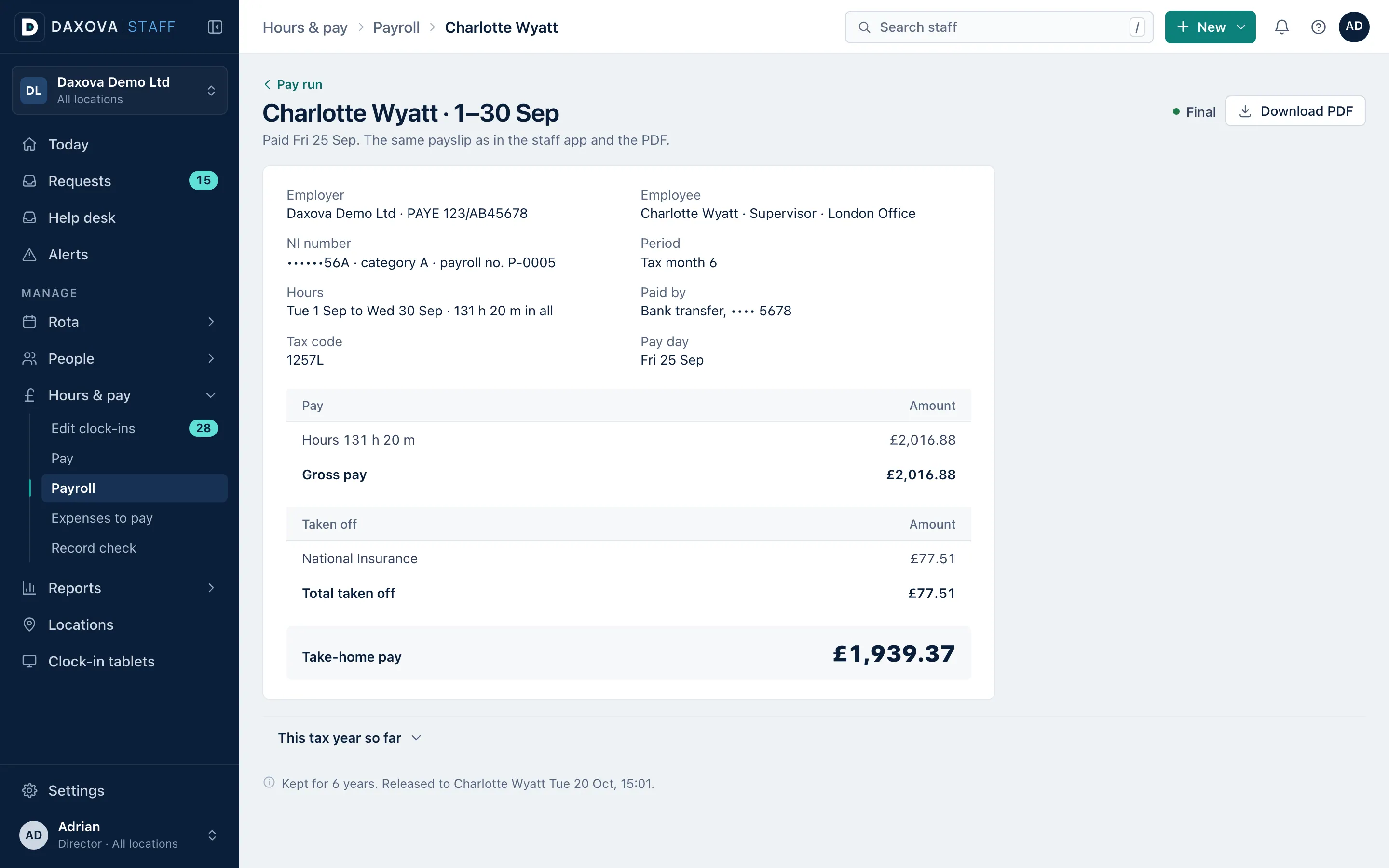
Questions
Does Daxova pay my staff?
No. Daxova makes the bank file and a payment list. You upload the bank file to your online banking before pay day, and pay anyone on cash or cheque yourself.
Does Daxova send the pay report to HMRC?
Yes, if you choose: add your HMRC Online login on the HMRC page in Payroll and choose Send to HMRC for real, and Daxova sends the FPS when a Director approves. If not, download the details after approving and send them yourself, or give them to your accountant, on or before pay day.
Who can approve a pay run?
The Director. HR can prepare a run and fix what needs doing, but only the Director approves.
What if nobody is paid in a tax month?
HMRC still needs to hear about it by the 19th after the tax month ends. On HMRC filing, Send EPS offers a no-payment EPS for that month. Daxova reminds the Directors around the 12th and again from the 17th while a month has neither.
Why is the Employment Allowance not claimed yet?
A company can claim it only once someone other than a single director has been paid above the level where employer NI starts. Until Daxova’s approved pay runs show that this tax year, the claim waits. Then it is claimed for the whole tax year.
Are payslips emailed?
Yes, to everyone with their own email address on their staff record, as a link that works for 72 hours. The email shows no figures. Anyone it cannot reach is listed on the pay run to print.
What does payroll cost?
£1 per staff member on payroll a month, free during your trial.