
Build the week
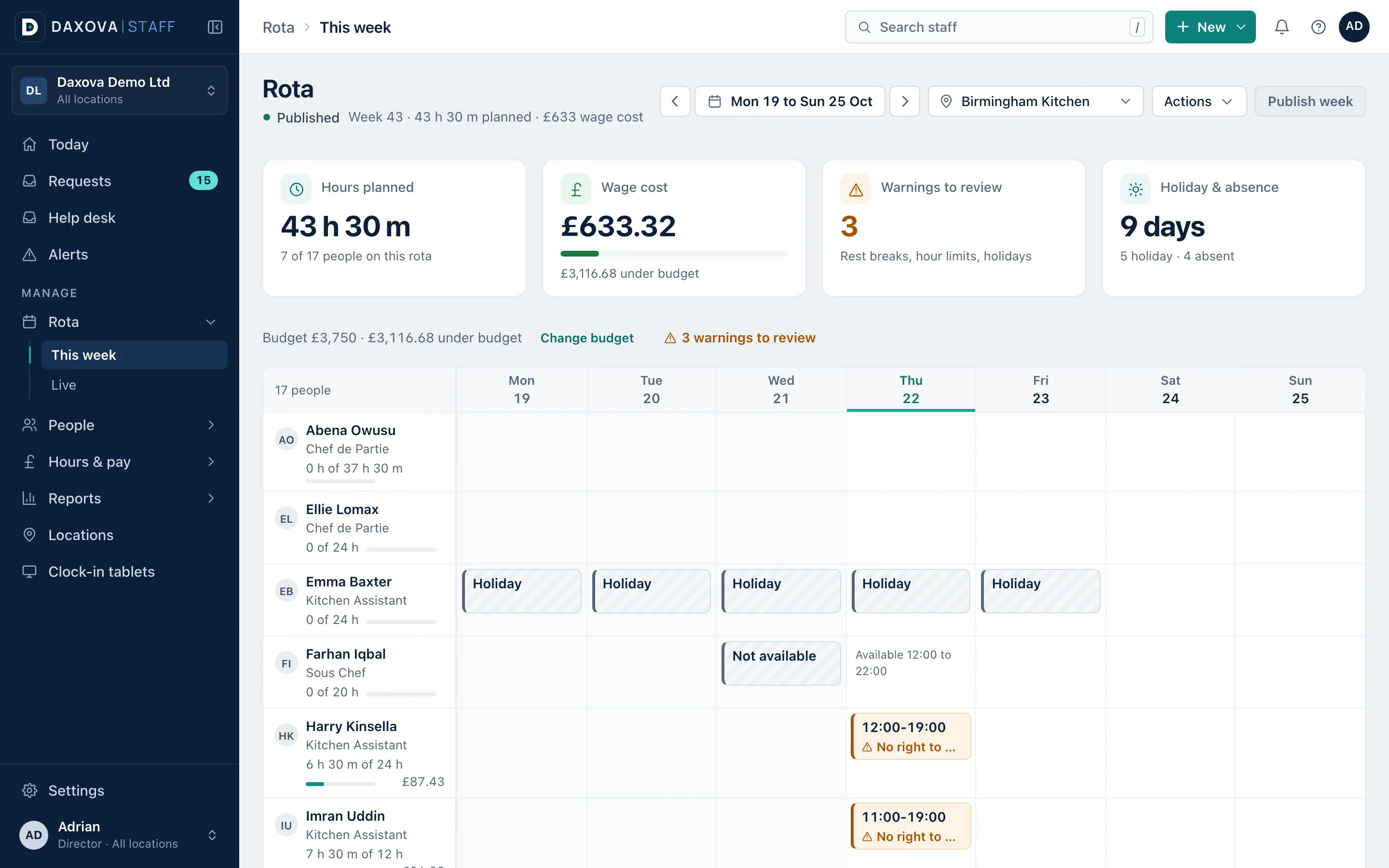
- Open the week
Go to Rota, then This week. Choose the location and step to the week you want. There is one row for each person and one column for each day.
- Add the shifts
Click a day in a person's row to open Add a shift: the start, the end and the unpaid break. To start quickly, open Actions and choose Copy last week or Import from Excel.
- Check the break
The break fills itself in from the times: none up to 6 hours, 20 minutes over 6 hours. Type your own and it stays as you typed it. An end before the start runs past midnight.
- Read the warnings
A shift with something to look at turns amber and says what, such as Outside hours or No break. Open it to read the full sentence, fix it, or press Mark as checked to record that you looked.
What the warnings mean
They are prompts from the rules of the rota, not legal advice. The ones you will see most:
- No break or Short break: over 6 hours of work in a day, across all locations, without one unpaid break of 20 minutes in one go. If the break is paid, mark it checked.
- Under 18: the stricter rules for young workers, such as a 30 minute break after 4.5 hours and at most 8 hours a day. It needs their date of birth on their record.
- Short rest, Over 48h, No day off and Over limit: rest between shifts, weekly hours and a weekly limit you set for someone.
- Holiday, Absent, Not available and Outside hours: they are off, they said they cannot work, or the shift is outside the location's opening hours.
- No right to work check: nothing is recorded for them yet. See Record a right to work check.
Publish, and see who is told
Press Publish week. Before anything is sent, the dialog lists what changed and exactly who will hear about it. Only people whose own shifts changed are told, and each person is told one way.
When you publish again after a change, you are asked Why it changed: cover arranged, business need, asked for by staff, leave approved, a correction, or other with a short note. It is kept with that version, so the rota explains itself later.
After you publish, a notice at the top of the week names the same three groups again, so you know exactly who still needs telling.
Change a week you have published
Click any shift and change it. Your first change starts a new draft, and staff keep seeing the version they have until you publish again. Then only the people whose shifts changed are told, with just what changed.
- To throw the draft away, open Actions and choose Discard changes. The week goes back to the version staff see now.
- An approved shift swap, or an extra shift somebody picks up, updates the published week by itself. You do not need to publish it.
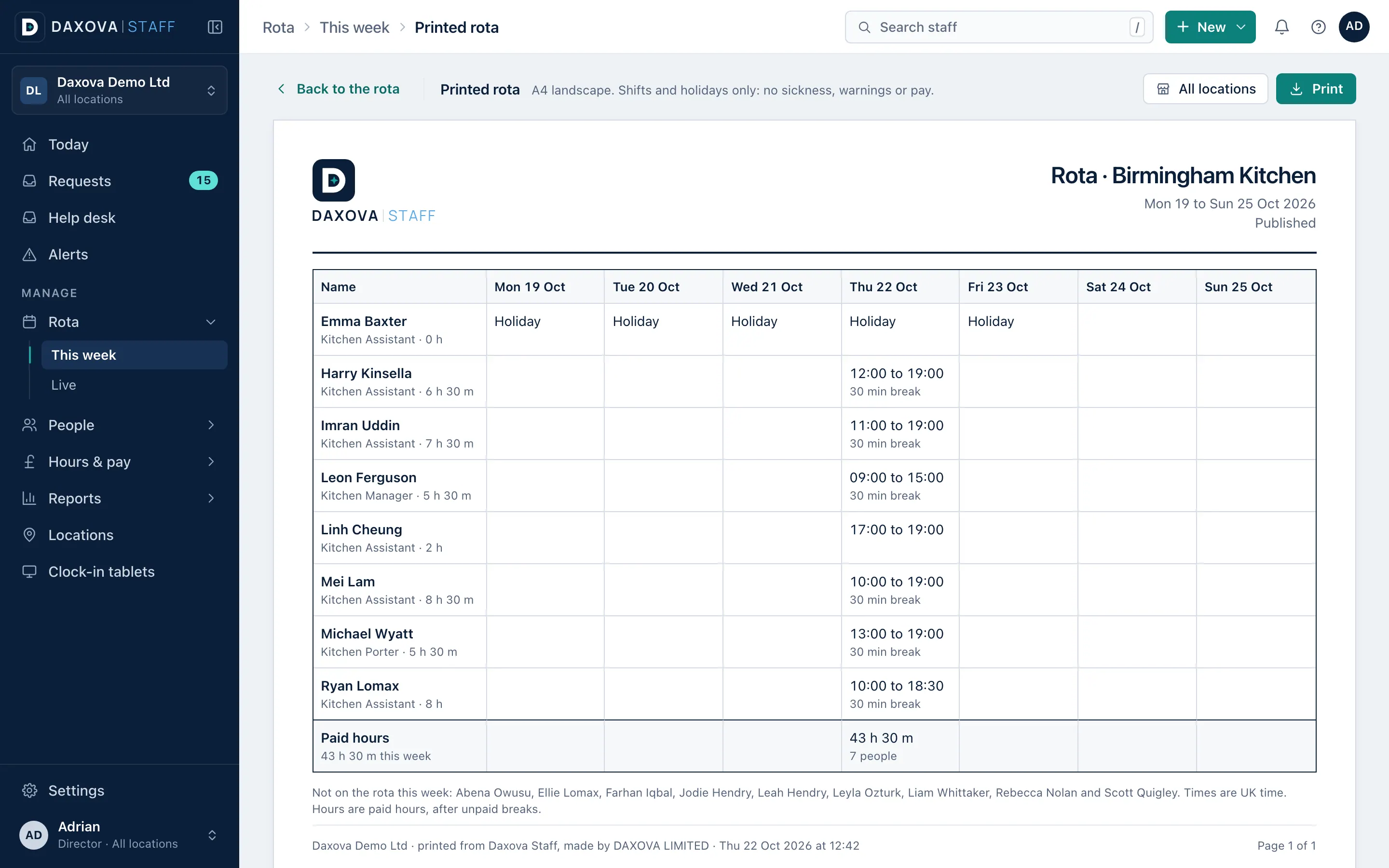
- To print, open Actions and choose Print. It opens an A4 landscape page with names, days, times and breaks, and a draft prints with a Draft stamp.
Questions
Do warnings stop me publishing?
No. They are saved with the version and your name. Only overlapping shifts, someone who has left, a location they are not set up for, or a right to work check that has run out stop a shift.
Is everyone on the rota sent a message?
No. Only people whose own shifts changed, each in one way. Everyone else gets nothing, so nobody is bothered by a change that is not theirs.
Can HR build the rota?
No. HR can see every rota. The location manager, the area manager or the Director builds and publishes it.
Do staff see my draft?
No. Staff only see the last version you published, until you publish again.
Does the email show their pay?
No. It shows the days, times, breaks and the week's planned hours. Never a pay figure, a rate or a note.