Two ways to add staff
Most people are added one at a time, on the day they start. When you first move to Daxova, bring the whole team in from a spreadsheet instead.
Add one person
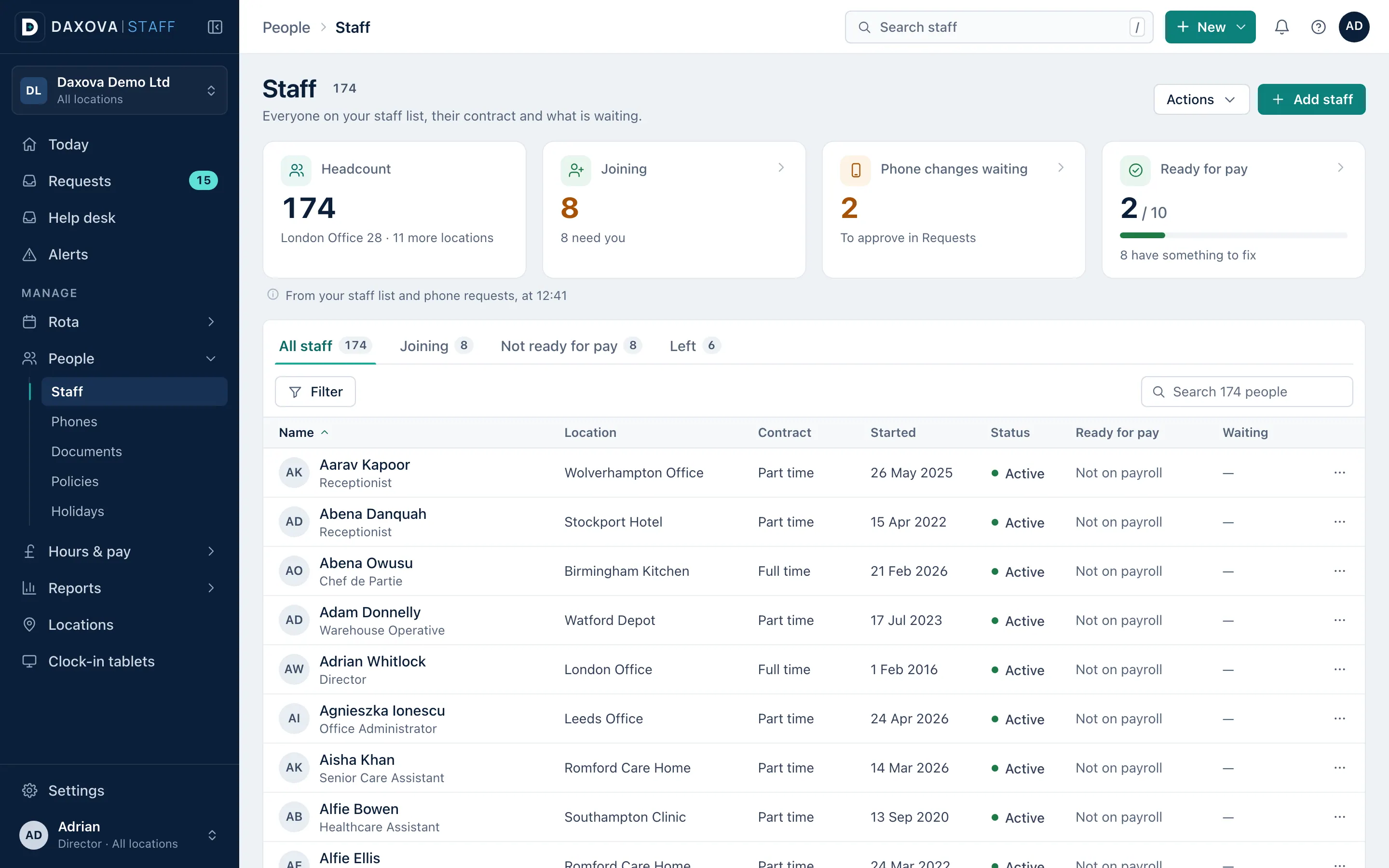
- Open Staff
In the menu, go to People, then Staff, and press Add staff at the top right.
- Say who they are
Type their Full name and choose their Home location. A Job title is optional. With only one location, it is chosen for you.
- Choose the contract
Pick the Contract type: Full time, Part time, Zero hours, Fixed term or Agency. The Start date is today unless you change it.
- Add what you have, skip the rest
An email address and a mobile number are optional, and neither is needed for the app. A Date of birth lets the minimum wage check run for them, and a National Insurance number helps payroll. Both can be added later.
- Press Add staff
Their record opens with their staff number, such as DS-00042, and a list of what is left to set up.
Finish setting them up
Their record opens on a card called Finish setting up, with a button for each thing still to do. Do them in any order.
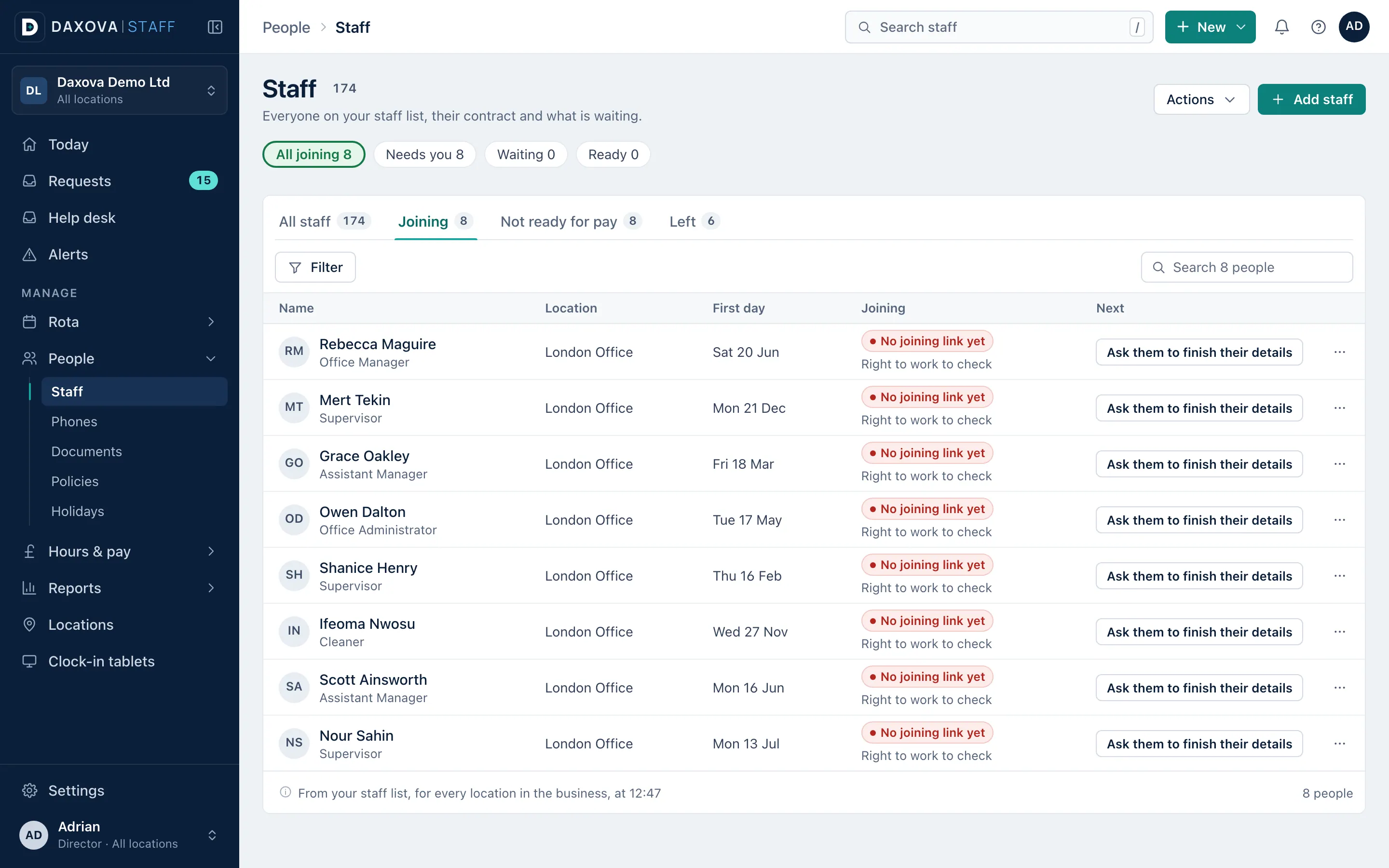
- Invite now gets them on the staff app. Until then they cannot clock in, unless they use the clock-in tablet.
- Add pay rate and Add hours: the first rate and the first contract hours need no reason. Later changes do.
- Add date of birth, so the minimum wage check runs for them.
- Record check for their right to work, before their first shift.
The card stays for 28 days after their start date, for HR and the Director. If a pay rate is below the minimum wage for their age, it is still saved and you see a warning that stays until you close it.
Get them on the staff app
Press Invite now on the card, then Make the code. Daxova shows a six-digit code, an invite link with the code in it, and a QR code. It sends nothing itself.
- They are with you: press Show QR code and they point their phone's camera at it.
- They are not: press Copy a message to send and send it by text or email yourself.
What they see on their phone
- Join your teamEverything is filled in. They tap Continue.
- Is this you?Their name, staff code and location.
- How your information is usedThey read it to the end.
- Your choicesEach one is asked on its own. Saying no never changes their pay.
- Choose a passcodeSix digits, typed twice. Nobody else can look it up.
Add your whole team from a spreadsheet
- Get the template
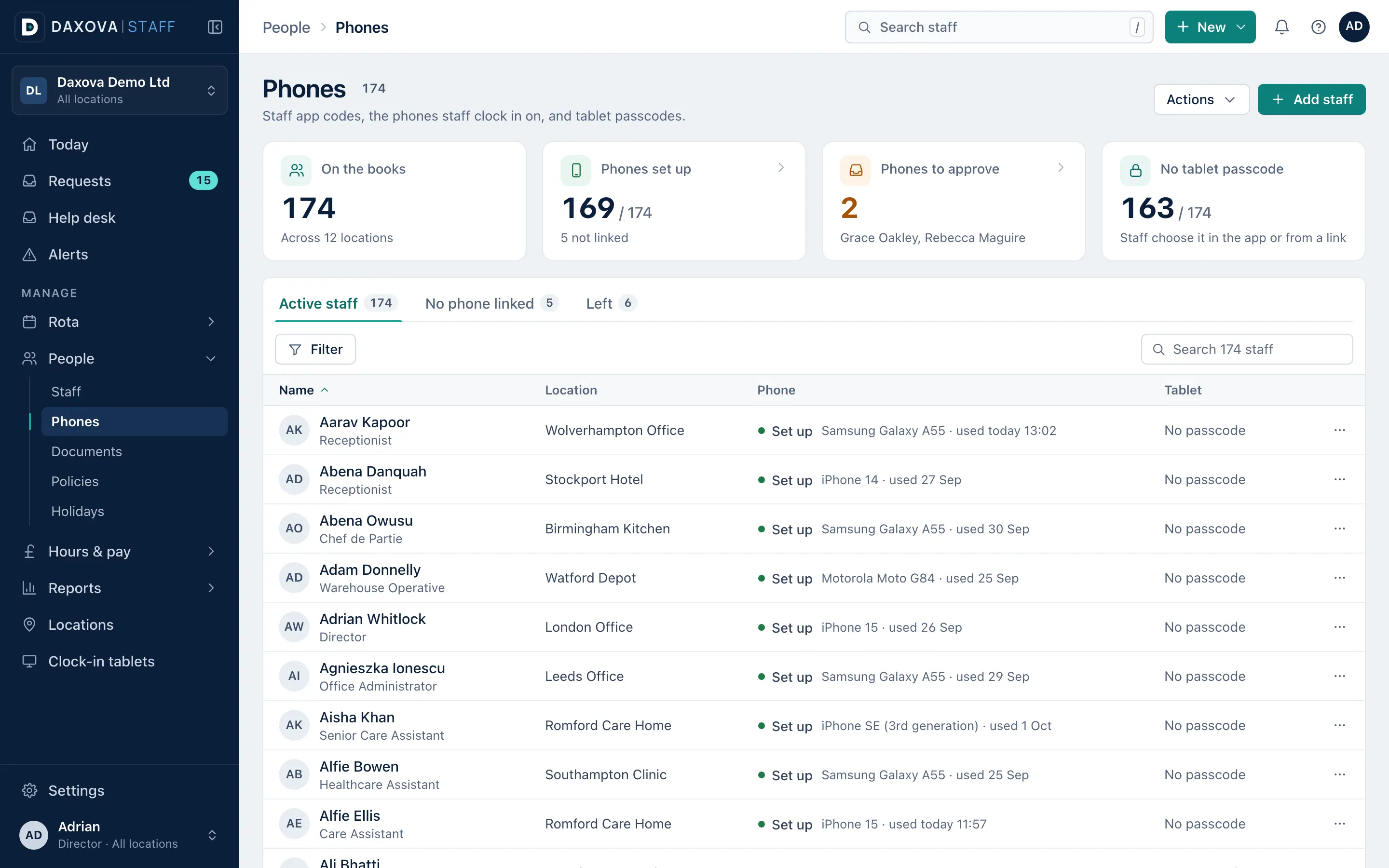
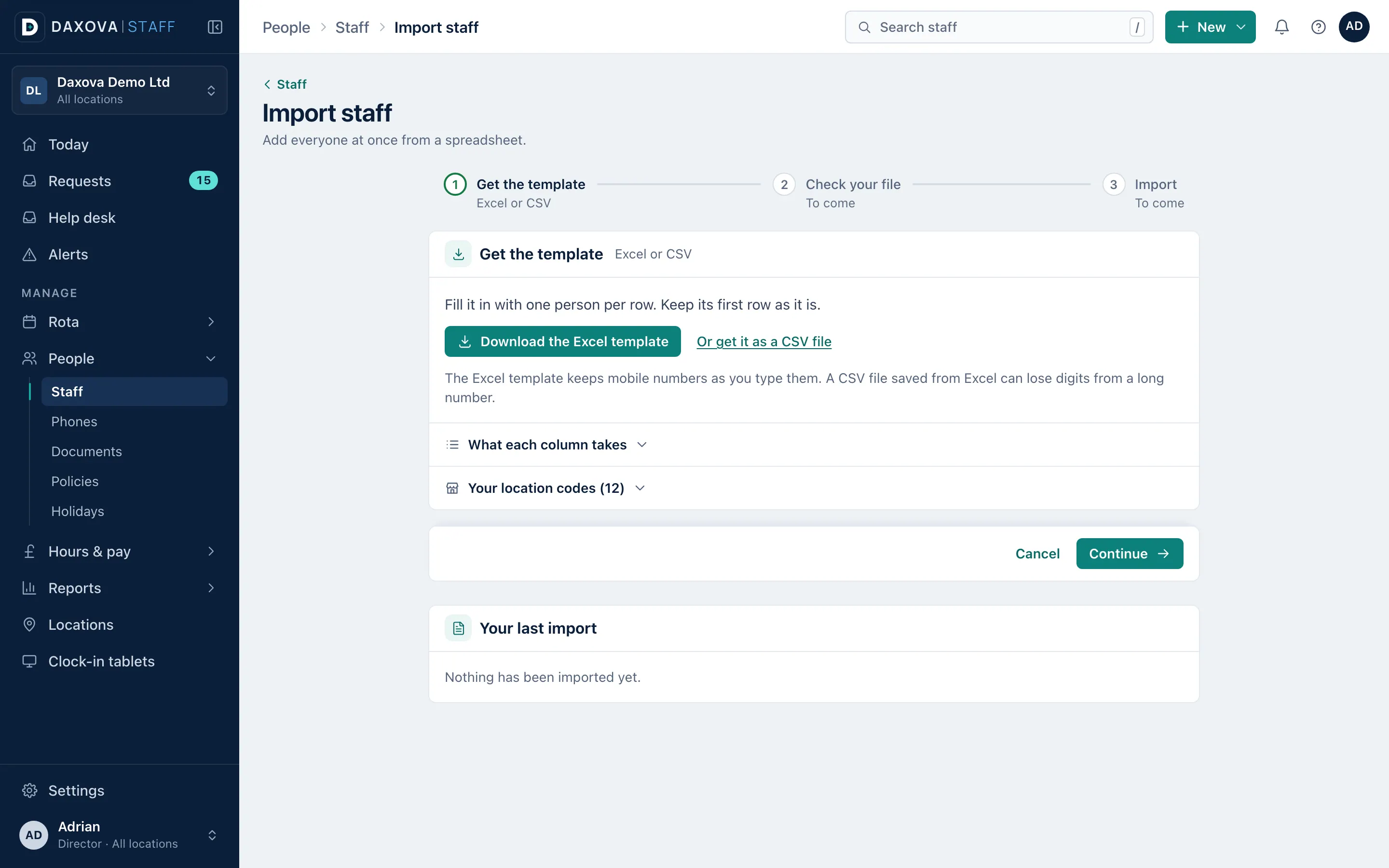
On Staff, open Actions and choose Import staff. Download the Excel template. It keeps mobile numbers exactly as typed, which a CSV saved from Excel can fail to do.
- Fill it in, one person per row
Each row needs a first name, last name, location code, contract type, contracted hours a week (0 to 60) and an hourly rate. Known as, date of birth, National Insurance number, email, mobile, department, job title and start date are optional. Keep the first row as it is.
- Check the file
Checking saves nothing. Every problem in every row is listed with the row, the column and what to fix, and nothing is added until every row passes. Files can be .xlsx or .csv, up to 2 MB and 2,000 rows.
- Import
The button says what will happen, for example Add 32 people and update 2. Then send each person their app code from Phones.
Questions
Can a location manager add staff?
No. Only HR and the Director can add staff. A location or area manager can make a new app code for someone whose code has run out.
Does Daxova email or text the app invite?
No. Daxova shows the code, the link and a QR code on your screen once. You show the QR code, or send the link yourself.
Can they clock in before their start date?
Yes. The start date sets when pay, holiday and the minimum wage check begin. It does not stop anyone clocking in.
Can I change somebody's staff number?
No. Staff numbers are given automatically, never change and are never used again, so old records always point to the right person.
What if someone in my spreadsheet is already on the staff list?
They are updated, never added twice. An import can change a name, mobile, location, department, job title and contract type. It never changes hours, pay rates, start dates, email addresses, National Insurance numbers or dates of birth: change those on their record.