
Before you start
- Your sign-inStarted your trial online? Create my company takes you straight to step 1. If we set up your company, we email the first Director an invite link that works for 72 hours.
- Your phoneWith an authenticator app that shows 6-digit codes.
- A computer or tabletThe portal runs in an up-to-date web browser.
- Your location and staff listsAdd them in the portal, one at a time or all at once from a spreadsheet with Import staff. Rather do it together? Book a 30-minute set-up call.
No invite link, or has it run out? Email helpdesk@daxova.co.uk and we will send you a new one.
Sign in with two-factor
If you started your trial online, pressing Create my company takes you straight to these steps. If we set up your company for you, your first sign-in starts from the invite link we send the first Director. Open it on a computer. It shows who invited you and the name of your company, then takes you through three steps.
- Choose a password. At least 12 characters. A short sentence you will remember works well. Then Save password and continue.
- Set up two-factor. Tap Show the QR code and scan it with the authenticator app on your phone. Type the 6-digit code the app shows, then Turn on two-factor.
- Save your recovery codes. You get ten. Use Copy codes or Download (.txt), keep them somewhere safe and private, and tick I have saved these codes somewhere safe. This is the only time they are shown.
From then on, sign in at staff.daxova.co.uk with your email address and password, then the 6-digit code from your app. If you do not have your phone, choose Use a recovery code instead. Each recovery code works once.
Find your way round
The menu on the left is built from your role and the features switched on for your company, so you only ever see the screens you can open. Directors and HR see every location. Area managers see the locations in their area, and location managers see their own locations.
- Today, Requests and AlertsAlways at the top: your locations right now, things to decide, and alerts that need a look.
- Rota and PeopleThis week and Live; Staff, Phones, Documents and Holidays.
- Hours & payEdit clock-ins, Pay, Payroll and Record check.
- Reports, Locations and Clock-in tabletsLate & early, Total hours, Hour limits and Wage cost; your locations and their clock-in tablets.
- SettingsWho signs in, billing, Daxova support access, and messages from us.
Add your locations
A location is any place your staff work: an office, a kitchen, a warehouse, a care home or a shop. We add your locations with you on your set-up call, so you may find them there already. To add one later, a Director or HR opens Add a location. It takes three short steps:
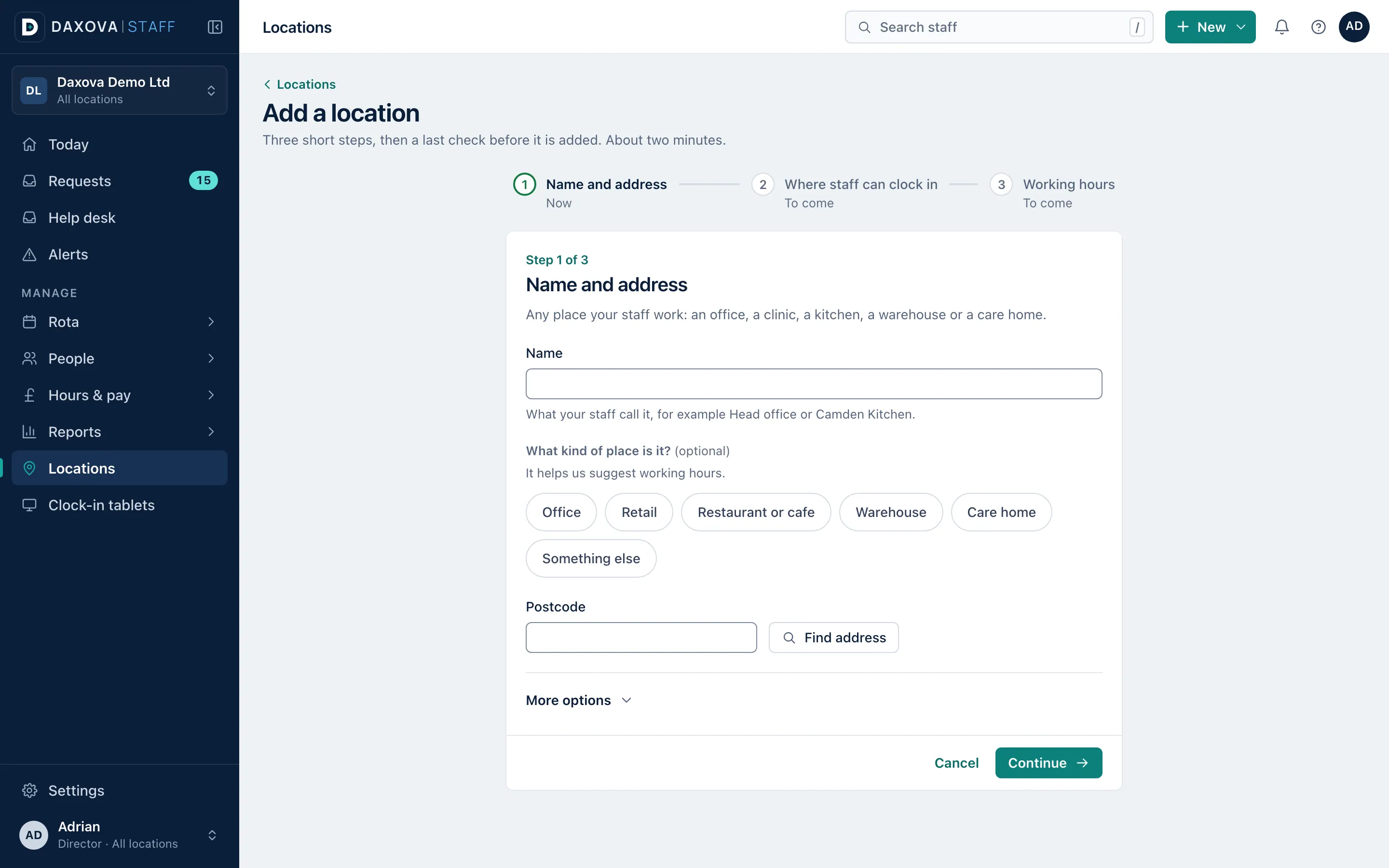
WhereLocationsAdd a location
- Name and address
- What your staff call it, for example Camden High St, and its address. Type the postcode, then press Find address, so the location goes on the map.
- How staff clock in
- The location’s clock-in rule: only on its WiFi, only near it, or anywhere with no check. You can change it at any time.
- Working hours
- The hours it is open, and its bank holidays.
A new location starts as not open yet. When it is ready, open its page, give a reason and tap Open this location. Opening it puts it on Today and Live; until then it shows there only while somebody is in or due in, and its tablets raise no offline alert. Who can clock in where is decided by its clock-in rule either way.
Choose how staff clock in there
The Clock-in rule is on the location’s page. Choose one of three:
- WiFi. Clock-ins only work on the location’s own WiFi, and staff phones need no location permission. The location needs a fixed (static) internet address, or nobody could clock in. At the location, Add this connection adds the one you are on. A location can have up to five WiFi connections, for example a backup line.
- Only near this location. Clock-ins only work within the distance you set from the location’s address. Apps that change a phone’s location are refused.
- Anywhere. No check: staff can clock in on their phone wherever they are.
Every change to the clock-in rule needs a reason, and is kept on the location’s record with your name.
Opening hours and bank holidays
The location’s page shows its Opening hours, Monday to Sunday, and a Director or HR can change them with a reason. Under Bank holidays, choose where the location is: England and Wales, Scotland or Northern Ireland. A new location starts on England and Wales. Holiday requests, the bank holiday rate in pay and wage cost follow it.
On a bank holiday a location keeps its normal opening hours. If it shuts on bank holidays, tick Closed on bank holidays.
Add your staff
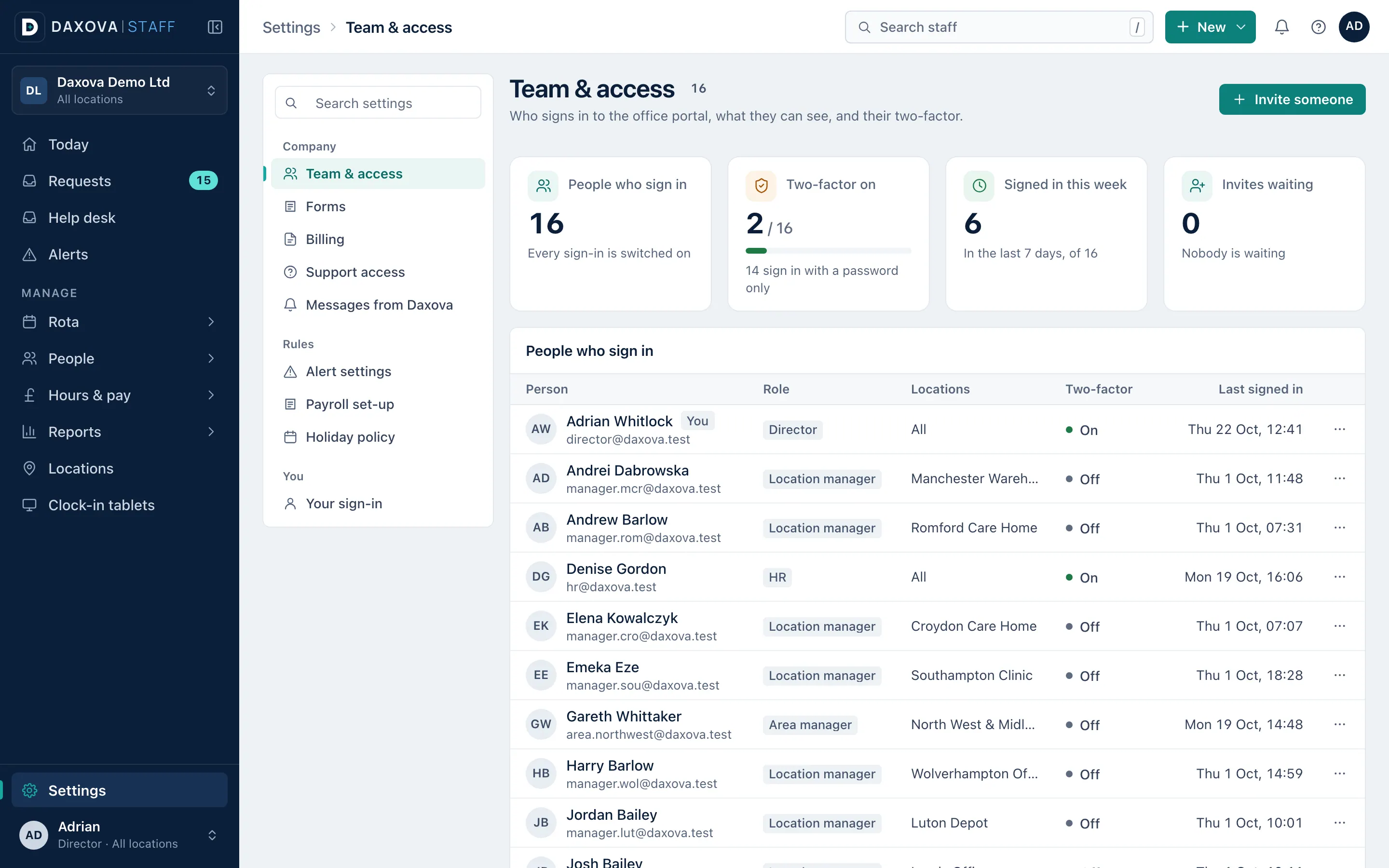
Bring your whole team in from a spreadsheet. On Staff, open Actions and choose Import staff: fill in the template, check it, then add everyone at once. To add one person, HR or a Director presses Add staff (see Add a member of staff):
WherePeopleStaffAdd staff
- Full name
- Their full name.
- Home location
- The location they mostly work at.
- Job title
- Optional.
- Contract type and start date
- Full time, part time, zero hours, fixed term or agency. The start date is today unless you change it.
- Email, mobile, date of birth and NI number
- Optional, and none is needed for the app: they can scan a QR code.
Then press Add staff. Their record opens with what is left to set up. Each person gets a staff code that never changes. New codes start DS-, for example DS-04217. Pay and contracted hours go on the person’s own record, and nobody can set their own. Staff on payroll give their own bank details and tax answers in the app, under Set up your pay.
Weekly hour limits
For student and visa staff, HR or a Director can set a weekly hour limit on the person’s record: 1 to 48 hours a week, halves allowed, with a reason. It is kept with their employment history, and the person then appears in the Hour limits report (step 9).
Invite your managers
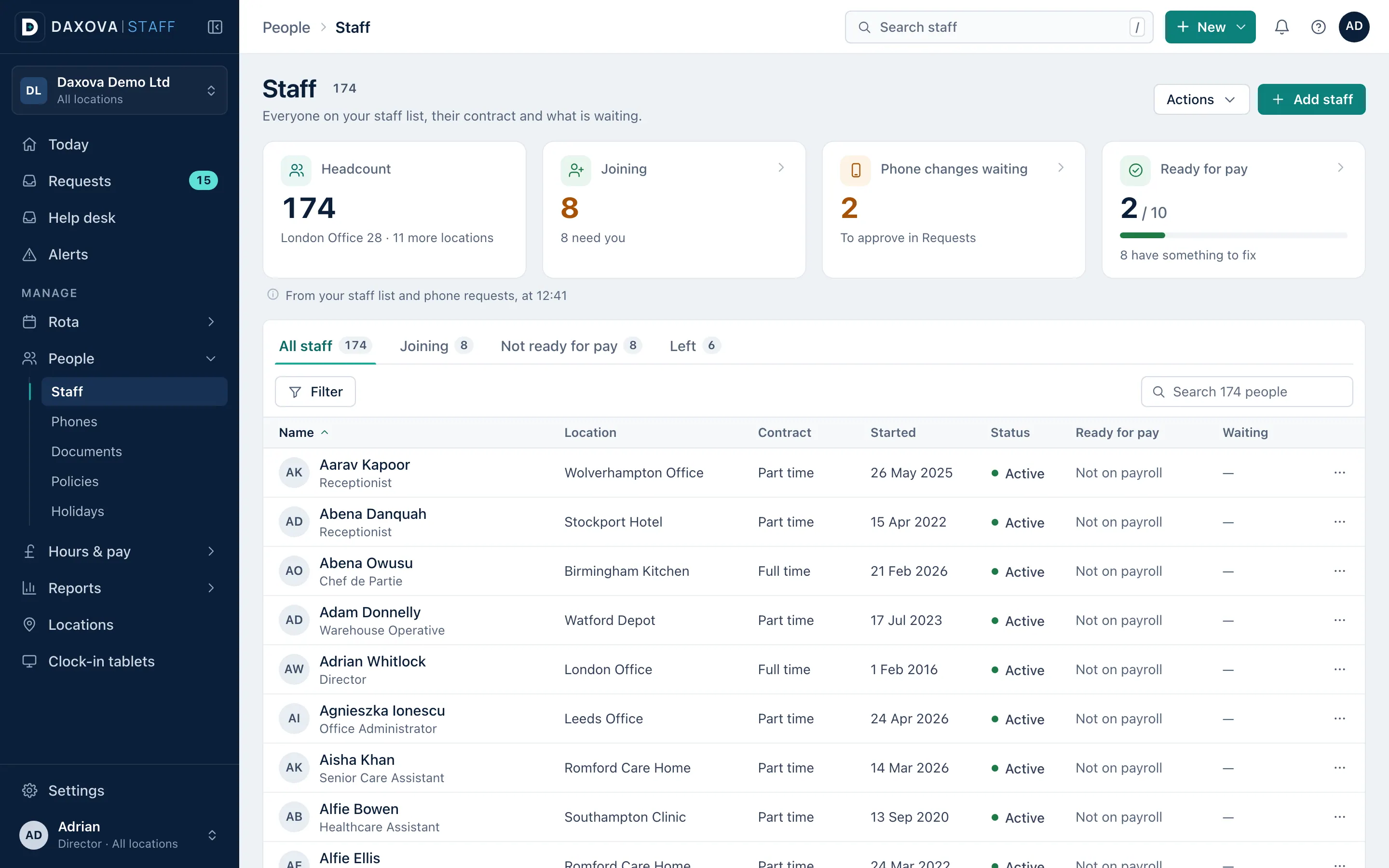
Everyone who uses the office portal, such as HR, area managers and location managers, signs in with their own email address, password and two-factor. A Director or HR invites them:
WhereSettingsTeam & accessInvite someone
- Type their E-mail address and Full name, choose their role, and choose their locations (for a location manager) or areas (for an area manager).
- Tap Make invite link. We also email it to them; if it does not arrive, tap Copy link and send it yourself. The link works once, for 72 hours.
- They open it, choose a password, set up two-factor and save their recovery codes, just as you did in step 1.
Team & access is also where you Reset two-factor for someone with a lost phone, Disable sign-in for someone who leaves (their history is kept), and change someone’s role or locations. You can only give a role at or below your own.
Set up the clock-in tablet
Any tablet or screen with a web browser can be a clocking-in point for one location, and a location can have up to ten. Staff use it with their staff code, or Find your name, and their six-digit passcode. Staff without the app choose their passcode from a passcode link: in Phones, tap Passcode link beside each of them. A Director or HR pairs the tablet:
WhereLocationsThe locationTabletsPair a new tablet
Choose the location, give the tablet a name if you like, tap Make a pairing link, and open the link once in the tablet’s web browser within 60 minutes. Leave the page open and full screen, by the staff door, plugged in and on the location WiFi.
Read the full clock-in tablet guide, with keeping the screen awake and fixes for common problems.

Link staff phones
Each person links one phone to their record, and their clock-ins then work only from that phone.
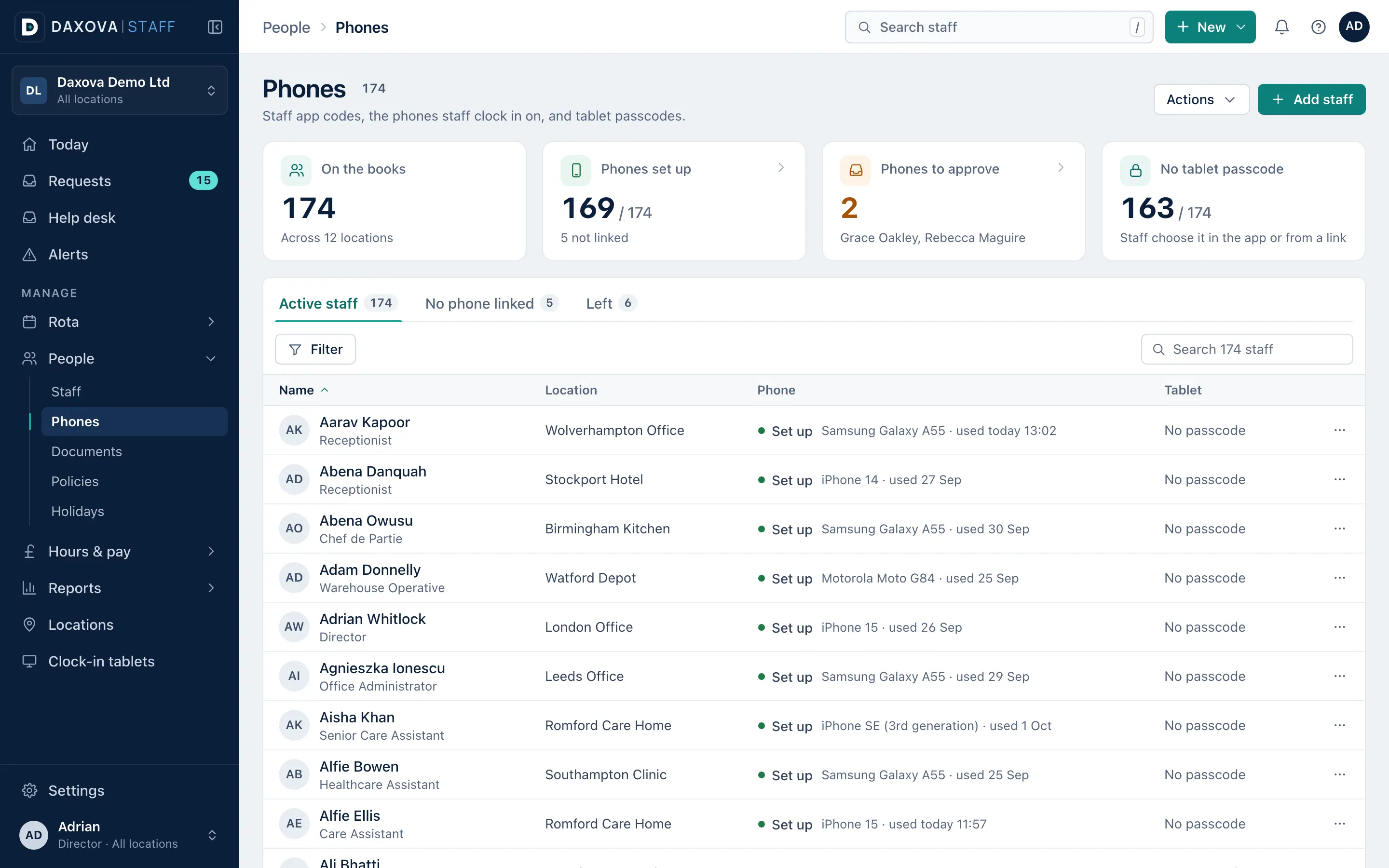
WherePeoplePhones
- Find the person and tap Make an app code. If a phone is already linked, the button is Change phone.
- You get an invite link with a six-digit code in it. It is shown once, and works once, for 72 hours.
- If they are with you, tap Show QR code and let them point their phone’s camera at it. If not, tap Copy a message to send and send it to them by text or email yourself: Daxova does not send anything for you. Either way the staff app opens with everything filled in, and they only choose a passcode. The code stays on your screen too, for typing in by hand.
When someone gets a new phone, use Change phone. Their old phone stops working straight away and is signed out, and you get a new invite link and QR code for the new one. Shifts they have already recorded are not touched.
Today and Live
Today
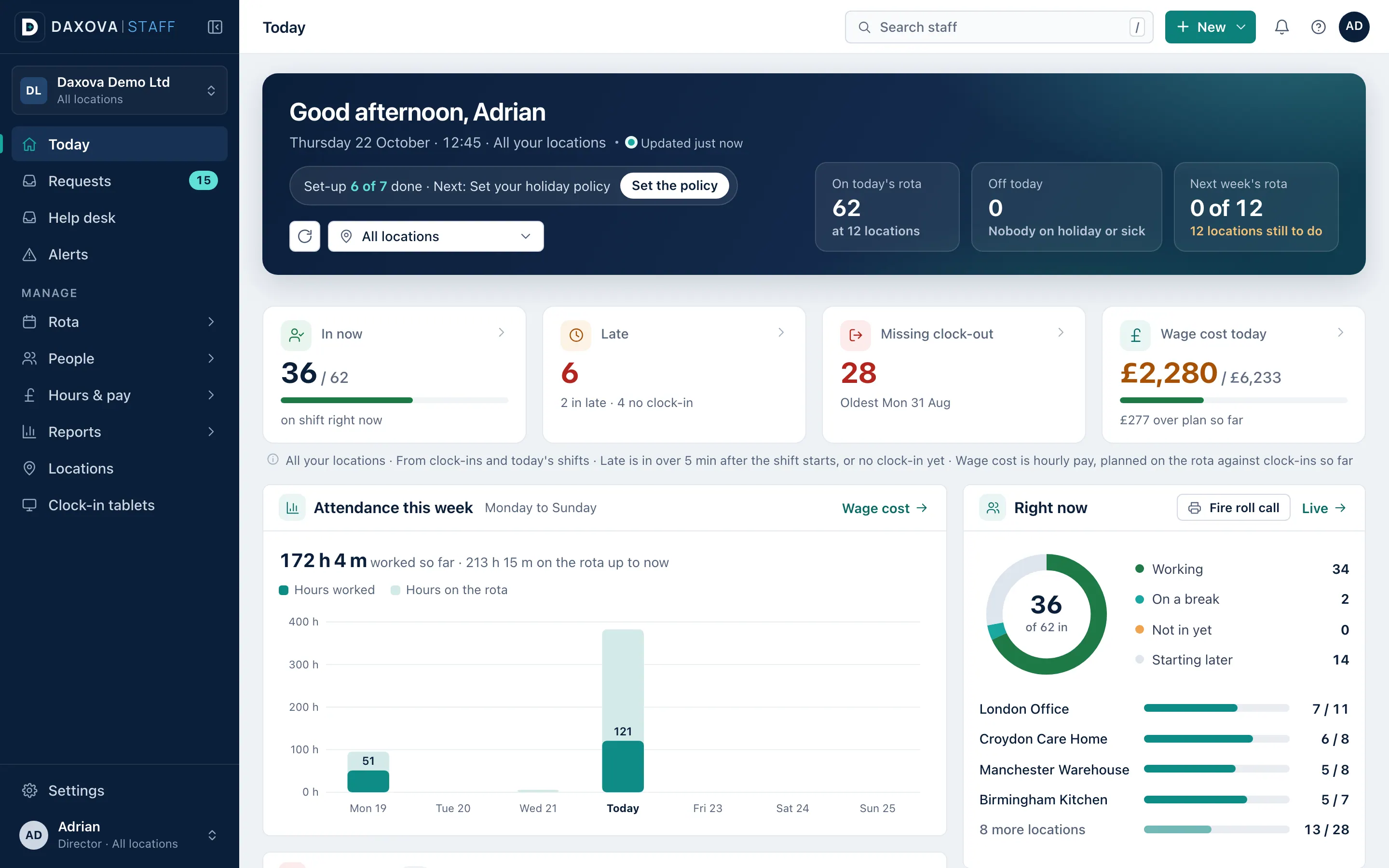
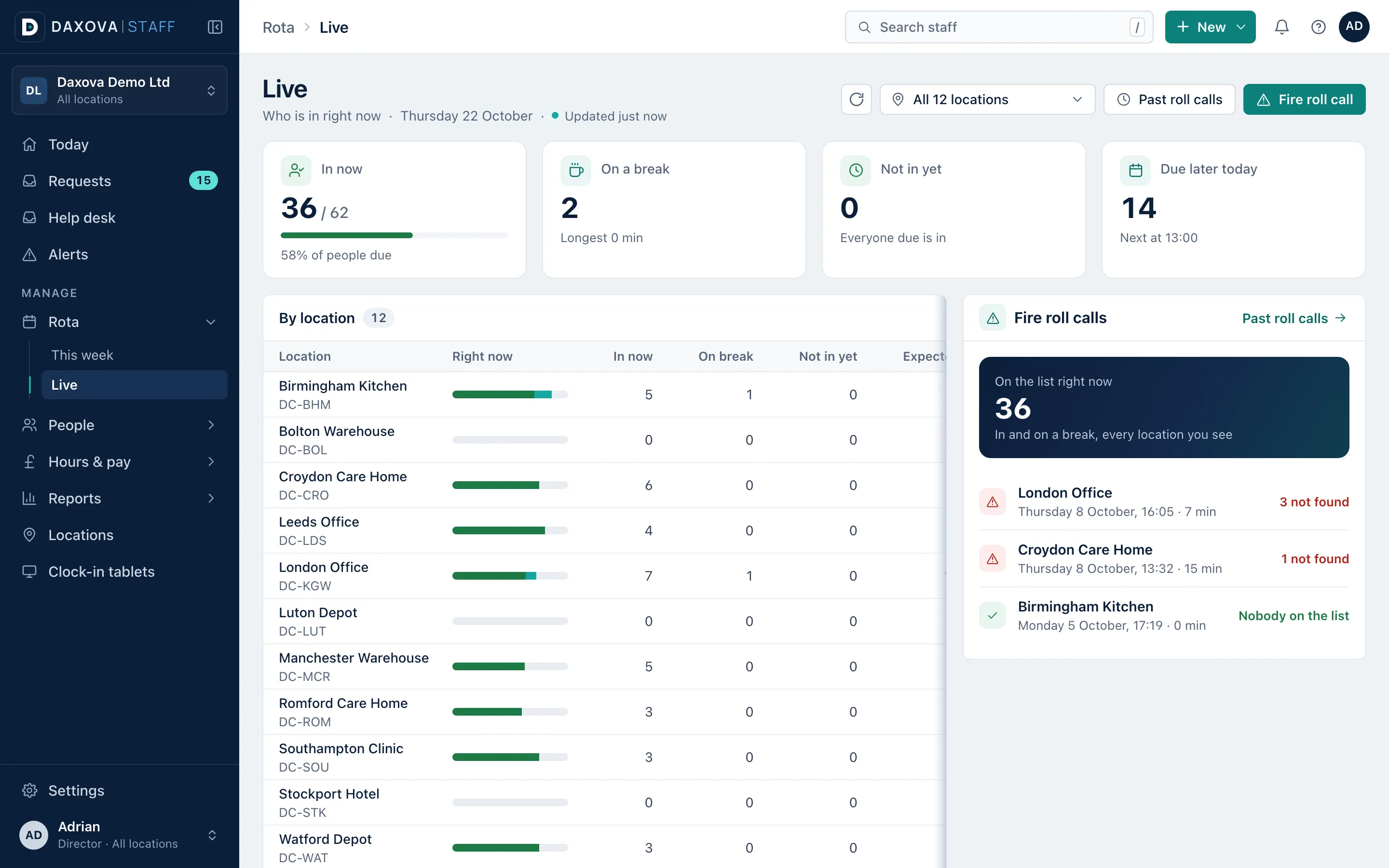
Today opens first. It gives figures for your locations: In now, Late, On break and Missing clock-out. Under them are Who’s in now and Needs you: clock-outs to complete, new starters whose pay details are ready to approve, people whose shift has started without a clock-in, and locations with no shifts set for next week. Choose a location at the top to see just that one. Today updates itself every 30 seconds, as Live does. After 30 minutes without use it pauses until you press Refresh.
Live
Live shows who is in right now, location by location, and reads again every 30 seconds by itself. Each location has a card with In now, On break, Not in yet and Expected today. Below the cards, the people who need a look come first, with their last clock-in, how long ago it was, their shift and the photo from their clock-in. Live is also where you start a fire roll call (step 12).
Read your reports
The reports are under Reports in the menu, and Pay is under Hours & pay. Each covers the locations you look after. Wage cost and Pay show when your company has Pay switched on.
- Late & early
- Clock-ins outside the shift times, after the grace period shown at the top of the report (5 minutes as standard). Late clock-ins and early clock-ins, person by person. Download it as Excel or PDF.
- Total hours
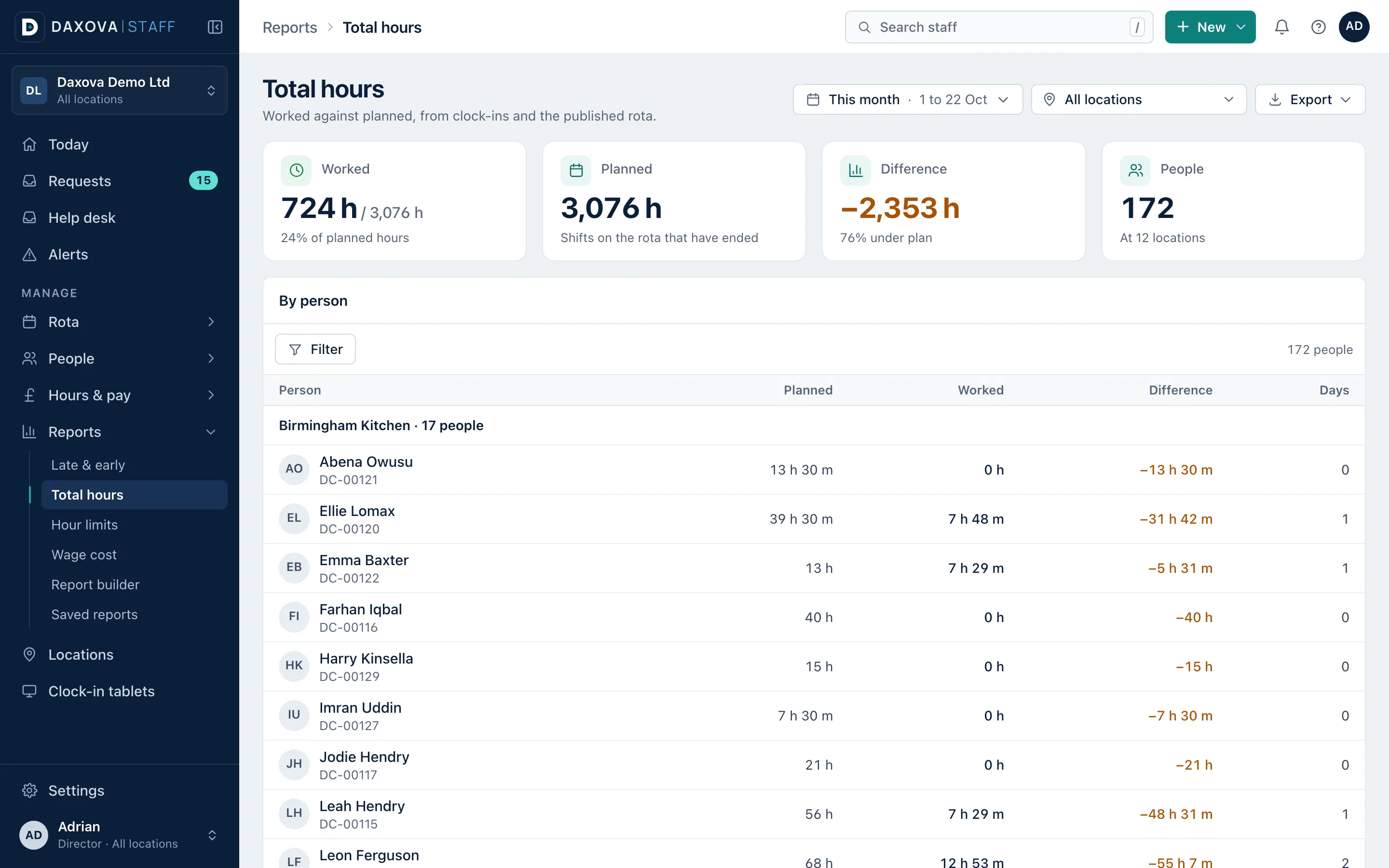
- Hours actually worked, with breaks taken out, beside the shift hours and the difference. Ready to send to your payroll provider. Download it as Excel or PDF.
- Hour limits
- Everyone with a weekly hour limit: hours worked this week, hours still planned, and next week’s rota against the limit. Each person is marked Within limit, Close to limit, At the limit, Over limit or Planned over limit.
- Wage cost
- Planned wage cost from the rota against actual cost from clock-ins, for each location and day, with a weekly budget per location. Managers see location totals. HR and the Director also see each person’s cost and a check against the minimum wage for their age. These are estimates before tax and deductions.
- Pay
- Each pay period on your pay calendar, with an estimate of every person’s gross pay for HR and the Director, and hours for managers. Clear the checks, lock the period and download a payroll CSV for your payroll provider, or run payroll from it in Payroll.
- Payroll
- UK payroll from a locked pay period, for HR and the Director: tax, NI, student loans, statutory pay and pensions, payslips, the bank file and the reports, including the P32 and a journal. Daxova sends the FPS and EPS to HMRC when you choose that on the HMRC page. If you have not chosen it, you or your accountant can send them from the details. £1 per staff member on payroll a month, free during your trial.
Handle alerts
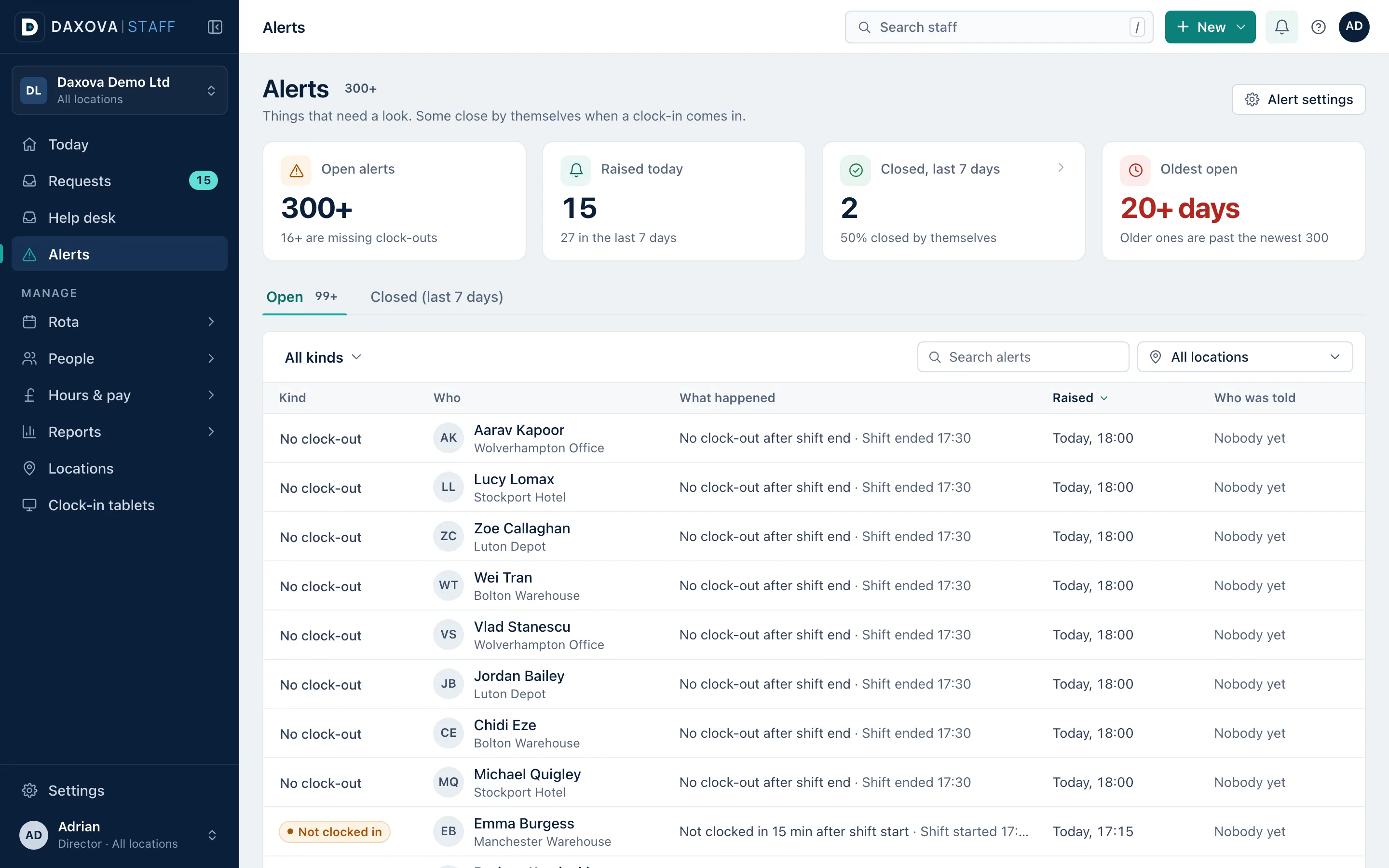
Alerts are notes that something needs a look, never accusations. They are in your inbox:
WhereAlerts
The ones you will see most often:
- Not clocked in a set time after the shift starts
- No clock-out after the shift ends
- A break longer than the location’s limit (60 minutes as standard)
- Clock-ins at two locations closer together than the journey between them takes
- A clock-in tablet that has stopped checking in at an open location (after 15 minutes as standard, during the location’s opening hours or while somebody is on shift)
Some close by themselves, for example once the clock-in comes in or the tablet is back online. For the rest, open the alert to see what the records show, then Close with a note. Location and area managers, HR and the Director can close alerts, and your name and note are kept with it.
Alert settings
Alert settings, at the top of the Alerts page, sets how soon each alert is raised, location by location. Long break and Tablet offline can be switched off for a location. Each change needs a reason.
Fix a missed clock-in
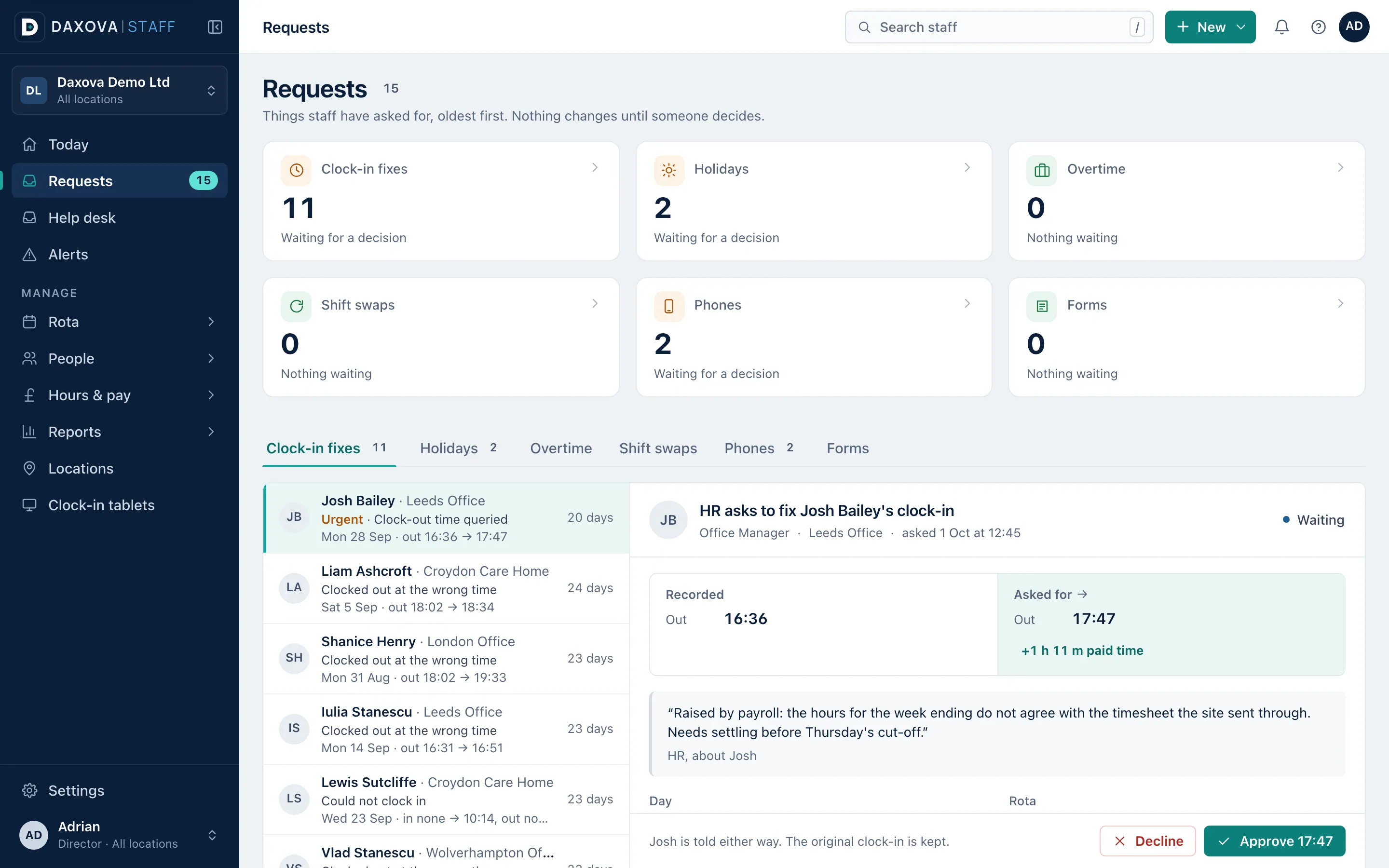
A mistake is fixed with a clock-in fix. The change is added beside the original, and every change is kept with who made it, when and why. The original is never lost.
WhereHours & payEdit clock-ins
- Find the shift. The To complete tab lists every clock-out still to complete. You can also tap Complete on Today. For any other change, use Find a day and choose the location and the day.
- Set the times. Open the shift and set Clock in, Clock out and Breaks (minutes in total). Times are UK time, and a clock-out earlier than the clock-in counts as the next morning.
- Say why. Choose a Reason, add a Note, then Save change.
The reasons to choose from:
- Forgot to clock out
- Phone not with them, or not working
- Location WiFi or signal problem
- The app did not accept the clock-in
- Worked different hours from the shift
- Something else (say what in the note)
You cannot change your own clock-ins: ask another manager, HR or the Director. A Director can make a clock-in fix on their own shift, but it is recorded as a Director self-change and HR is told. Every change from the last 60 days is listed under All edits.
Run a fire roll call
When the alarm goes, open Live on your phone or any screen. Tap Fire roll call at the top of the page.
- Start it. Choose the location, then tap Start fire roll call. You get a named list of everyone clocked in at that moment. Somebody who has not clocked out stays on it for two hours after their shift ends, in case they are still in the building.
- Walk the list at the assembly point. Tap Mark safe for each person you can see, or Off site (phoned) for someone who is away and has told you so by phone.
- End it. Anybody not yet marked is under Still to find. When everybody is accounted for, tap End roll call.
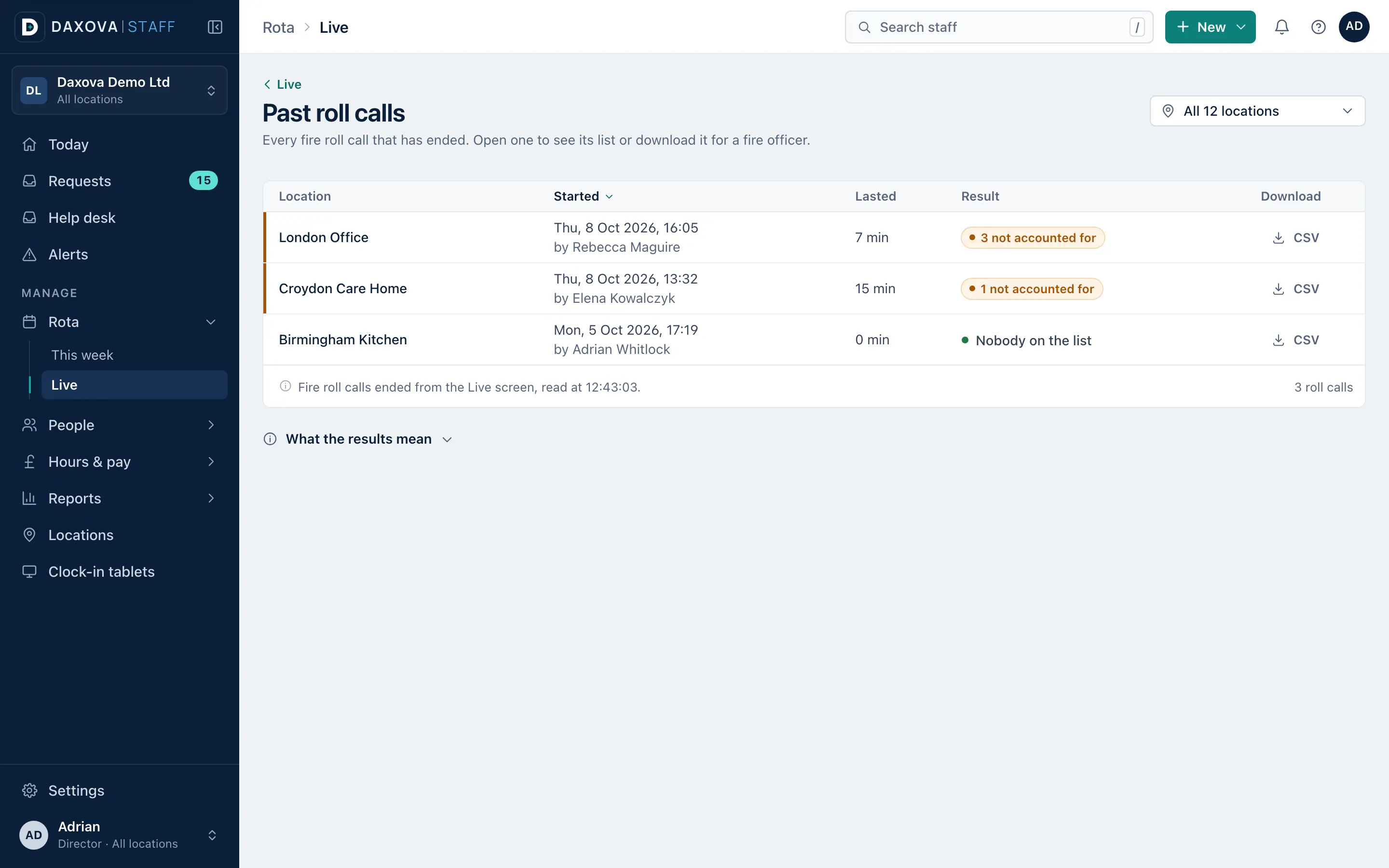
Print list gives you a paper copy. Every roll call is kept: Past roll calls on Live lists them, newest first, with who marked whom and when, and Download CSV for a fire officer.

Questions
Can a manager see only their own location?
Yes. Invite them as a location manager in Team & access and choose their locations. They see only those locations, on every screen and in every report. An area manager sees the locations in their areas.
Can anyone change a clock-in without it showing?
No. There is no edit button for attendance. A clock-in fix is added beside the original with a reason, a note and the name of the person who made it, and the original clock-in is kept.
Why can nobody clock in at my new location?
Check the location’s clock-in rule: the WiFi rule needs the location’s internet address, and the rule to be near the location accepts a clock-in only within the distance set from its address. Check too that the location is on the person’s record. A location’s status, open or not yet open, does not stop clock-ins. If it still does not work, email helpdesk@daxova.co.uk and we will check it with you.
I have lost the phone with my authenticator app. What now?
Sign in with one of your recovery codes. Then ask another Director, or HR if you are not a Director, to reset your two-factor in Team & access, and set it up again at your next sign-in.
Do managers need the staff app?
No. Managers use the web portal at staff.daxova.co.uk, in the web browser on a computer, tablet or phone. The app is for clocking in and out.